This page shows how to style CometChat UI Kit components in Android by overriding XML theme attributes. It is written for Android developers customizing UI Kit v5.

When to use this

  • You want UI Kit screens (lists, headers, and message UI) to match your brand colors and typography.
  • You need to customize calling and AI UI components without rebuilding UI from scratch.
  • You prefer centralized styling through res/values/themes.xml.
  • You want consistent iconography by supplying your own vector drawables.
  • You need a repeatable pattern that an AI coding agent can apply across components.

Prerequisites

  • CometChat Android UI Kit v5 installed in your app.
  • Your app theme extends CometChatTheme.DayNight.
  • You can edit res/values/themes.xml in your Android module.
  • You can add drawable resources to res/drawable/ when needed.
  • You rebuild or sync Gradle after updating styles.

Quick start

  1. Open res/values/themes.xml.
  2. Create a custom style that extends the component’s parent style (for example, CometChatConversationsStyle).
  3. Assign your custom style to AppTheme using the component’s theme attribute (for example, cometchatConversationsStyle).
  4. Sync Gradle and rebuild the app.
  5. Navigate to the screen that uses the component and confirm the visual change.
res/values/themes.xml
<resources>
    <style name="CustomAvatarStyle" parent="CometChatAvatarStyle">
        <item name="cometchatAvatarStrokeRadius">8dp</item>
        <item name="cometchatAvatarBackgroundColor">#FBAA75</item>
    </style>

    <style name="CustomConversationsStyle" parent="CometChatConversationsStyle">
        <item name="cometchatConversationsAvatarStyle">@style/CustomAvatarStyle</item>
    </style>

    <style name="AppTheme" parent="CometChatTheme.DayNight">
        <item name="cometchatConversationsStyle">@style/CustomConversationsStyle</item>
    </style>
</resources>
  • What this does: applies a custom avatar style to the Conversations list through your app theme.
  • Verify: open the Conversations screen and confirm the avatar background and stroke radius changed.

Core concepts

  • AppTheme is the single place where UI Kit style hooks are wired.
  • Each UI Kit component has a parent style (for example, CometChatMessageListStyle) and a theme attribute (for example, cometchatMessageListStyle).
  • Custom styles must extend the correct parent style to inherit default behavior.
  • Drawable overrides (for example, custom icons) live in res/drawable/ and are referenced from styles.
  • Fonts can be set once at the theme level and reused across components.
res/values/themes.xml
<resources>
    <style name="AppTheme" parent="CometChatTheme.DayNight">
        <item name="cometchatFontBold">@font/times_new_roman_bold</item>
        <item name="cometchatFontMedium">@font/times_new_roman</item>
        <item name="cometchatFontRegular">@font/times_new_roman</item>
    </style>
</resources>
  • What this does: sets UI Kit typography once so you do not repeat font assignments in every component.

Implementation

Use the following sections to style each component. Each section lists what changes, where to change it, the exact code to paste, and how to verify the result.

Chat lists and messaging UI

Conversations

The CometChatConversations component renders the recent chats list.
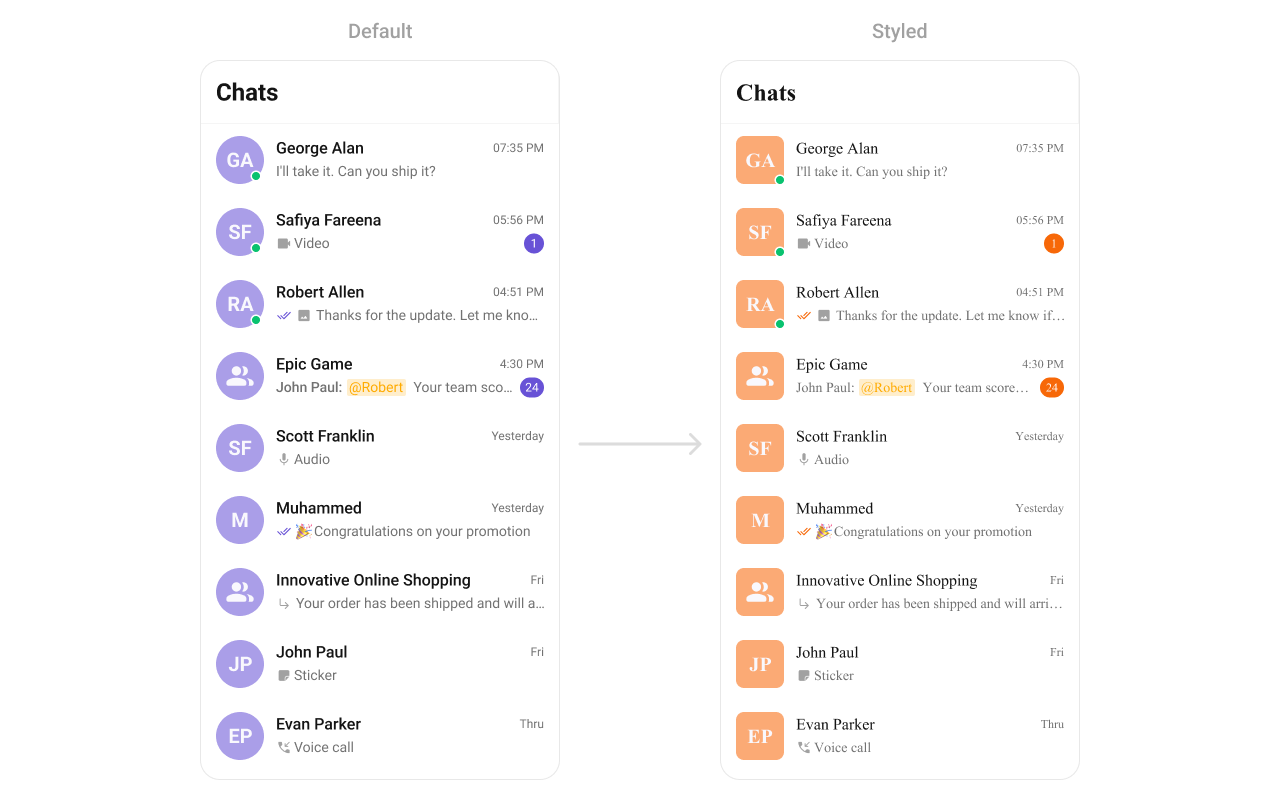
What you’re changing: avatar and badge styling in the conversation list.
  • Where to change it: res/values/themes.xml
  • Applies to: CometChatConversations
  • Default behavior: UI Kit default avatar and badge styles.
  • Override: set cometchatConversationsStyle in AppTheme.
  • Code:
res/values/themes.xml
<resources>
    <style name="CustomAvatarStyle" parent="CometChatAvatarStyle">
        <item name="cometchatAvatarStrokeRadius">8dp</item>
        <item name="cometchatAvatarBackgroundColor">#FBAA75</item>
    </style>

    <style name="CustomBadgeCountStyle" parent="CometChatBadgeStyle">
        <item name="cometchatBadgeBackgroundColor">#F76808</item>
        <item name="cometchatBadgeTextColor">#FFFFFF</item>
    </style>

    <style name="CustomConversationsStyle" parent="CometChatConversationsStyle">
        <item name="cometchatConversationsAvatarStyle">@style/CustomAvatarStyle</item>
        <item name="cometchatConversationsBadgeStyle">@style/CustomBadgeCountStyle</item>
    </style>

    <style name="AppTheme" parent="CometChatTheme.DayNight">
        <item name="cometchatConversationsStyle">@style/CustomConversationsStyle</item>
    </style>
</resources>
  • What this does: applies custom avatar and badge styles to conversation list items.
  • Verify: the Conversations list shows updated avatar backgrounds and badge colors.
Attribute references:

Users

The CometChatUsers component renders a list of users for selection or navigation.
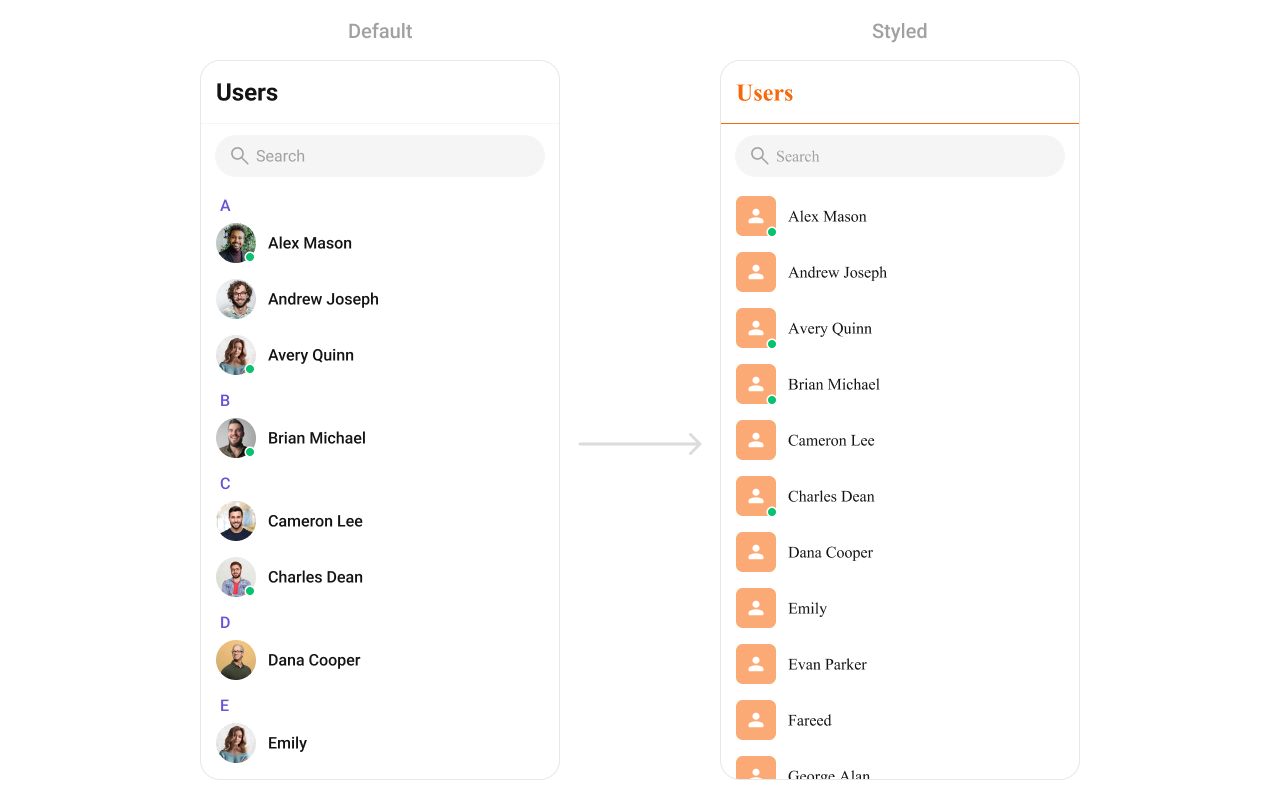
What you’re changing: user list avatar and separator styling.
  • Where to change it: res/values/themes.xml
  • Applies to: CometChatUsers
  • Default behavior: UI Kit default avatar and list styling.
  • Override: set cometchatUsersStyle in AppTheme.
  • Code:
res/values/themes.xml
<resources>
    <style name="CustomAvatarStyle" parent="CometChatAvatarStyle">
        <item name="cometchatAvatarStrokeRadius">8dp</item>
        <item name="cometchatAvatarBackgroundColor">#FBAA75</item>
    </style>

    <style name="CustomUsersStyle" parent="CometChatUsersStyle">
        <item name="cometchatUsersAvatarStyle">@style/CustomAvatarStyle</item>
        <item name="cometchatUsersSeparatorColor">#F76808</item>
        <item name="cometchatUsersTitleTextColor">#F76808</item>
    </style>

    <style name="AppTheme" parent="CometChatTheme.DayNight">
        <item name="cometchatUsersStyle">@style/CustomUsersStyle</item>
    </style>
</resources>
  • What this does: applies avatar and separator color overrides to the user list.
  • Verify: the Users list shows updated avatar backgrounds and separator color.
Attribute references:

Groups

The CometChatGroups component renders group items and their summary data.
What you’re changing: group list avatar and typography colors.
  • Where to change it: res/values/themes.xml
  • Applies to: CometChatGroups
  • Default behavior: UI Kit default group item styling.
  • Override: set cometchatGroupsStyle in AppTheme.
  • Code:
res/values/themes.xml
<resources>
    <style name="CustomAvatarStyle" parent="CometChatAvatarStyle">
        <item name="cometchatAvatarStrokeRadius">8dp</item>
        <item name="cometchatAvatarBackgroundColor">#FBAA75</item>
    </style>

    <style name="CustomGroupsStyle" parent="CometChatGroupsStyle">
        <item name="cometchatGroupsAvatar">@style/CustomAvatarStyle</item>
        <item name="cometchatGroupsSeparatorColor">#F76808</item>
        <item name="cometchatGroupsTitleTextColor">#F76808</item>
    </style>

    <style name="AppTheme" parent="CometChatTheme.DayNight">
        <item name="cometchatGroupsStyle">@style/CustomGroupsStyle</item>
    </style>
</resources>
  • What this does: styles group avatars and separators in the Groups list.
  • Verify: the Groups list shows the updated avatar background and title color.
Attribute references:

Message Header

The CometChatMessageHeader component renders the title, avatar, and action icons for a chat.

What you’re changing: title text color, avatar styling, and call button icons.
  • Where to change it: res/values/themes.xml
  • Applies to: CometChatMessageHeader
  • Default behavior: UI Kit default header typography and icons.
  • Override: set cometchatMessageHeaderStyle in AppTheme.
  • Code:
res/values/themes.xml
<resources>
    <style name="CustomAvatarStyle" parent="CometChatAvatarStyle">
        <item name="cometchatAvatarStrokeRadius">8dp</item>
        <item name="cometchatAvatarBackgroundColor">#FBAA75</item>
    </style>

    <style name="CustomCallButtonStyle" parent="CometChatCallButtonsStyle">
        <item name="cometchatCallButtonsVideoCallIconTint">#F76808</item>
        <item name="cometchatCallButtonsVoiceCallIconTint">#F76808</item>
    </style>

    <style name="CustomMessageHeaderStyle" parent="CometChatMessageHeaderStyle">
        <item name="cometchatMessageHeaderTitleTextColor">#F76808</item>
        <item name="cometchatMessageHeaderAvatarStyle">@style/CustomAvatarStyle</item>
        <item name="cometchatMessageHeaderCallButtonsStyle">@style/CustomCallButtonStyle</item>
    </style>

    <style name="AppTheme" parent="CometChatTheme.DayNight">
        <item name="cometchatMessageHeaderStyle">@style/CustomMessageHeaderStyle</item>
    </style>
</resources>
  • What this does: applies custom title color, avatar styling, and call button tints in the message header.
  • Verify: open a conversation and check the header text and call button icons.
Attribute references:

Message List

The CometChatMessageList component renders conversation messages and their bubble styles.
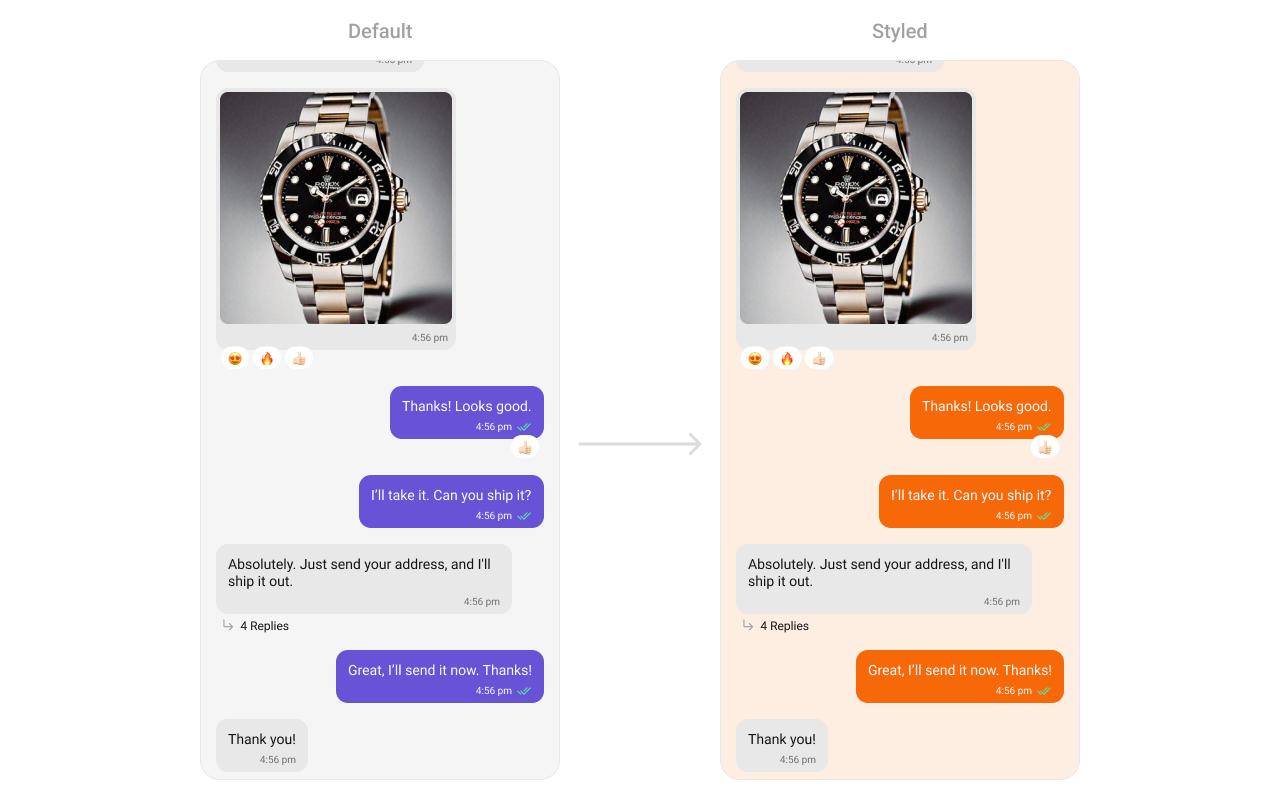
What you’re changing: message list background and outgoing bubble styling.
  • Where to change it: res/values/themes.xml
  • Applies to: CometChatMessageList
  • Default behavior: UI Kit default message list background and bubble colors.
  • Override: set cometchatMessageListStyle in AppTheme.
  • Code:
res/values/themes.xml
<resources>
    <style name="CustomOutgoingMessageBubbleStyle" parent="CometChatOutgoingMessageBubbleStyle">
        <item name="cometchatMessageBubbleBackgroundColor">#F76808</item>
    </style>

    <style name="CustomCometChatMessageListStyle" parent="CometChatMessageListStyle">
        <item name="cometchatMessageListBackgroundColor">#FEEDE1</item>
        <item name="cometchatMessageListOutgoingMessageBubbleStyle">@style/CustomOutgoingMessageBubbleStyle</item>
    </style>

    <style name="AppTheme" parent="CometChatTheme.DayNight">
        <item name="cometchatMessageListStyle">@style/CustomCometChatMessageListStyle</item>
    </style>
</resources>
  • What this does: changes the message list background and outgoing bubble color.
  • Verify: open a conversation and check outgoing message bubble colors.
Attribute references:

Message Composer

The CometChatMessageComposer component renders the input box and action buttons.

What you’re changing: send button icon and composer icon tints.
  • Where to change it: res/drawable/active_send_button.xml and res/values/themes.xml
  • Applies to: CometChatMessageComposer
  • Default behavior: UI Kit default composer icons and send button drawable.
  • Override: set cometchatMessageComposerStyle in AppTheme and reference a custom drawable.
  • Code:
res/drawable/active_send_button.xml
<vector xmlns:android="http://schemas.android.com/apk/res/android"
    android:width="32dp"
    android:height="32dp"
    android:viewportWidth="32"
    android:viewportHeight="32">
    <path
        android:fillColor="#F76808"
        android:pathData="M16,0L16,0A16,16 0,0 1,32 16L32,16A16,16 0,0 1,16 32L16,32A16,16 0,0 1,0 16L0,16A16,16 0,0 1,16 0z" />
    <group>
        <clip-path android:pathData="M4,4h24v24h-24z" />
        <path
            android:fillColor="?attr/cometchatColorWhite"
            android:pathData="M10.767,22.723C10.465,22.843 10.178,22.818 9.907,22.646C9.636,22.474 9.5,22.223 9.5,21.894V17.673L16.423,16L9.5,14.327V10.106C9.5,9.777 9.636,9.526 9.907,9.354C10.178,9.182 10.465,9.157 10.767,9.277L24.723,15.161C25.095,15.328 25.281,15.608 25.281,16.002C25.281,16.395 25.095,16.674 24.723,16.838L10.767,22.723Z" />
    </group>
</vector>
  • What this does: defines a custom circular send button drawable.
  • Code:
res/values/themes.xml
<resources>
    <style name="CustomMessageComposerStyle" parent="CometChatMessageComposerStyle">
        <item name="cometchatMessageComposerAttachmentIconTint">#F76808</item>
        <item name="cometchatMessageComposerVoiceRecordingIconTint">#F76808</item>
        <item name="cometchatMessageComposerActiveStickerIconTint">#F76808</item>
        <item name="cometchatMessageComposerInactiveStickerIconTint">#F76808</item>
        <item name="cometchatMessageComposerAIIconTint">#F76808</item>
        <item name="cometchatMessageComposerActiveSendButtonDrawable">@drawable/active_send_button</item>
    </style>

    <style name="AppTheme" parent="CometChatTheme.DayNight">
        <item name="cometchatMessageComposerStyle">@style/CustomMessageComposerStyle</item>
    </style>
</resources>
  • What this does: applies custom icon tints and the active send button drawable to the composer.
  • Verify: the composer shows the custom send button and tinted icons.
Attribute references:

Group Members

The CometChatGroupMembers component lists users inside a group.
What you’re changing: group member list avatars, separators, and back icon tint.
  • Where to change it: res/values/themes.xml
  • Applies to: CometChatGroupMembers
  • Default behavior: UI Kit default list styling.
  • Override: set cometchatGroupMembersStyle in AppTheme.
  • Code:
res/values/themes.xml
<resources>
    <style name="CustomAvatarStyle" parent="CometChatAvatarStyle">
        <item name="cometchatAvatarStrokeRadius">8dp</item>
        <item name="cometchatAvatarBackgroundColor">#FBAA75</item>
    </style>

    <style name="CustomGroupMembersStyle" parent="CometChatGroupMembersStyle">
        <item name="cometchatGroupMembersAvatarStyle">@style/CustomAvatarStyle</item>
        <item name="cometchatGroupMembersSeparatorColor">#F76808</item>
        <item name="cometchatGroupMembersTitleTextColor">#F76808</item>
        <item name="cometchatGroupMembersBackIconTint">#F76808</item>
    </style>

    <style name="AppTheme" parent="CometChatTheme.DayNight">
        <item name="cometchatGroupMembersStyle">@style/CustomGroupMembersStyle</item>
        <item name="cometchatPrimaryColor">#F76808</item>
    </style>
</resources>
  • What this does: applies custom avatar and separator styling to the group members list.
  • Verify: the group members screen shows updated avatar and separator colors.
Attribute references:

Thread Header

The CometChatThreadHeader component renders the parent message preview in threaded views.
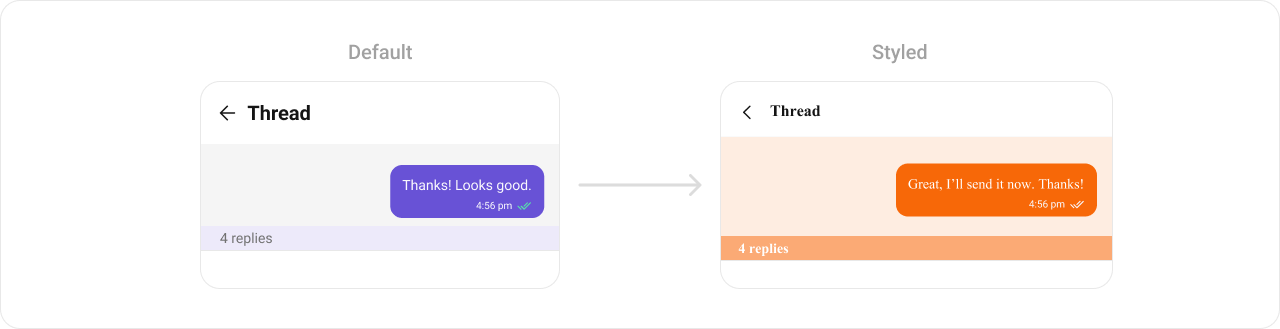
What you’re changing: thread header bubble colors and reply count styling.
  • Where to change it: res/values/themes.xml
  • Applies to: CometChatThreadHeader
  • Default behavior: UI Kit default thread header styling.
  • Override: set cometchatThreadHeaderStyle in AppTheme.
  • Code:
res/values/themes.xml
<resources>
    <style name="CustomOutgoingMessageBubbleStyle" parent="CometChatOutgoingMessageBubbleStyle">
        <item name="cometchatMessageBubbleBackgroundColor">#F76808</item>
    </style>

    <style name="CustomIncomingMessageBubbleStyle" parent="CometChatIncomingMessageBubbleStyle">
        <item name="cometchatMessageBubbleBackgroundColor">#F76808</item>
    </style>

    <style name="CustomThreadHeaderStyle" parent="CometChatThreadHeaderStyle">
        <item name="cometchatThreadHeaderOutgoingMessageBubbleStyle">@style/CustomOutgoingMessageBubbleStyle</item>
        <item name="cometchatThreadHeaderIncomingMessageBubbleStyle">@style/CustomIncomingMessageBubbleStyle</item>
        <item name="cometchatThreadHeaderBackgroundColor">#FEEDE1</item>
        <item name="cometchatThreadHeaderReplyCountTextColor">#F76808</item>
        <item name="cometchatThreadHeaderReplyCountBackgroundColor">#FEEDE1</item>
    </style>

    <style name="AppTheme" parent="CometChatTheme.DayNight">
        <item name="cometchatThreadHeaderStyle">@style/CustomThreadHeaderStyle</item>
    </style>
</resources>
  • What this does: customizes thread header bubble colors and reply count styling.
  • Verify: open a thread and confirm the header background and reply count colors.
Attribute references: The CometChatSearch component provides cross-conversation and message search UI.
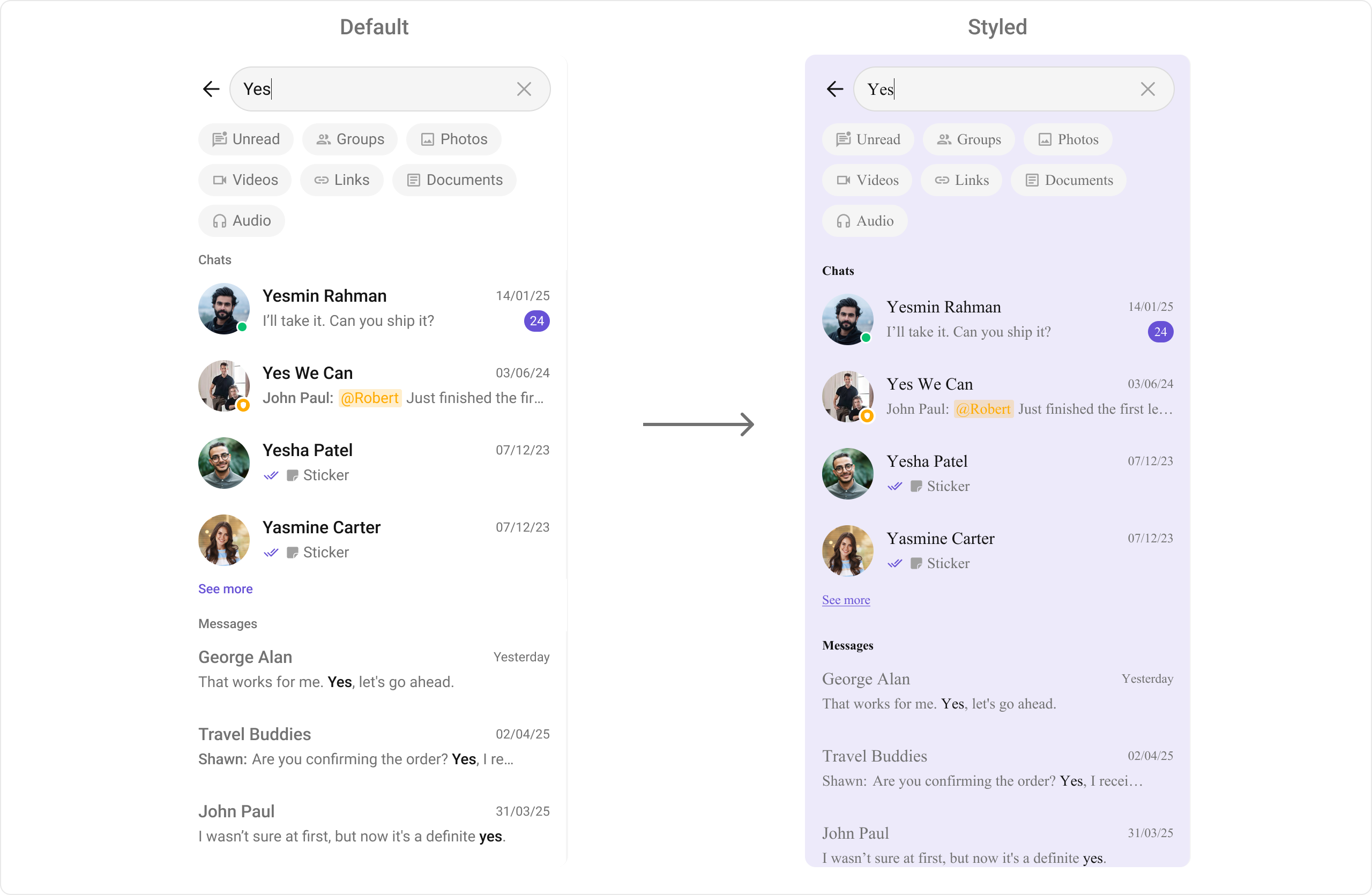
What you’re changing: search background and typography styles.
  • Where to change it: res/values/themes.xml
  • Applies to: CometChatSearch
  • Default behavior: UI Kit default search colors and text appearance.
  • Override: set cometchatSearchStyle in AppTheme.
  • Code:
res/values/themes.xml
<resources>
    <style name="TextStyleTimesNewRoman">
        <item name="android:fontFamily">@font/times_new_roman_regular</item>
    </style>

    <style name="CustomSearchStyle" parent="CometChatSearchStyle">
        <item name="cometchatSearchBackgroundColor">#EDEAFA</item>
        <item name="cometchatSearchFilterChipTextAppearance">@style/TextStyleTimesNewRoman</item>
        <item name="cometchatSearchSectionHeaderTextAppearance">@style/TextStyleTimesNewRoman</item>
        <item name="cometchatSearchSectionHeaderBackgroundColor">#EDEAFA</item>
        <item name="cometchatSearchConversationItemBackgroundColor">#EDEAFA</item>
        <item name="cometchatSearchConversationSubtitleTextAppearance">@style/TextStyleTimesNewRoman</item>
        <item name="cometchatSearchConversationTitleTextAppearance">@style/TextStyleTimesNewRoman</item>
        <item name="cometchatSearchConversationTimestampTextAppearance">?attr/cometchatTextAppearanceCaption1Bold</item>
        <item name="cometchatSearchSeeMoreTextAppearance">@style/TextStyleTimesNewRoman</item>
        <item name="cometchatSearchMessageItemBackgroundColor">#EDEAFA</item>
        <item name="cometchatSearchMessageTitleTextAppearance">@style/TextStyleTimesNewRoman</item>
        <item name="cometchatSearchMessageSubtitleTextAppearance">@style/TextStyleTimesNewRoman</item>
        <item name="cometchatSearchMessageTimestampTextAppearance">@style/TextStyleTimesNewRoman</item>
        <item name="cometchatSearchBarTextAppearance">@style/TextStyleTimesNewRoman</item>
    </style>

    <style name="AppTheme" parent="CometChatTheme.DayNight">
        <item name="cometchatSearchStyle">@style/CustomSearchStyle</item>
    </style>
</resources>
  • What this does: applies custom search colors and text styles across search UI sections.
  • Verify: open Search and check section headers, chips, and list items.
Attribute references:

Message Information

The CometChatMessageInformation component displays message metadata such as delivery and read status.
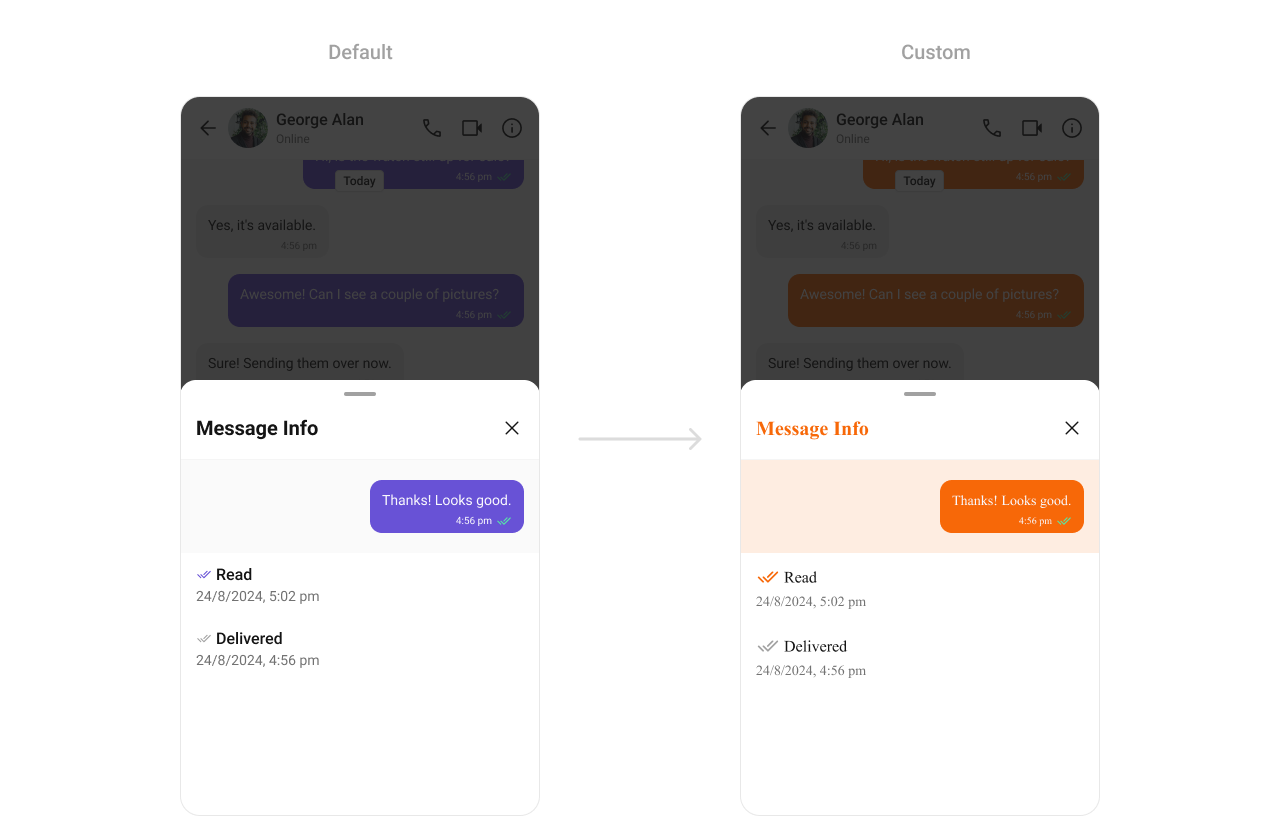
What you’re changing: message information styling for metadata views.
  • Where to change it: res/values/themes.xml
  • Applies to: CometChatMessageInformation
  • Default behavior: UI Kit default metadata styling.
  • Override: set cometchatMessageInformationStyle in AppTheme.
  • Code:
res/values/themes.xml
<resources>
    <style name="CustomMessageInformationStyle" parent="CometChatMessageInformationStyle">
        <!-- Add overrides from attr_cometchat_message_information.xml -->
    </style>

    <style name="AppTheme" parent="CometChatTheme.DayNight">
        <item name="cometchatMessageInformationStyle">@style/CustomMessageInformationStyle</item>
    </style>
</resources>
  • What this does: wires a custom Message Information style so you can override specific metadata attributes.
  • Verify: open Message Information and confirm your overrides apply.
Attribute references:

Message Option Sheet

The CometChatMessageOptionSheet component is the action menu for message-level actions.
What you’re changing: option sheet background and icon tint.
  • Where to change it: res/values/themes.xml
  • Applies to: CometChatMessageOptionSheet
  • Default behavior: UI Kit default option sheet styling.
  • Override: set cometchatMessageOptionSheetStyle in AppTheme.
  • Code:
res/values/themes.xml
<resources>
    <style name="CustomMessageOptionSheetStyle" parent="CometChatMessageOptionSheetStyle">
        <item name="cometchatMessageOptionSheetIconTint">#F76808</item>
        <item name="cometchatMessageOptionSheetBackgroundColor">#FFF9F5</item>
    </style>

    <style name="AppTheme" parent="CometChatTheme.DayNight">
        <item name="cometchatMessageOptionSheetStyle">@style/CustomMessageOptionSheetStyle</item>
    </style>
</resources>
  • What this does: updates message option sheet icon tint and background color.
  • Verify: long-press a message and confirm the option sheet styling.
Attribute references:

Attachment Option Sheet

The CometChatAttachmentOptionSheet component renders the attachment picker.
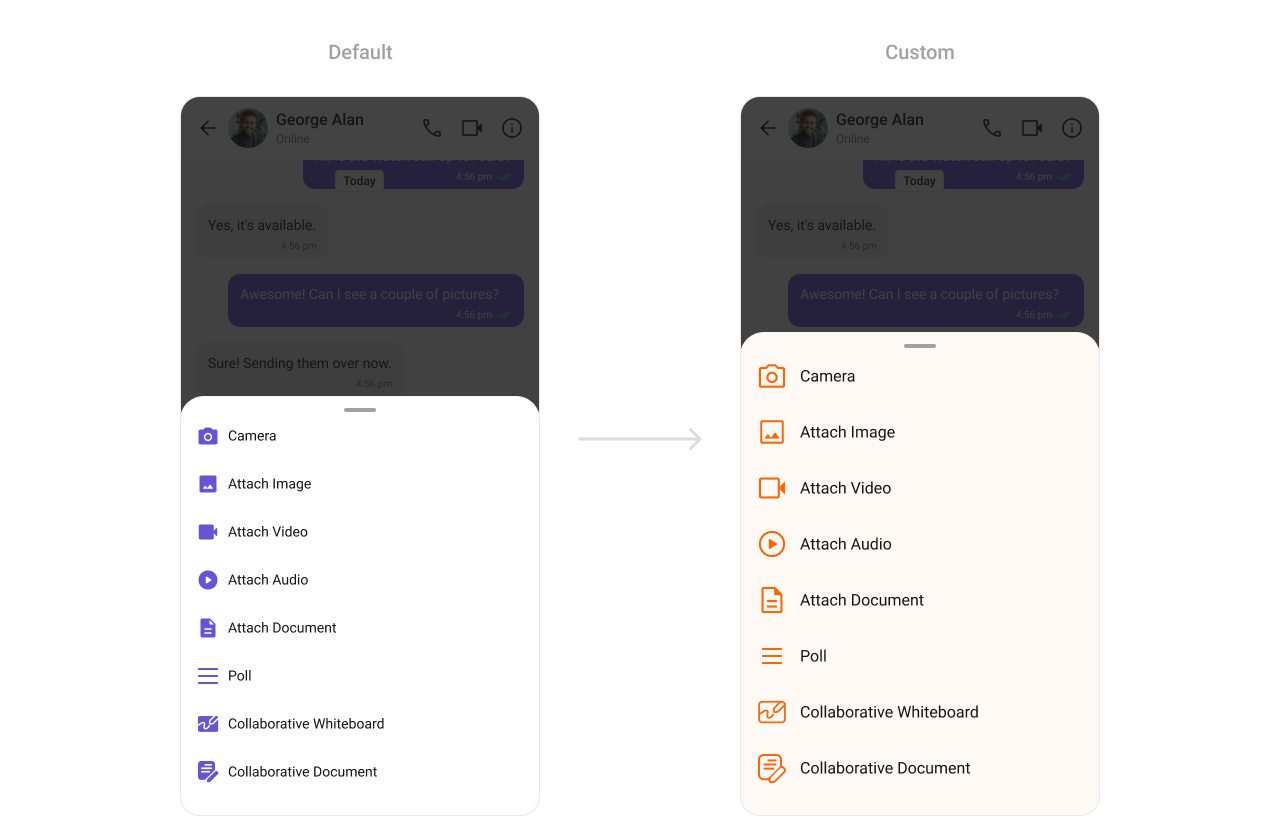
What you’re changing: attachment option sheet background and icon tint.
  • Where to change it: res/values/themes.xml
  • Applies to: CometChatAttachmentOptionSheet
  • Default behavior: UI Kit default attachment sheet styling.
  • Override: set cometchatAttachmentOptionSheetStyle in AppTheme.
  • Code:
res/values/themes.xml
<resources>
    <style name="CustomAttachmentOptionSheetStyle" parent="CometChatAttachmentOptionSheetStyle">
        <item name="cometchatAttachmentOptionSheetBackgroundColor">#FFF9F5</item>
        <item name="cometchatAttachmentOptionSheetIconTint">#F76808</item>
    </style>

    <style name="AppTheme" parent="CometChatTheme.DayNight">
        <item name="cometchatAttachmentOptionSheetStyle">@style/CustomAttachmentOptionSheetStyle</item>
    </style>
</resources>
  • What this does: applies custom colors to the attachment picker sheet.
  • Verify: open the attachment menu and confirm background and icons.
Attribute references:

Mentions

The CometChatMentions styling controls how user mentions appear inside messages.
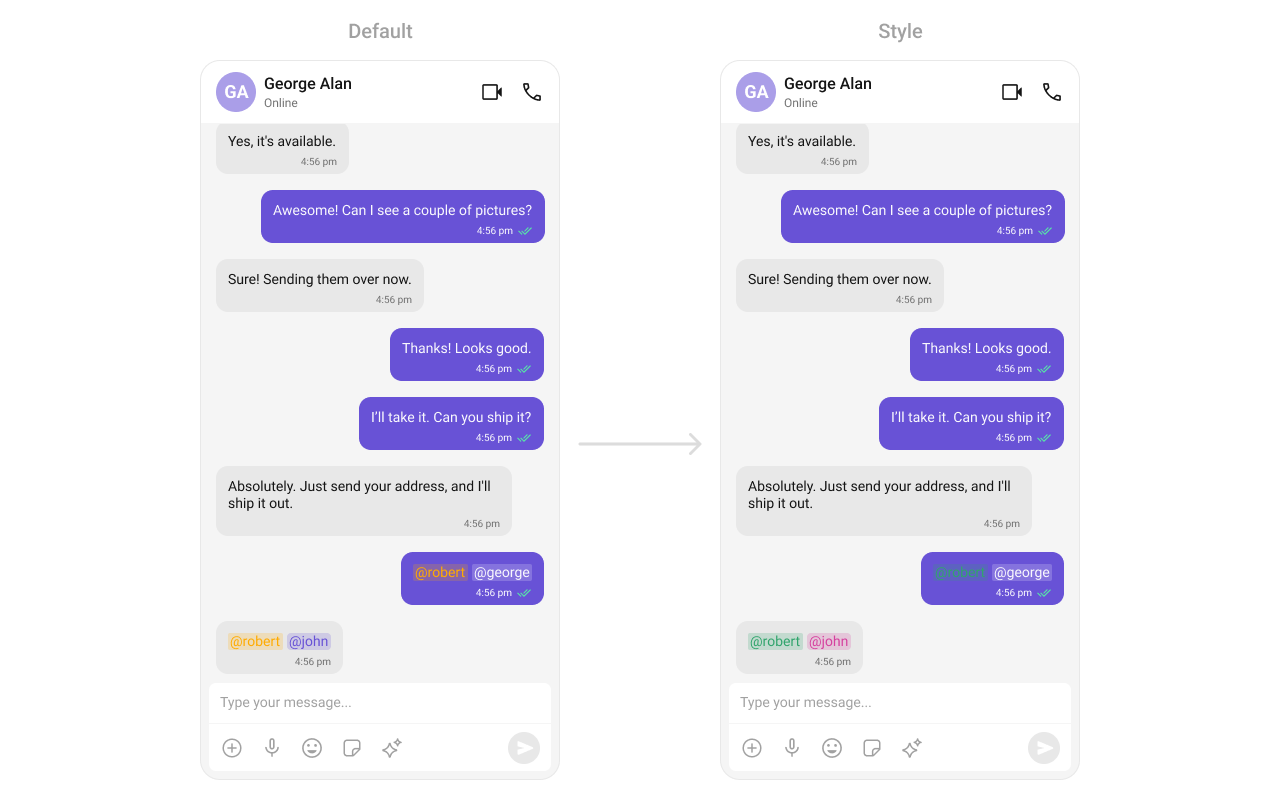
What you’re changing: mention text and background styles for incoming and outgoing bubbles.
  • Where to change it: res/values/themes.xml
  • Applies to: CometChatMentions
  • Default behavior: UI Kit default mention styling.
  • Override: set cometchatMessageBubbleMentionsStyle in both incoming and outgoing bubble styles.
  • Code:
res/values/themes.xml
<resources>
    <style name="CustomIncomingMessageBubbleMentionStyle" parent="CometChatIncomingBubbleMentionsStyle">
        <item name="cometchatMentionTextAppearance">?attr/cometchatTextAppearanceBodyRegular</item>
        <item name="cometchatMentionTextColor">#D6409F</item>
        <item name="cometchatMentionBackgroundColor">#D6409F</item>
        <item name="cometchatSelfMentionTextColor">#30A46C</item>
        <item name="cometchatSelfMentionTextAppearance">?attr/cometchatTextAppearanceBodyRegular</item>
        <item name="cometchatSelfMentionBackgroundColor">#30A46C</item>
    </style>

    <style name="CustomOutgoingMessageBubbleMentionStyle" parent="CometChatOutgoingBubbleMentionsStyle">
        <item name="cometchatMentionTextAppearance">?attr/cometchatTextAppearanceBodyRegular</item>
        <item name="cometchatMentionTextColor">#FFFFFF</item>
        <item name="cometchatMentionBackgroundColor">#F9F8FD</item>
        <item name="cometchatSelfMentionTextColor">#30A46C</item>
        <item name="cometchatSelfMentionTextAppearance">?attr/cometchatTextAppearanceBodyRegular</item>
        <item name="cometchatSelfMentionBackgroundColor">#30A46C</item>
    </style>

    <style name="CustomIncomingMessageBubbleStyle" parent="CometChatIncomingMessageBubbleStyle">
        <item name="cometchatMessageBubbleMentionsStyle">@style/CustomIncomingMessageBubbleMentionStyle</item>
    </style>

    <style name="CustomOutgoingMessageBubbleStyle" parent="CometChatOutgoingMessageBubbleStyle">
        <item name="cometchatMessageBubbleMentionsStyle">@style/CustomOutgoingMessageBubbleMentionStyle</item>
    </style>

    <style name="AppTheme" parent="CometChatTheme.DayNight">
        <item name="cometchatIncomingMessageBubbleStyle">@style/CustomIncomingMessageBubbleStyle</item>
        <item name="cometchatOutgoingMessageBubbleStyle">@style/CustomOutgoingMessageBubbleStyle</item>
    </style>
</resources>
  • What this does: customizes mention colors for incoming and outgoing message bubbles.
  • Verify: send a mention in a chat and check the mention highlight colors.
Attribute references:

Calling UI

Call Logs

The CometChatCallLogs component renders recent call history.
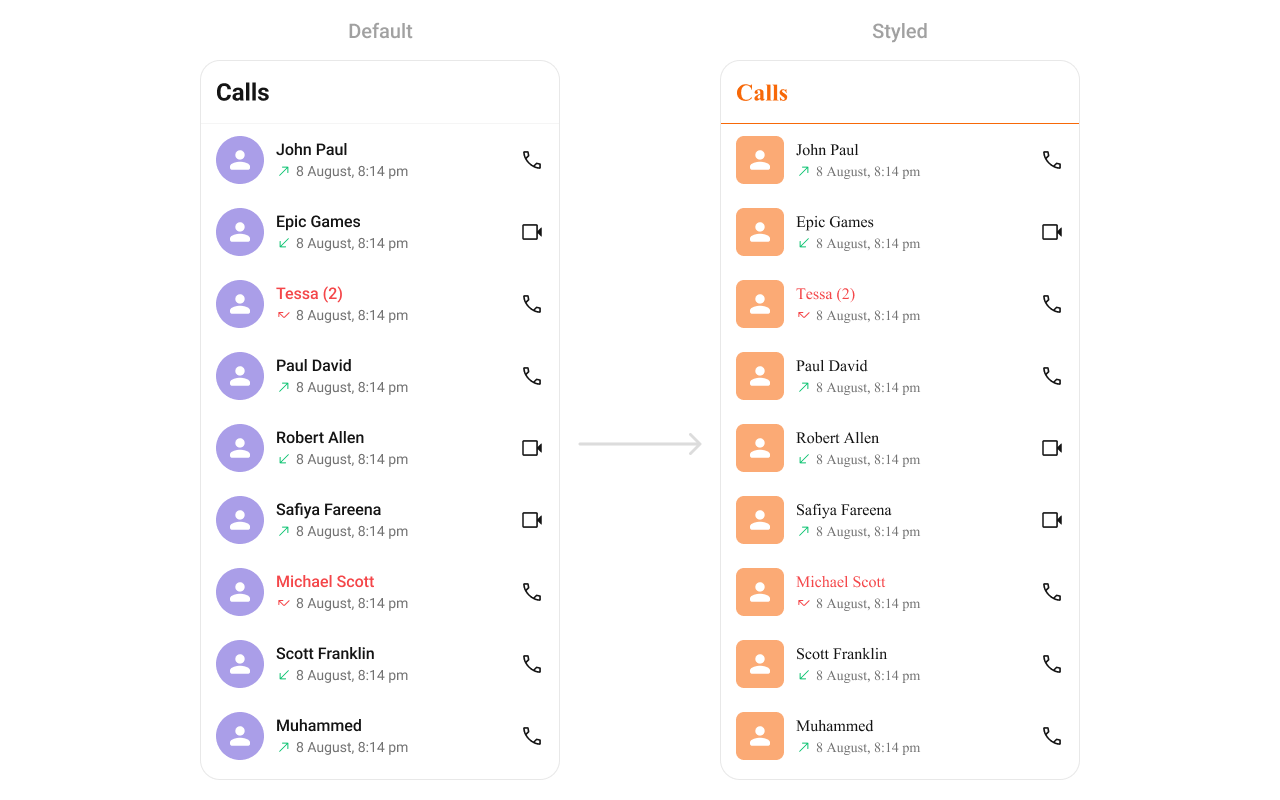
What you’re changing: call log list separators and title colors.
  • Where to change it: res/values/themes.xml
  • Applies to: CometChatCallLogs
  • Default behavior: UI Kit default call log styling.
  • Override: set cometchatCallLogsStyle in AppTheme.
  • Code:
res/values/themes.xml
<resources>
    <style name="CustomAvatarStyle" parent="CometChatAvatarStyle">
        <item name="cometchatAvatarStrokeRadius">8dp</item>
        <item name="cometchatAvatarBackgroundColor">#FBAA75</item>
    </style>

    <style name="CustomCallLogStyle" parent="CometChatCallLogsStyle">
        <item name="cometchatCallLogsSeparatorColor">#F76808</item>
        <item name="cometchatCallLogsTitleTextColor">#F76808</item>
        <item name="cometchatCallLogsAvatarStyle">@style/CustomAvatarStyle</item>
    </style>

    <style name="AppTheme" parent="CometChatTheme.DayNight">
        <item name="cometchatCallLogsStyle">@style/CustomCallLogStyle</item>
    </style>
</resources>
  • What this does: applies custom avatar and text colors to the call logs list.
  • Verify: open Call Logs and confirm the separator and title colors.
Attribute references:

Incoming Call

The CometChatIncomingCall component renders the incoming call UI.
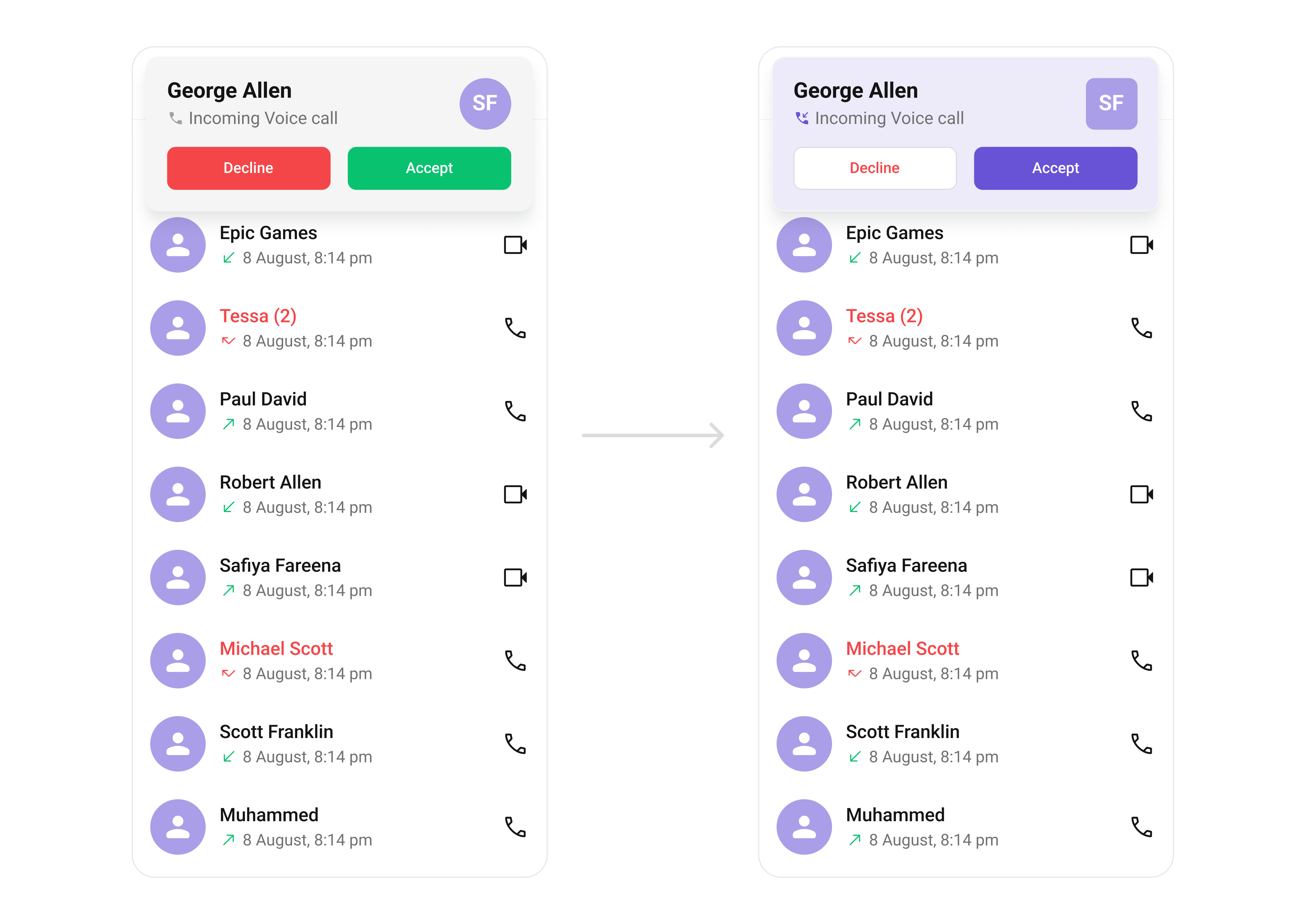
What you’re changing: incoming call background, buttons, and avatar styling.
  • Where to change it: res/values/themes.xml
  • Applies to: CometChatIncomingCall
  • Default behavior: UI Kit default incoming call layout and colors.
  • Override: set cometchatIncomingCallStyle in AppTheme.
  • Code:
res/values/themes.xml
<resources>
    <style name="CustomAvatarStyle" parent="CometChatAvatarStyle">
        <item name="cometchatAvatarStrokeRadius">8dp</item>
        <item name="cometchatAvatarBackgroundColor">#FBAA75</item>
    </style>

    <style name="CustomIncomingCallStyle" parent="CometChatIncomingCallStyle">
        <item name="cometchatIncomingCallBackgroundColor">#AA9EE8</item>
        <item name="cometchatIncomingCallIconTint">?attr/cometchatPrimaryColor</item>
        <item name="cometchatIncomingCallRejectButtonBackgroundColor">?attr/cometchatColorWhite</item>
        <item name="cometchatIncomingCallAcceptButtonBackgroundColor">?attr/cometchatPrimaryColor</item>
        <item name="cometchatIncomingCallRejectButtonTextColor">?attr/cometchatErrorColor</item>
        <item name="cometchatIncomingCallAcceptButtonTextColor">?attr/cometchatColorWhite</item>
        <item name="cometchatIncomingCallRejectButtonTextAppearance">?attr/cometchatTextAppearanceButtonMedium</item>
        <item name="cometchatIncomingCallAcceptButtonTextAppearance">?attr/cometchatTextAppearanceButtonMedium</item>
        <item name="cometchatIncomingCallAvatarStyle">@style/CustomAvatarStyle</item>
    </style>

    <style name="AppTheme" parent="CometChatTheme.DayNight">
        <item name="cometchatIncomingCallStyle">@style/CustomIncomingCallStyle</item>
    </style>
</resources>
  • What this does: customizes the incoming call screen background and action buttons.
  • Verify: trigger an incoming call and confirm the background and button colors.
Attribute references:

Outgoing Call

The CometChatOutgoingCall component renders the outgoing call UI.
What you’re changing: outgoing call avatar styling.
  • Where to change it: res/values/themes.xml
  • Applies to: CometChatOutgoingCall
  • Default behavior: UI Kit default outgoing call styling.
  • Override: set cometchatOutgoingCallStyle in AppTheme.
  • Code:
res/values/themes.xml
<resources>
    <style name="CustomAvatarStyle" parent="CometChatAvatarStyle">
        <item name="cometchatAvatarStrokeRadius">8dp</item>
        <item name="cometchatAvatarBackgroundColor">#FBAA75</item>
    </style>

    <style name="CustomOutgoingCall" parent="CometChatOutgoingCallStyle">
        <item name="cometchatOutgoingCallAvatarStyle">@style/CustomAvatarStyle</item>
    </style>

    <style name="AppTheme" parent="CometChatTheme.DayNight">
        <item name="cometchatOutgoingCallStyle">@style/CustomOutgoingCall</item>
    </style>
</resources>
  • What this does: applies a custom avatar style to the outgoing call screen.
  • Verify: place a call and confirm the avatar styling.
Attribute references:

Call Buttons

The CometChatCallButton component renders voice and video call buttons.

What you’re changing: button background, stroke, and icon tint.
  • Where to change it: res/values/themes.xml
  • Applies to: CometChatCallButtons
  • Default behavior: UI Kit default call button styling.
  • Override: set cometchatCallButtonsStyle in AppTheme.
  • Code:
res/values/themes.xml
<resources>
    <style name="CustomCallButtonStyle" parent="CometChatCallButtonsStyle">
        <item name="cometchatCallButtonsVideoCallIconTint">#6852D6</item>
        <item name="cometchatCallButtonsVoiceCallIconTint">#6852D6</item>
        <item name="cometchatCallButtonsMarginBetween">16dp</item>
        <item name="cometchatCallButtonsVideoCallButtonPadding">8dp</item>
        <item name="cometchatCallButtonsVoiceCallButtonPadding">8dp</item>
        <item name="cometchatCallButtonsVideoCallBackgroundColor">#EDEAFA</item>
        <item name="cometchatCallButtonsVoiceCallBackgroundColor">#EDEAFA</item>
        <item name="cometchatCallButtonsVideoCallStrokeWidth">1dp</item>
        <item name="cometchatCallButtonsVoiceCallStrokeWidth">1dp</item>
        <item name="cometchatCallButtonsVideoCallStrokeColor">#E8E8E8</item>
        <item name="cometchatCallButtonsVoiceCallStrokeColor">#E8E8E8</item>
        <item name="cometchatCallButtonsVideoCallCornerRadius">8dp</item>
        <item name="cometchatCallButtonsVoiceCallCornerRadius">8dp</item>
    </style>

    <style name="AppTheme" parent="CometChatTheme.DayNight">
        <item name="cometchatCallButtonsStyle">@style/CustomCallButtonStyle</item>
    </style>
</resources>
  • What this does: customizes call button padding, background, and icon colors.
  • Verify: open a chat header and confirm button styling.
Attribute references:

AI UI

AI Assistant Chat History

The CometChatAIAssistantChatHistory component renders the AI conversation history view.
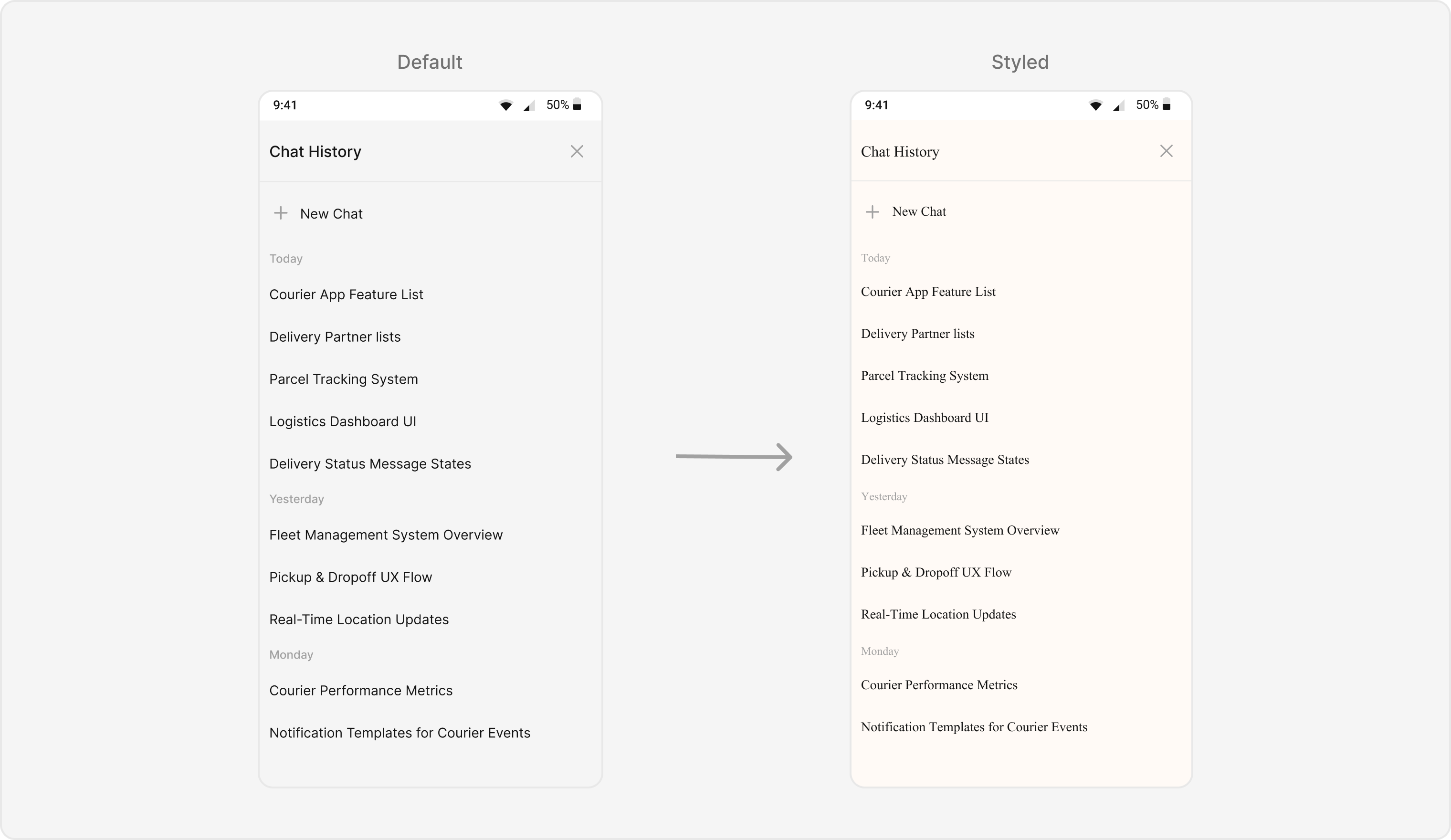
What you’re changing: background, header, and list typography.
  • Where to change it: res/values/themes.xml
  • Applies to: CometChatAIAssistantChatHistory
  • Default behavior: UI Kit default AI history styling.
  • Override: set cometChatAIAssistantChatHistoryStyle in AppTheme.
  • Code:
res/values/themes.xml
<resources>
    <style name="TextStyleTimesNewRoman">
        <item name="android:fontFamily">@font/times_new_roman_regular</item>
    </style>

    <style name="CustomAIAssistantChatHistoryStyle">
        <item name="cometChatAIAssistantChatHistoryBackgroundColor">#FFFAF6</item>
        <item name="cometChatAIAssistantChatHistoryHeaderBackgroundColor">#FFFAF6</item>
        <item name="cometChatAIAssistantChatHistoryHeaderTextColor">?attr/cometchatTextColorPrimary</item>
        <item name="cometChatAIAssistantChatHistoryHeaderTextAppearance">@style/TextStyleTimesNewRoman</item>
        <item name="cometChatAIAssistantChatHistoryNewChatBackgroundColor">#FFFAF6</item>
        <item name="cometChatAIAssistantChatHistoryNewChatTextColor">?attr/cometchatTextColorPrimary</item>
        <item name="cometChatAIAssistantChatHistoryNewChatTextAppearance">@style/TextStyleTimesNewRoman</item>
        <item name="cometChatAIAssistantChatHistoryDateSeparatorTextAppearance">@style/TextStyleTimesNewRoman</item>
        <item name="cometChatAIAssistantChatHistoryDateSeparatorTextColor">?attr/cometchatTextColorTertiary</item>
        <item name="cometChatAIAssistantChatHistoryDateSeparatorBackgroundColor">#FFFAF6</item>
        <item name="cometChatAIAssistantChatHistoryItemBackgroundColor">#FFFAF6</item>
        <item name="cometChatAIAssistantChatHistoryItemTextAppearance">@style/TextStyleTimesNewRoman</item>
        <item name="cometChatAIAssistantChatHistoryItemTextColor">?attr/cometchatTextColorPrimary</item>
    </style>

    <style name="AppTheme" parent="CometChatTheme.DayNight">
        <item name="cometChatAIAssistantChatHistoryStyle">@style/CustomAIAssistantChatHistoryStyle</item>
    </style>
</resources>
  • What this does: applies custom colors and font styling to the AI Assistant history screen.
  • Verify: open AI Assistant history and confirm background and header styling.
Attribute references:

AI Option Sheet

The CometChatAIOptionSheet component renders AI action options.
What you’re changing: AI option sheet background and icon tint.
  • Where to change it: res/values/themes.xml
  • Applies to: CometChatAIOptionSheet
  • Default behavior: UI Kit default AI option sheet styling.
  • Override: set cometchatAIOptionSheetStyle in AppTheme.
  • Code:
res/values/themes.xml
<resources>
    <style name="CustomAIOptionSheetStyle" parent="CometChatAIOptionSheetStyle">
        <item name="cometchatAIOptionSheetBackgroundColor">#FFF9F5</item>
        <item name="cometchatAIOptionSheetIconTint">#F76808</item>
    </style>

    <style name="AppTheme" parent="CometChatTheme.DayNight">
        <item name="cometchatAIOptionSheetStyle">@style/CustomAIOptionSheetStyle</item>
    </style>
</resources>
  • What this does: customizes AI option sheet colors.
  • Verify: open AI actions and confirm the option sheet styling.
Attribute references:

Conversation Starter

The CometChatConversationStarter component renders AI-powered conversation starters.
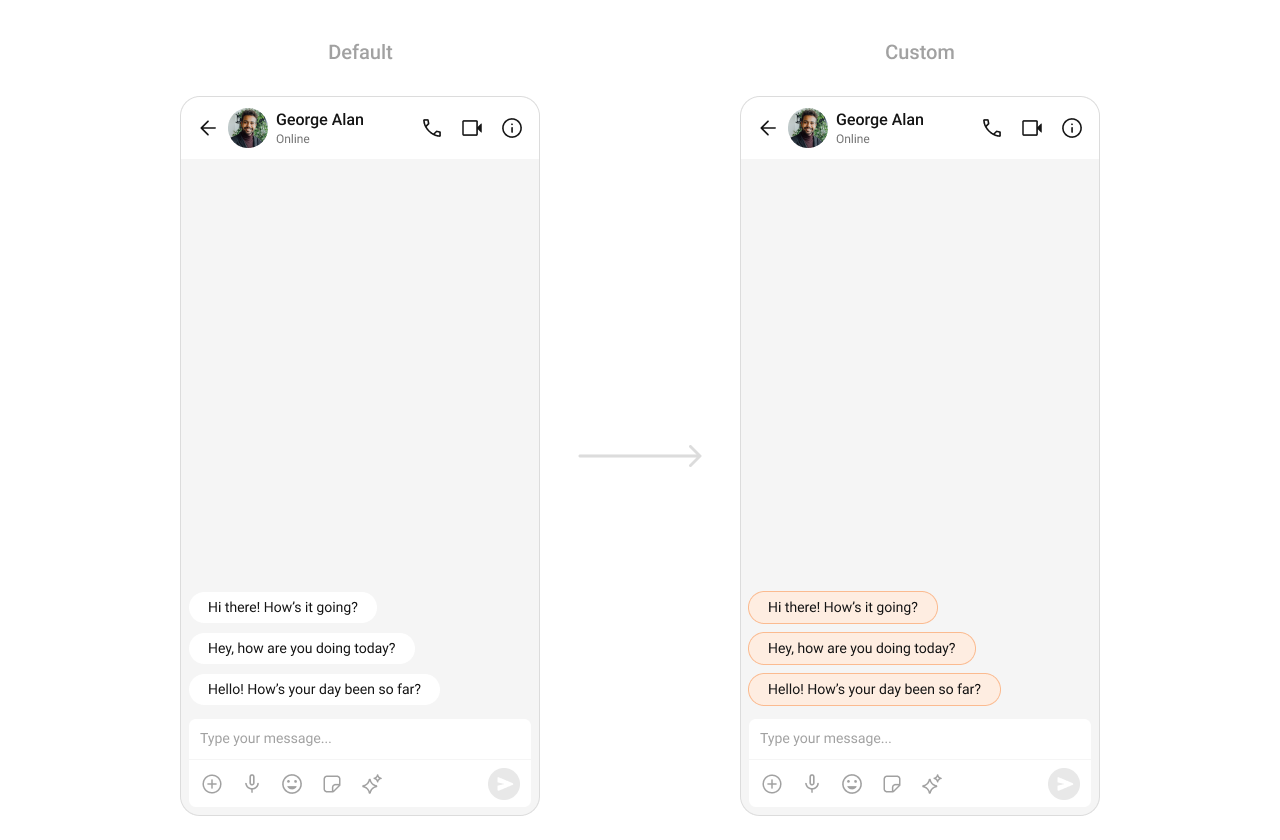
What you’re changing: conversation starter item backgrounds.
  • Where to change it: res/values/themes.xml
  • Applies to: CometChatConversationStarter
  • Default behavior: UI Kit default conversation starter styling.
  • Override: set cometchatAIConversationStarterStyle in AppTheme.
  • Code:
res/values/themes.xml
<resources>
    <style name="CustomConversationStarterStyle" parent="CometChatAIConversationStarterStyle">
        <item name="cometchatAIConversationStarterItemBackgroundColor">#FBAA75</item>
    </style>

    <style name="AppTheme" parent="CometChatTheme.DayNight">
        <item name="cometchatAIConversationStarterStyle">@style/CustomConversationStarterStyle</item>
    </style>
</resources>
  • What this does: applies a custom background color to AI conversation starter items.
  • Verify: open a new chat and confirm the conversation starter chip color.
Attribute references:

Conversation Summary

The CometChatConversationSummary component renders AI-generated summaries of chats.
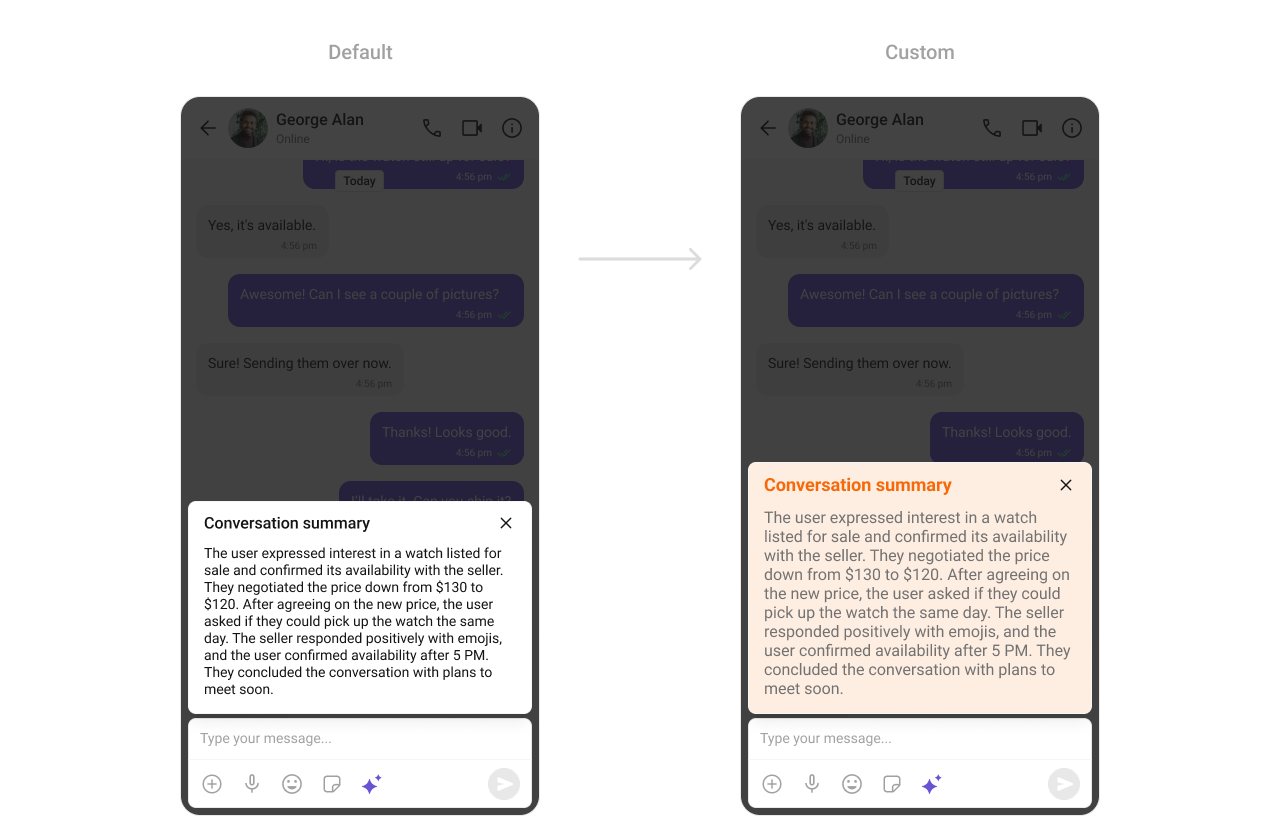
What you’re changing: conversation summary background color.
  • Where to change it: res/values/themes.xml
  • Applies to: CometChatConversationSummary
  • Default behavior: UI Kit default conversation summary styling.
  • Override: set cometchatAIConversationSummaryStyle in AppTheme.
  • Code:
res/values/themes.xml
<resources>
    <style name="CustomConversationSummaryStyle" parent="CometChatAIConversationSummaryStyle">
        <item name="cometchatAIConversationSummaryBackgroundColor">#FBAA75</item>
    </style>

    <style name="AppTheme" parent="CometChatTheme.DayNight">
        <item name="cometchatAIConversationSummaryStyle">@style/CustomConversationSummaryStyle</item>
    </style>
</resources>
  • What this does: applies a custom background color to conversation summary cards.
  • Verify: open a chat summary and confirm the background color.
Attribute references:

Smart Replies

The CometChatSmartReplies component renders AI-generated reply suggestions.
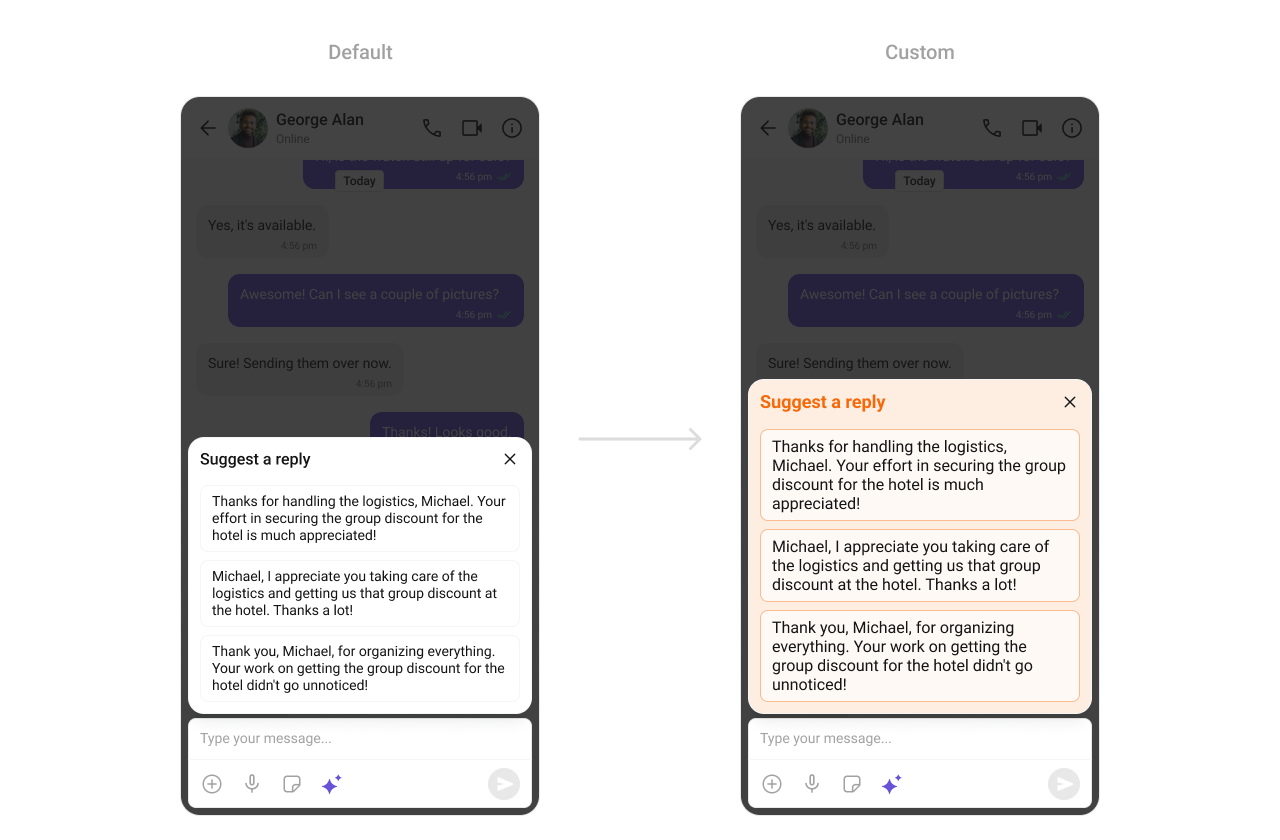
What you’re changing: smart reply background, item color, and stroke.
  • Where to change it: res/values/themes.xml
  • Applies to: CometChatSmartReplies
  • Default behavior: UI Kit default smart replies styling.
  • Override: set cometchatAISmartRepliesStyle in AppTheme.
  • Code:
res/values/themes.xml
<resources>
    <style name="CustomSmartRepliesStyle" parent="CometChatAISmartRepliesStyle">
        <item name="cometchatAISmartRepliesBackgroundColor">#FBBB90</item>
        <item name="cometchatAISmartRepliesTitleTextColor">#F76808</item>
        <item name="cometchatAISmartRepliesItemBackgroundColor">#FFF9F5</item>
        <item name="cometchatAISmartRepliesItemStrokeWidth">1dp</item>
        <item name="cometchatAISmartRepliesItemStrokeColor">#F76808</item>
    </style>

    <style name="AppTheme" parent="CometChatTheme.DayNight">
        <item name="cometchatAISmartRepliesStyle">@style/CustomSmartRepliesStyle</item>
    </style>
</resources>
  • What this does: customizes smart reply container and chip styling.
  • Verify: open a conversation with smart replies enabled and confirm chip styling.
Attribute references:

Base components

Avatar

The CometChatAvatar component is used across lists and headers.

What you’re changing: avatar shape and background color.
  • Where to change it: res/values/themes.xml
  • Applies to: CometChatAvatar
  • Default behavior: UI Kit default avatar styling.
  • Override: set cometchatAvatarStyle in AppTheme.
  • Code:
res/values/themes.xml
<resources>
    <style name="CustomAvatarStyle" parent="CometChatAvatarStyle">
        <item name="cometchatAvatarStrokeRadius">8dp</item>
        <item name="cometchatAvatarBackgroundColor">#FBAA75</item>
    </style>

    <style name="AppTheme" parent="CometChatTheme.DayNight">
        <item name="cometchatAvatarStyle">@style/CustomAvatarStyle</item>
    </style>
</resources>
  • What this does: applies a consistent avatar style across UI Kit components.
  • Verify: open any list with avatars and confirm the style.
Attribute references:

Status Indicator

The CometChatStatusIndicator component shows user presence status.

What you’re changing: status indicator icon shape and drawable.
  • Where to change it: res/drawable/online_indicator_drawable.xml and res/values/themes.xml
  • Applies to: CometChatStatusIndicator
  • Default behavior: UI Kit default presence icon.
  • Override: set cometchatStatusIndicatorStyle in AppTheme and reference a custom drawable.
  • Code:
res/drawable/online_indicator_drawable.xml
<vector xmlns:android="http://schemas.android.com/apk/res/android"
    android:width="18dp"
    android:height="18dp"
    android:viewportWidth="18"
    android:viewportHeight="18">
  <path
      android:pathData="M5,1.75L13,1.75A3.25,3.25 0,0 1,16.25 5L16.25,13A3.25,3.25 0,0 1,13 16.25L5 16.25A3.25,3.25 0,0 1,1.75 13L1.75 5A3.25,3.25 0,0 1,5 1.75z"
      android:strokeWidth="2.5"
      android:fillColor="#FFAB00"
      android:strokeColor="#ffffff" />
</vector>
  • What this does: defines a custom online indicator drawable.
  • Code:
res/values/themes.xml
<resources>
    <style name="CustomStatusIndicatorStyle" parent="CometChatStatusIndicatorStyle">
        <item name="cometchatStatusIndicatorCornerRadius">8dp</item>
        <item name="cometchatStatusIndicatorOnlineIcon">@drawable/online_indicator_drawable</item>
    </style>

    <style name="AppTheme" parent="CometChatTheme.DayNight">
        <item name="cometchatStatusIndicatorStyle">@style/CustomStatusIndicatorStyle</item>
    </style>
</resources>
  • What this does: applies the custom status indicator drawable in UI Kit components.
  • Verify: check any user list to confirm the presence icon.
Attribute references:

Badge

The CometChatBadge component shows unread or notification counts.

What you’re changing: badge background, text color, and corner radius.
  • Where to change it: res/values/themes.xml
  • Applies to: CometChatBadge
  • Default behavior: UI Kit default badge styling.
  • Override: set cometchatBadgeStyle in AppTheme.
  • Code:
res/values/themes.xml
<resources>
    <style name="CustomBadgeStyle" parent="CometChatBadgeStyle">
        <item name="cometchatBadgeBackgroundColor">#F44649</item>
        <item name="cometchatBadgeTextColor">#FFFFFF</item>
        <item name="cometchatBadgeCornerRadius">4dp</item>
    </style>

    <style name="AppTheme" parent="CometChatTheme.DayNight">
        <item name="cometchatBadgeStyle">@style/CustomBadgeStyle</item>
    </style>
</resources>
  • What this does: applies a custom badge appearance across UI Kit lists.
  • Verify: check any unread badge to confirm colors and radius.
Attribute references:

Date

The CometChatDate component formats timestamps in lists and message threads.

What you’re changing: date text color.
  • Where to change it: res/values/themes.xml
  • Applies to: CometChatDate
  • Default behavior: UI Kit default date styling.
  • Override: set cometchatDateStyle in AppTheme.
  • Code:
res/values/themes.xml
<resources>
    <style name="CustomDateStyle" parent="CometChatDateStyle">
        <item name="cometchatDateTextColor">#000000</item>
    </style>

    <style name="AppTheme" parent="CometChatTheme.DayNight">
        <item name="cometchatDateStyle">@style/CustomDateStyle</item>
    </style>
</resources>
  • What this does: customizes date text color in UI Kit lists and headers.
  • Verify: check any timestamp and confirm the color.
Attribute references:

Receipts

The CometChatReceipts component renders read and delivered status icons.

What you’re changing: read receipt icon drawable.
  • Where to change it: res/drawable/read_receipts.xml and res/values/themes.xml
  • Applies to: CometChatReceipts
  • Default behavior: UI Kit default receipt icons.
  • Override: set cometchatMessageReceiptStyle in AppTheme and reference a custom drawable.
  • Code:
res/drawable/read_receipts.xml
<vector xmlns:android="http://schemas.android.com/apk/res/android"
    xmlns:tools="http://schemas.android.com/tools"
    android:width="14dp"
    android:height="8dp"
    android:autoMirrored="true"
    android:viewportWidth="14"
    android:viewportHeight="8">

    <path
        android:fillColor="#ffab00"
        android:pathData="M0.4,4.622C0.289,4.511 0.236,4.38 0.242,4.228C0.247,4.076 0.305,3.944 0.417,3.833C0.528,3.726 0.659,3.671 0.811,3.669C0.963,3.668 1.094,3.722 1.205,3.833L3.761,6.4C3.824,6.463 3.891,6.53 3.961,6.6L4.161,6.8C4.272,6.911 4.327,7.041 4.325,7.189C4.323,7.337 4.267,7.467 4.155,7.578L4.144,7.589C4.033,7.696 3.904,7.751 3.755,7.753C3.607,7.755 3.478,7.7 3.367,7.589L0.4,4.622ZM6.9,6.394L12.822,0.472C12.933,0.361 13.065,0.306 13.217,0.308C13.368,0.31 13.5,0.367 13.611,0.478C13.718,0.589 13.773,0.72 13.775,0.872C13.777,1.024 13.722,1.155 13.611,1.267L7.289,7.589C7.178,7.7 7.048,7.755 6.9,7.755C6.752,7.755 6.622,7.7 6.511,7.589L3.544,4.622C3.437,4.515 3.385,4.384 3.389,4.23C3.393,4.077 3.448,3.944 3.555,3.833C3.667,3.722 3.799,3.667 3.953,3.667C4.106,3.667 4.239,3.722 4.35,3.833L6.9,6.394ZM10.461,1.272L7.289,4.444C7.181,4.552 7.053,4.604 6.903,4.6C6.753,4.596 6.622,4.541 6.511,4.433C6.4,4.322 6.344,4.19 6.344,4.036C6.344,3.882 6.4,3.75 6.511,3.639L9.672,0.478C9.78,0.37 9.91,0.317 10.064,0.317C10.218,0.317 10.35,0.37 10.461,0.478C10.572,0.589 10.628,0.721 10.628,0.875C10.628,1.029 10.572,1.161 10.461,1.272Z"
        tools:ignore="VectorPath" />
</vector>
  • What this does: defines a custom read receipt icon.
  • Code:
res/values/themes.xml
<resources>
    <style name="CustomMessageReceiptStyle" parent="CometChatMessageReceiptStyle">
        <item name="cometchatMessageReceiptReadIcon">@drawable/read_receipts</item>
    </style>

    <style name="AppTheme" parent="CometChatTheme.DayNight">
        <item name="cometchatMessageReceiptStyle">@style/CustomMessageReceiptStyle</item>
    </style>
</resources>
  • What this does: applies the custom receipt icon to message status indicators.
  • Verify: send a message and check the receipt icon for read status.
Attribute references:

Media Recorder

The CometChatMediaRecorder component controls audio and video message recording.
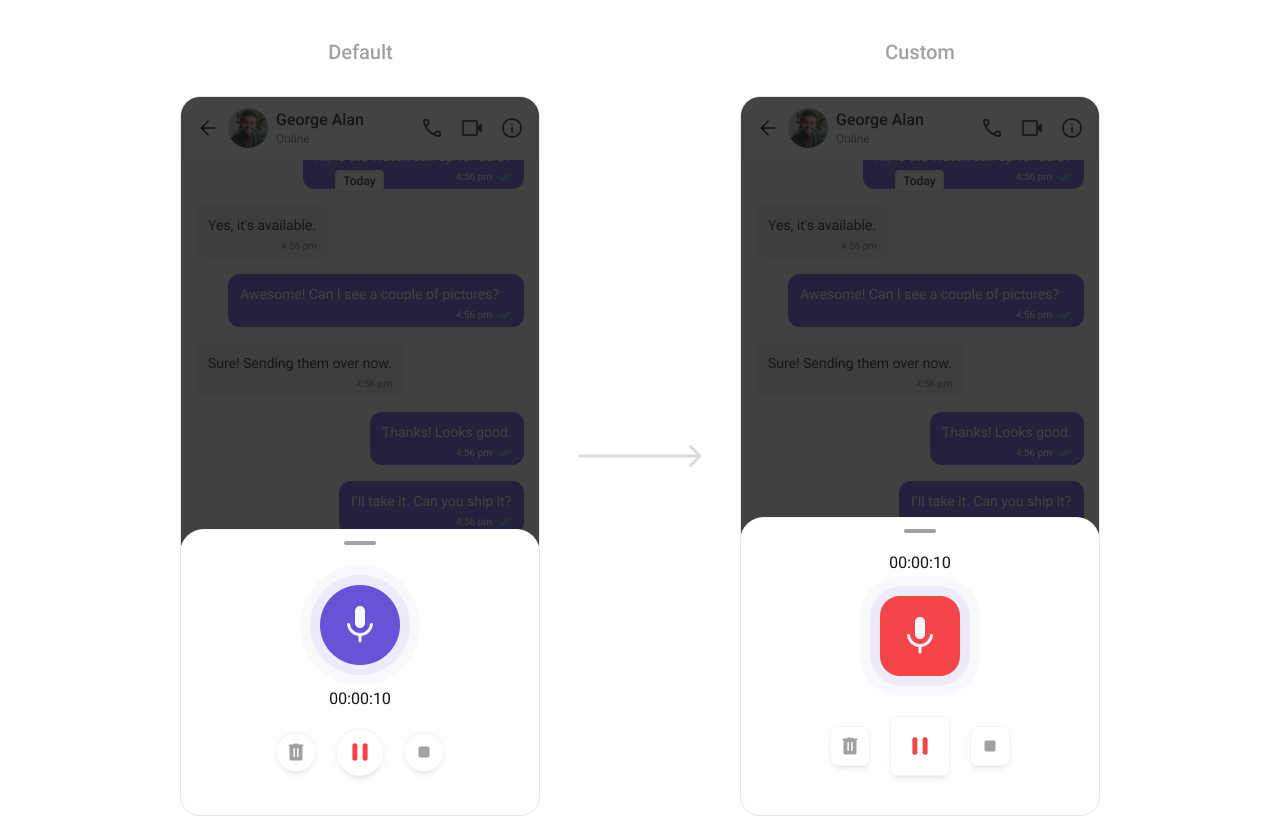
What you’re changing: recorder icon sizes and recording button background color.
  • Where to change it: res/values/themes.xml
  • Applies to: CometChatMediaRecorder
  • Default behavior: UI Kit default media recorder styling.
  • Override: set cometchatMediaRecorderStyle in AppTheme.
  • Code:
res/values/themes.xml
<resources>
    <style name="CustomMediaRecorderStyle" parent="CometChatMediaRecorderStyle">
        <item name="cometchatMediaRecorderDeleteIconRadius">@dimen/cometchat_12dp</item>
        <item name="cometchatMediaRecorderStartIconRadius">@dimen/cometchat_12dp</item>
        <item name="cometchatMediaRecorderPauseIconRadius">@dimen/cometchat_12dp</item>
        <item name="cometchatMediaRecorderRecordingIconBackgroundColor">#F44649</item>
    </style>

    <style name="AppTheme" parent="CometChatTheme.DayNight">
        <item name="cometchatMediaRecorderStyle">@style/CustomMediaRecorderStyle</item>
    </style>
</resources>
  • What this does: applies custom sizing and color to the media recorder UI.
  • Verify: open the recorder and check icon sizes and record button color.
Attribute references:

Sticker Keyboard

The CometChatStickerKeyboard component renders the sticker picker UI.
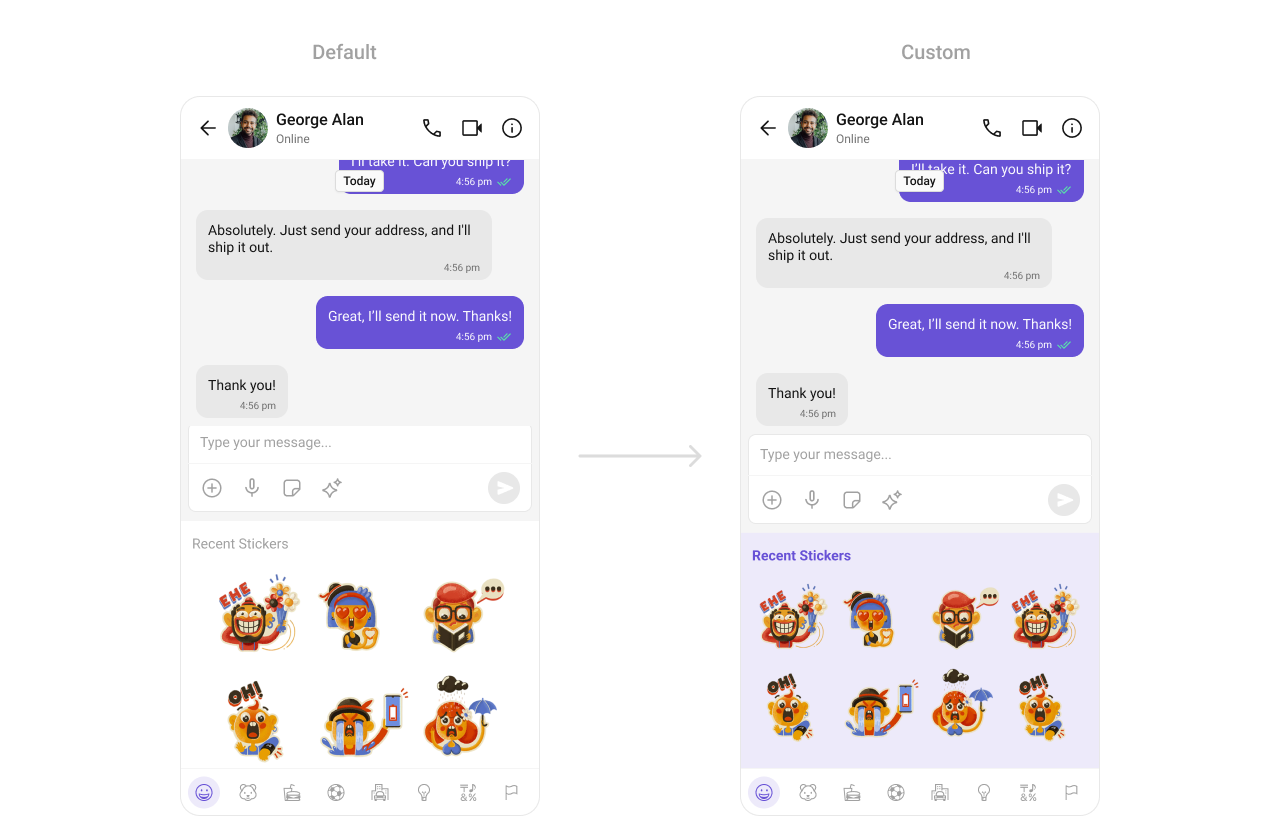
What you’re changing: sticker keyboard background color.
  • Where to change it: res/values/themes.xml
  • Applies to: CometChatStickerKeyboard
  • Default behavior: UI Kit default sticker keyboard styling.
  • Override: set cometchatStickerKeyboardStyle in AppTheme.
  • Code:
res/values/themes.xml
<resources>
    <style name="CustomStickerKeyboardStyle" parent="CometChatStickerKeyboardStyle">
        <item name="cometchatStickerKeyboardBackgroundColor">#EDEAFA</item>
    </style>

    <style name="AppTheme" parent="CometChatTheme.DayNight">
        <item name="cometchatStickerKeyboardStyle">@style/CustomStickerKeyboardStyle</item>
    </style>
</resources>
  • What this does: applies a custom background color to the sticker keyboard.
  • Verify: open the sticker keyboard and confirm the background color.
Attribute references:

Reaction List

The CometChatReactionList component renders reactions on messages.
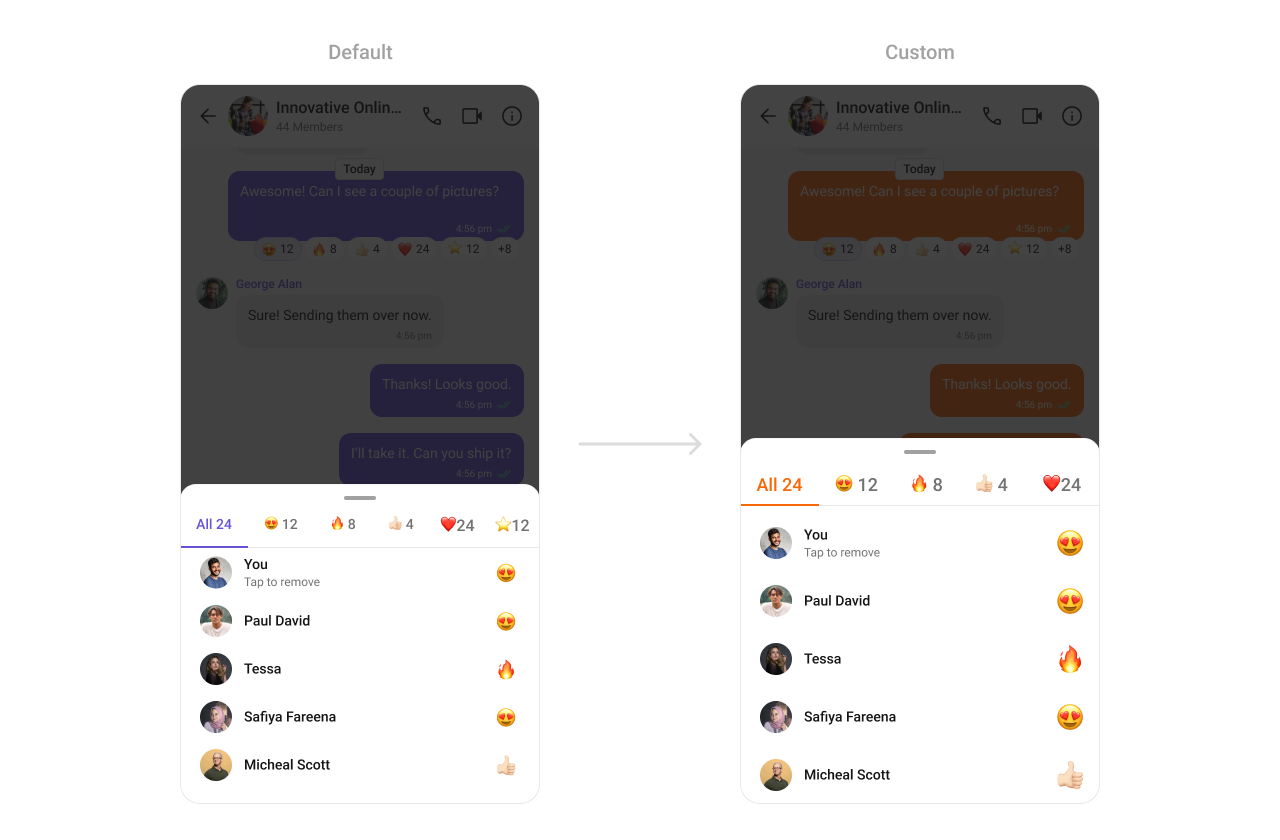
What you’re changing: active tab color in the reaction list.
  • Where to change it: res/values/themes.xml
  • Applies to: CometChatReactionList
  • Default behavior: UI Kit default reaction list styling.
  • Override: set cometchatReactionListStyle in AppTheme.
  • Code:
res/values/themes.xml
<resources>
    <style name="CustomReactionListStyle" parent="CometChatReactionListStyle">
        <item name="cometchatReactionListTabTextActiveColor">#F76808</item>
    </style>

    <style name="AppTheme" parent="CometChatTheme.DayNight">
        <item name="cometchatReactionListStyle">@style/CustomReactionListStyle</item>
    </style>
</resources>
  • What this does: applies a custom active tab color in the reaction list.
  • Verify: open reactions and confirm the active tab color.
Attribute references:

Customization matrix

What you want to changeWhereProperty or APIExample
Conversations avatar and badgeres/values/themes.xmlcometchatConversationsStylecometchatConversationsBadgeStyle
Users list separatorsres/values/themes.xmlcometchatUsersStylecometchatUsersSeparatorColor
Group list titlesres/values/themes.xmlcometchatGroupsStylecometchatGroupsTitleTextColor
Header call iconsres/values/themes.xmlcometchatMessageHeaderStylecometchatMessageHeaderCallButtonsStyle
Message list backgroundres/values/themes.xmlcometchatMessageListStylecometchatMessageListBackgroundColor
Composer send buttonres/drawable/active_send_button.xmlcometchatMessageComposerActiveSendButtonDrawable@drawable/active_send_button
Search UI typographyres/values/themes.xmlcometchatSearchStylecometchatSearchBarTextAppearance
Call buttons stylingres/values/themes.xmlcometchatCallButtonsStylecometchatCallButtonsVideoCallBackgroundColor
AI smart replies chip styleres/values/themes.xmlcometchatAISmartRepliesStylecometchatAISmartRepliesItemStrokeColor
Mentions highlight colorsres/values/themes.xmlcometchatMessageBubbleMentionsStylecometchatMentionTextColor

Common pitfalls and fixes

  • Issue: styles do not apply. Fix: confirm your activity theme is AppTheme and extends CometChatTheme.DayNight.
  • Issue: only some screens update. Fix: the screen might use a different theme; verify the theme in your activity or fragment.
  • Issue: drawable changes not visible. Fix: rebuild the app after adding a new drawable file.
  • Issue: changes apply in light mode but not dark mode. Fix: update both values/themes.xml and values-night/themes.xml if you use night resources.
  • Issue: attribute name not recognized. Fix: confirm the exact attribute name in the linked attribute reference file.
  • Issue: style overridden unexpectedly. Fix: check for duplicate style names in other modules or flavors.
  • Issue: colors look wrong on some devices. Fix: verify color hex values include alpha when needed.
  • Issue: list items still show default fonts. Fix: set UI Kit fonts in AppTheme once as shown in Core concepts.

FAQ

Q: Do I need to repeat font settings in every component style?
A: No. Set fonts once in AppTheme using cometchatFontBold, cometchatFontMedium, and cometchatFontRegular.
Q: Where do I find all available attributes for a component?
A: Use the Attribute references links under each component section.
Q: Why do my changes not appear in a specific screen?
A: Confirm the screen is using the same AppTheme and not overriding the theme locally.
Q: Can I change icons without changing the component layout?
A: Yes. Provide a custom vector in res/drawable/ and reference it from the component style.
Q: Do I need to enable anything in the CometChat Dashboard for styling?
A: No. Styling is local to your Android project and does not require dashboard changes.