

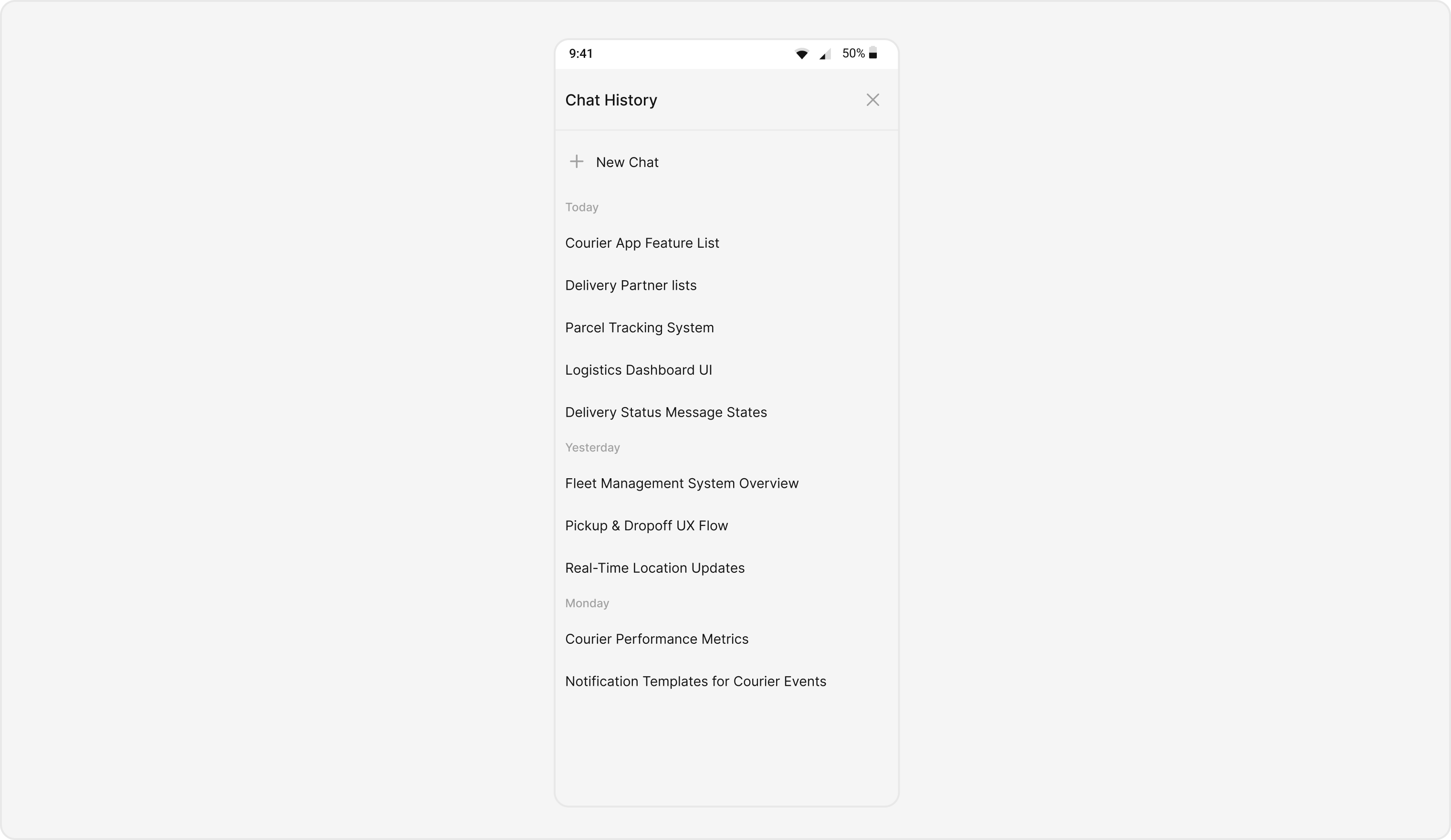
CometChatAIAssistantChatHistory displays the conversation history between users and an AI assistant, providing a structured view of past interactions for easy review.
When to use this
- You need to display a list of past conversations between a user and an AI assistant.
- You want users to review previous messages and context from AI assistant interactions.
- You need tap and long-press actions on chat history items (open a chat, perform additional actions).
- You want to provide a “new chat” button to start a new conversation with the AI assistant.
- You need to customize the appearance of the chat history list with styles.
Prerequisites
- CometChat SDK initialized with
CometChatUIKit.init()and a user logged in. - The
cometchat-chat-uikit-androiddependency added to your project. - A valid layout XML or Activity/Fragment where you will place the component.
- The user’s role must be set to
@agenticto use AI Assistant features.
Quick start
- Open your layout XML file.
- Add the
CometChatAIAssistantChatHistoryXML element:
What this does: Adds the CometChatAIAssistantChatHistory component to your layout. It fills the available width and height and renders the AI assistant chat history list.
- In your Activity or Fragment, create a
Userobject with the role set to@agenticand pass it to the component:
- Java
- Kotlin
What this does: Creates aUserobject with the@agenticrole and sets it on theCometChatAIAssistantChatHistorycomponent. This is required for the component to fetch and display the AI assistant chat histories for that user.
- Build and run your app.
- Verify that the AI assistant chat history list appears with past conversation items.
Core concepts
CometChatAIAssistantChatHistory: The main component class that renders the AI assistant chat history list. It is a Composite Component that can be launched via button clicks or any user-triggered action.- Actions: Callbacks such as
setOnItemClickListener,setOnItemLongClickListener,setOnNewChatClickListener, andsetOnCloseClickListenerthat let you respond to user interactions. - Style: XML theme styles applied via
setStyle()to customize colors, fonts, and visual appearance of the chat history. - Functionality: Methods like
setUser,setErrorStateVisibility, andsetEmptyStateVisibilitythat configure the component’s behavior and state visibility.
Implementation
Actions
What you’re changing: How the component responds to user interactions such as taps, long-presses, new chat clicks, and close clicks.- Where: Activity or Fragment where you hold a reference to
CometChatAIAssistantChatHistory. - Applies to:
CometChatAIAssistantChatHistory. - Default behavior: Predefined actions execute automatically when the user interacts with the component.
- Override: Call the corresponding setter method to replace the default behavior with your own logic.
setOnItemClickListener
Function invoked when a chat history item is clicked, used to open an AI assistant chat screen.
- Java
- Kotlin
YourActivity.java
What this does: Replaces the default item-click behavior. When a user taps a chat history item, your custom lambda executes instead of the built-in navigation.
setOnItemLongClickListener
Function executed when a chat history item is long-pressed, allowing additional actions like delete or block.
- Java
- Kotlin
YourActivity.java
What this does: Replaces the default long-press behavior. When a user long-presses a chat history item, your custom lambda executes.
setOnNewChatClickListener
Function triggered when the new chat button is clicked, used to start a new conversation with the AI assistant.
- Java
- Kotlin
YourActivity.java
What this does: Replaces the default new-chat-click behavior. When the user taps the new chat button, your custom logic runs instead of the built-in action.
setOnCloseClickListener
Function activated when the close button is clicked, used to exit the chat history view.
- Java
- Kotlin
YourActivity.java
What this does: Replaces the default close-click behavior. When the user taps the close button, your custom logic runs instead of the built-in exit action.
- Verify: After setting an action callback, trigger the corresponding user interaction (tap, long-press, new chat, close) and confirm your custom logic executes instead of the default behavior.
Style
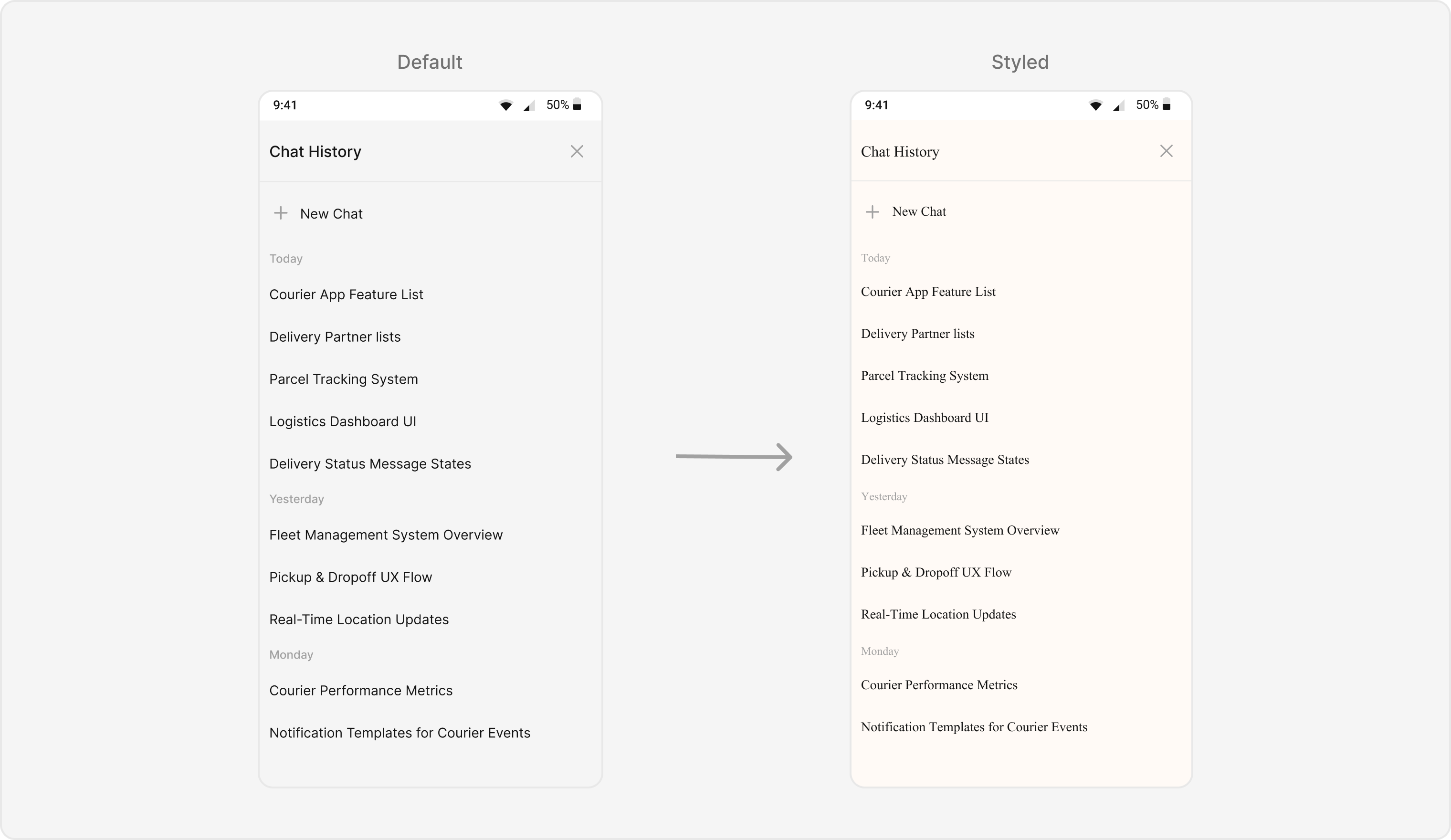
What you’re changing: The visual appearance of the AI Assistant Chat History component using XML theme styles.- Where:
themes.xmlfor style definitions, and your Activity/Fragment for applying the style. - Applies to:
CometChatAIAssistantChatHistory. - Default behavior: The component uses its default style.
- Override: Define a custom style in
themes.xml, then callsetStyle()on the component.
- Code:
themes.xml
What this does: Defines a custom styleCustomAIAssistantChatHistoryStylethat sets the background color to#FFFAF6for the component, header, new chat area, date separator, and items. It applies a Times New Roman font to the header, new chat text, date separator, and item text. A helper styletextStyleTimesNewRomandefines the font family.
- Java
- Kotlin
What this does: Applies theTo know more such attributes, visit the attributes file.CustomAIAssistantChatHistoryStyletheme to theCometChatAIAssistantChatHistorycomponent, changing the background colors and fonts.
- Verify: The chat history component displays with the
#FFFAF6background color and Times New Roman font for header text, new chat text, date separator text, and item text.
Functionality
What you’re changing: Small functional customizations such as setting the user and toggling visibility of UI states.- Where: Activity or Fragment where you hold a reference to
CometChatAIAssistantChatHistory. - Applies to:
CometChatAIAssistantChatHistory. - Default behavior: All UI states are visible with default settings.
- Override: Call the corresponding method on the component instance.
| Methods | Description | Code |
|---|---|---|
setUser | Sets the user whose chat histories with the AI assistant need to be fetched. This is a required property for the component to function. The user’s role must be @agentic. | .setUser(user); |
setErrorStateVisibility | Toggles the visibility of the error state of the component | .setErrorStateVisibility(View.GONE); |
setEmptyStateVisibility | Toggles the visibility of the empty state of the component | .setEmptyStateVisibility(View.GONE); |
- Verify: After calling
setUser(user), confirm the component fetches and displays the AI assistant chat histories for that user. After calling a visibility method, confirm the corresponding UI state is shown or hidden.
Customization matrix
| What you want to change | Where | Property/API | Example |
|---|---|---|---|
| Component background color | themes.xml | cometChatAIAssistantChatHistoryBackgroundColor | <item name="cometChatAIAssistantChatHistoryBackgroundColor">#FFFAF6</item> |
| Header background color | themes.xml | cometChatAIAssistantChatHistoryHeaderBackgroundColor | <item name="cometChatAIAssistantChatHistoryHeaderBackgroundColor">#FFFAF6</item> |
| Header text color | themes.xml | cometChatAIAssistantChatHistoryHeaderTextColor | <item name="cometChatAIAssistantChatHistoryHeaderTextColor">?attr/cometchatTextColorPrimary</item> |
| Header text appearance | themes.xml | cometChatAIAssistantChatHistoryHeaderTextAppearance | <item name="cometChatAIAssistantChatHistoryHeaderTextAppearance">@style/textStyleTimesNewRoman</item> |
| New chat background color | themes.xml | cometChatAIAssistantChatHistoryNewChatBackgroundColor | <item name="cometChatAIAssistantChatHistoryNewChatBackgroundColor">#FFFAF6</item> |
| New chat text color | themes.xml | cometChatAIAssistantChatHistoryNewChatTextColor | <item name="cometChatAIAssistantChatHistoryNewChatTextColor">?attr/cometchatTextColorPrimary</item> |
| New chat text appearance | themes.xml | cometChatAIAssistantChatHistoryNewChatTextAppearance | <item name="cometChatAIAssistantChatHistoryNewChatTextAppearance">@style/textStyleTimesNewRoman</item> |
| Date separator text appearance | themes.xml | cometChatAIAssistantChatHistoryDateSeparatorTextAppearance | <item name="cometChatAIAssistantChatHistoryDateSeparatorTextAppearance">@style/textStyleTimesNewRoman</item> |
| Date separator text color | themes.xml | cometChatAIAssistantChatHistoryDateSeparatorTextColor | <item name="cometChatAIAssistantChatHistoryDateSeparatorTextColor">?attr/cometchatTextColorTertiary</item> |
| Date separator background color | themes.xml | cometChatAIAssistantChatHistoryDateSeparatorBackgroundColor | <item name="cometChatAIAssistantChatHistoryDateSeparatorBackgroundColor">#FFFAF6</item> |
| Item background color | themes.xml | cometChatAIAssistantChatHistoryItemBackgroundColor | <item name="cometChatAIAssistantChatHistoryItemBackgroundColor">#FFFAF6</item> |
| Item text appearance | themes.xml | cometChatAIAssistantChatHistoryItemTextAppearance | <item name="cometChatAIAssistantChatHistoryItemTextAppearance">@style/textStyleTimesNewRoman</item> |
| Item text color | themes.xml | cometChatAIAssistantChatHistoryItemTextColor | <item name="cometChatAIAssistantChatHistoryItemTextColor">?attr/cometchatTextColorPrimary</item> |
| Apply a custom style | Activity/Fragment | setStyle(int styleRes) | binding.cometchatAiAssistantChatHistory.setStyle(R.style.CustomAIAssistantChatHistoryStyle); |
| Set the user for fetching history | Activity/Fragment | setUser(User) | .setUser(user); |
| Error state visibility | Activity/Fragment | setErrorStateVisibility(int) | .setErrorStateVisibility(View.GONE); |
| Empty state visibility | Activity/Fragment | setEmptyStateVisibility(int) | .setEmptyStateVisibility(View.GONE); |
Common pitfalls & fixes
| Pitfall | Fix |
|---|---|
| Component does not render | Ensure CometChatUIKit.init() is called and awaited before using any UI Kit component. If init() has not completed, the component will not load data. |
| Chat history list is empty | Verify that setUser(user) is called with a valid User object before the component attempts to fetch data. The user is a required property. |
| AI Assistant features not working | Ensure the user’s role is set to @agentic using user.setRole("@agentic") (Java) or user.role = "@agentic" (Kotlin). If the role is not @agentic, AI Assistant features will not be available. |
| Custom style not visible | Verify that you call setStyle(R.style.YourStyle) on the component instance and that the style attributes use the correct cometChatAIAssistantChatHistory* prefix. |
setOnItemClickListener not firing | Ensure you are calling setOnItemClickListener on the correct CometChatAIAssistantChatHistory instance referenced by your binding or findViewById. |
| Error state or empty state still visible after hiding | Ensure you call setErrorStateVisibility(View.GONE) or setEmptyStateVisibility(View.GONE) on the correct component instance before the component loads data. |
FAQ
Q: What is the@agentic role and why is it required?
A: The @agentic role is set on the User object via user.setRole("@agentic"). It must be set to use AI Assistant features. If the role is not @agentic, the component will not function for AI assistant chat history.
Q: How do I start a new AI assistant conversation from the chat history?
A: Use setOnNewChatClickListener to define custom logic that runs when the user taps the new chat button. Implement your navigation or conversation creation logic inside the callback.
Q: Can I customize the fonts and colors of the chat history?
A: Yes. Define a custom style in themes.xml using the cometChatAIAssistantChatHistory* attributes (e.g., cometChatAIAssistantChatHistoryHeaderTextAppearance, cometChatAIAssistantChatHistoryItemTextColor) and apply it with setStyle().
Q: How do I handle the close button action?
A: Use setOnCloseClickListener to provide custom logic that runs when the user taps the close button. Implement your navigation or dismissal logic inside the callback.