

CometChatMessageList displays a list of messages for a conversation and manages real-time message operations. It renders various message types including text, media, stickers, and more using MessageBubble components.
When to use this
- You need a scrollable list of messages for a one-on-one or group conversation.
- You want real-time updates when new messages arrive, are edited, or deleted.
- You need support for threaded replies, reactions, and message actions (copy, edit, delete, translate, report).
- You want to customize message bubble appearance, date/time formatting, and message filtering.
- You need AI-powered features such as smart replies, conversation starters, conversation summaries, or AI assistant integration.
- You want to add custom header or footer views above or below the message list.
Prerequisites
- CometChat SDK initialized with
CometChatUIKit.init()and a user logged in. - The
cometchat-chat-uikit-androiddependency added to your project. - A valid
UserorGroupobject to pass to the component (the component does not load messages without one).
Quick start
- Open your layout XML file (e.g.,
layout_activity.xml). - Add the
CometChatMessageListXML element:
layout_activity.xml
What this does: Adds the CometChatMessageList component to your layout. It fills the available width and height with transparent background and 16dp horizontal margins.
- In your Activity or Fragment, get a reference to the component and set a
UserorGroupobject:
- Java
- Kotlin
YourActivity.java
What this does: Gets a reference to theCometChatMessageListfrom the layout and sets theUserobject. The component fetches and displays messages for that user’s conversation.
- Build and run your app.
- Verify that the message list appears with message bubbles, timestamps, and read receipts.
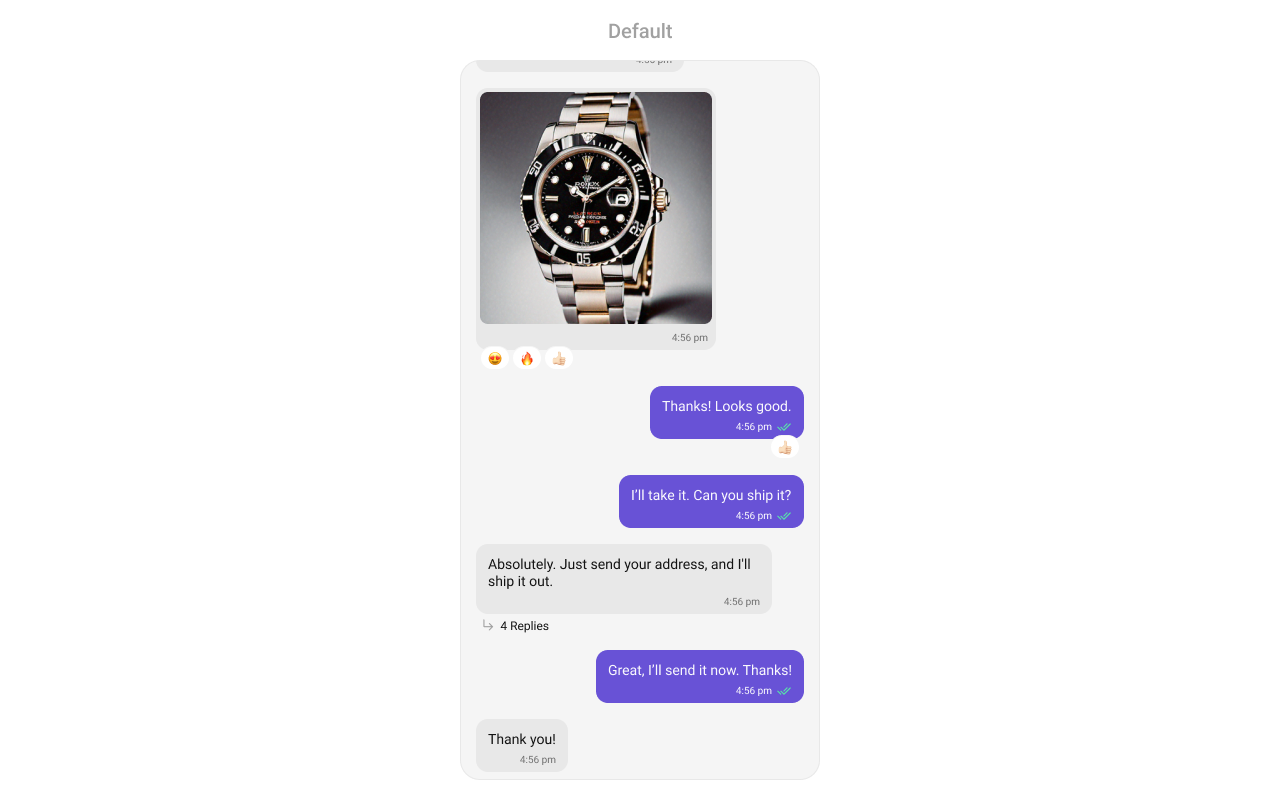
- If you need to display messages for a group conversation instead, call
.setGroup(group)with aGroupobject instead of.setUser(user).
Core concepts
CometChatMessageList: The main component class that renders a scrollable list of messages. It must be supplied with aUserorGroupobject to fetch messages.- Message bubbles: Each message is rendered as a
MessageBubblecomponent. The bubble type depends on the message type (text, media, sticker, etc.). See MessageBubble styling for details. - Actions: Callbacks such as
setOnThreadRepliesClick,setOnError,setOnReactionClick, andsetOnReactionLongClickthat let you respond to user interactions. - Filters: Use
MessagesRequest.MessagesRequestBuilderto filter messages by search keyword, UID, or other criteria. - Events: The MessageList component does not emit any events of its own.
- Style: XML theme styles (parent
CometChatMessageListStyle) applied viasetStyle()to customize colors, fonts, and sub-component styles. - Advanced views: Methods like
setHeaderView,setFooterView,setLoadingView,setEmptyView,setErrorView,setDateTimeFormatter, andsetTextFormattersthat let you replace default UI elements with custom layouts.
Implementation
Actions
What you’re changing: How the component responds to user interactions such as thread reply taps, errors, load completion, empty states, and reaction interactions.- Where: Activity or Fragment where you hold a reference to
CometChatMessageList(e.g.,cometchatMessageList). - Applies to:
CometChatMessageList. - Default behavior: Predefined actions execute automatically (e.g., tapping a threaded message bubble has no predefined behavior for
onThreadRepliesClick). - Override: Call the corresponding setter method to replace the default behavior with your own logic.
setOnThreadRepliesClick
Triggered when you click on the threaded message bubble. The onThreadRepliesClick action does not have a predefined behavior.
- Java
- Kotlin
What this does: Registers a callback that fires when a user taps a threaded message bubble. The callback receives thecontext, thebaseMessage, and thecometchatMessageTemplate.
setOnError
Listens for any errors that occur in the MessageList component. This does not change the component’s behavior.
- Java
- Kotlin
YourActivity.java
What this does: Registers an error listener. If the component encounters an error (e.g., network failure), your callback receives the CometChatException.
setOnLoad
Invoked when the list is successfully fetched and loaded, helping track component readiness.
- Java
- Kotlin
YourActivity.java
What this does: Registers a callback that fires after the message list is fetched and rendered. The callback receives the list of loaded BaseMessage objects.
setOnEmpty
Called when the list is empty, enabling custom handling such as showing a placeholder message.
- Java
- Kotlin
YourActivity.java
What this does: Registers a callback that fires when the message list has no items. Use this to show a custom empty-state message or trigger other logic.
setOnReactionLongClick
Triggered when a user long presses on a reaction pill.
- Java
- Kotlin
YourActivity.java
What this does: Replaces the default reaction long-press behavior. When a user long-presses a reaction pill, your custom lambda executes with theemojiandbaseMessage.
setOnAddMoreReactionsClick
Triggered when a user clicks on the “Add More Reactions” button.
- Java
- Kotlin
YourActivity.java
What this does: Replaces the default “Add More Reactions” button behavior. Your callback receives the baseMessage that the user wants to react to.
setOnReactionClick
Triggered when a reaction is clicked, enabling custom reaction interactions.
- Java
- Kotlin
YourActivity.java
What this does: Replaces the default reaction-click behavior. When a user taps a reaction, your custom lambda executes with theemojiandbaseMessage.
setOnReactionListItemClick
Triggered when a reaction list item is clicked in CometChatReactionsList.
- Java
- Kotlin
YourActivity.java
What this does: Replaces the default reaction list item click behavior. Your callback receives thereactionandmessageobjects.
- Verify: After setting an action callback, trigger the corresponding user interaction (thread reply tap, reaction click, reaction long-press) and confirm your custom logic executes instead of the default behavior.
Filters
What you’re changing: Which messages appear in the list.-
Where: Activity or Fragment where you hold a reference to
CometChatMessageList. -
Applies to:
CometChatMessageList. -
Default behavior: All messages for the specified
UserorGroupare fetched and displayed. -
Override: Create a
MessagesRequest.MessagesRequestBuilder, configure it, and pass it tosetMessagesRequestBuilder. - Code:
- Java
- Kotlin
What this does: Creates aMessagesRequestBuilderthat filters messages by a search keyword and a specific user UID. The builder is then applied to theCometChatMessageListcomponent.
The following parameters in messageRequestBuilder will always be altered inside the message list
- UID
- GUID
- types
- categories
MessagesRequestBuilder, visit MessagesRequestBuilder.
- Verify: The message list shows only messages matching the search keyword for the specified user.
Events
What you’re changing: How your app reacts to global events emitted by the MessageList component.- Where: Any Activity, Fragment, or class.
-
Applies to:
CometChatMessageList. - Default behavior: The MessageList component does not emit any events of its own.
- Override: Not applicable. If you need to listen for message-level events, use the CometChat SDK’s message listeners directly.
- Verify: Not applicable — the MessageList component does not emit events.
Style
What you’re changing: The visual appearance of the MessageList component using XML theme styles.- Where:
themes.xmlfor style definitions, and your Activity/Fragment for applying the style. - Applies to:
CometChatMessageList. - Default behavior: The component uses the default
CometChatMessageListStyle. - Override: Define a custom style with parent
CometChatMessageListStyleinthemes.xml, then callsetStyle()on the component.
- Code:
themes.xml
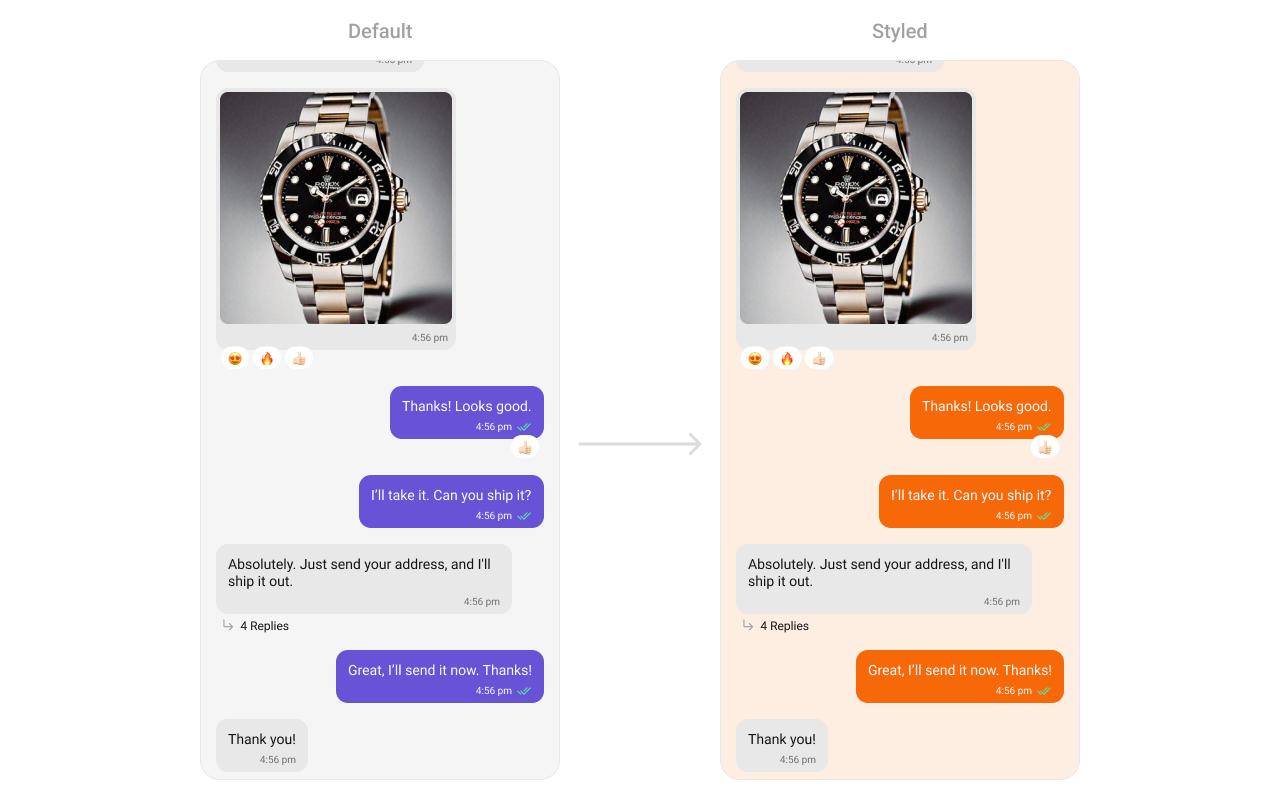
What this does: Defines two custom styles:CustomOutgoingMessageBubbleStylesets the outgoing message bubble background to orange (#F76808);CustomCometChatMessageListStylesets the message list background to light peach (#FEEDE1) and applies the custom outgoing bubble style.
- Java
- Kotlin
What this does: Applies theTo know more such attributes, visit the attributes file.CustomCometChatMessageListStyletheme to theCometChatMessageListcomponent, changing the background color and outgoing message bubble appearance.
- Verify: The message list background displays as light peach (
#FEEDE1) and outgoing message bubbles display with an orange background (#F76808).
Functionality
What you’re changing: Small functional customizations such as toggling visibility of UI elements, setting custom sounds, configuring alignment, and enabling AI features.- Where: Activity or Fragment where you hold a reference to
CometChatMessageList. - Applies to:
CometChatMessageList. - Default behavior: All UI elements are visible with default settings.
- Override: Call the corresponding method on the component instance.
- Java
- Kotlin
What this does: Gets a reference to the CometChatMessageList, sets the user, hides the error state, and hides read receipts.
| Property | Description | Code |
|---|---|---|
setUser | Used to pass user object of which header specific details will be shown | .setUser(user); |
setGroup | Used to pass group object of which header specific details will be shown | .setGroup(Group); |
setAlignment | Used to set the alignment of messages in CometChatMessageList. It can be either leftAligned or standard | .setAlignment(UIKitConstants.MessageListAlignment); |
setErrorStateVisibility | Used to toggle visibility of error state in MessageList | .setErrorStateVisibility(View.GONE); |
disableSoundForMessages | Used to enable/disable sound for incoming/outgoing messages, default false | .disableSoundForMessages(false); |
setCustomSoundForMessages | Used to set custom sound for outgoing message | .setCustomSoundForMessages(@RawRes resource); |
setAvatarVisibility | Used to toggle visibility for avatar | .setAvatarVisibility(View.GONE); |
scrollToBottomOnNewMessage | If true, scrolls to bottom on new message. Default is false | .scrollToBottomOnNewMessage(true); |
setReceiptsVisibility | Used to control visibility of read receipts without disabling the functionality of marking messages as read and delivered | .setReceiptsVisibility(View.GONE); |
setQuickReactions | The list of quick reactions to be set. This list replaces the predefined set of reactions | .setQuickReactions(Arrays.asList("👻","😈","🙀","🤡","❤️"); |
setStickyDateVisibility | Used to toggle visibility for sticky header | .setStickyDateVisibility(View.GONE); |
replyInThreadOptionVisibility | Used to toggle visibility for thread option | .replyInThreadOptionVisibility(View.GONE); |
translateMessageOptionVisibility | Used to toggle visibility for translate option | .translateMessageOptionVisibility(View.GONE); |
editMessageOptionVisibility | Used to toggle visibility for edit option | .editMessageOptionVisibility(View.GONE); |
deleteMessageOptionVisibility | Used to toggle visibility for delete option | .deleteMessageOptionVisibility(View.GONE); |
setMessageReactionOptionVisibility | Used to toggle visibility for reaction option | .setMessageReactionOptionVisibility(View.GONE); |
messagePrivatelyOptionVisibility | Used to toggle visibility for private option | .messagePrivatelyOptionVisibility(View.GONE); |
copyMessageOptionVisibility | Used to toggle visibility for copy option | .copyMessageOptionVisibility(View.GONE); |
messageInfoOptionVisibility | Used to toggle visibility for info option | .messageInfoOptionVisibility(View.GONE); |
groupActionMessageVisibility | Used to toggle visibility for action message option | .groupActionMessageVisibility(View.GONE); |
enableConversationStarters | Controls whether conversation starters are generated in new conversations | .enableConversationStarters(true); |
enableSmartReplies | Enables smart replies for quick responses | .enableSmartReplies(true); |
| smartRepliesKeywords | Defines specific keywords in an incoming message that trigger Smart Replies | .setAISmartRepliesKeywords(Arrays.asList("hello", "hi", "how are you", "good morning", "good evening", "good night")); |
| smartRepliesDelayDuration | Sets the delay time before Smart Replies are fetched and displayed after a message is received | .smartRepliesDelayDuration(5000); |
| refreshStyle | Used to refresh the style of message list | .refreshStyle(); |
| generateConversationSummary | Triggers the generation of a conversation summary by fetching it from the ViewModel | .generateConversationSummary(); |
- Verify: After calling a visibility method, confirm the corresponding UI element is shown or hidden. After calling
disableSoundForMessages(true), confirm no sound plays on incoming messages.
Advanced views
What you’re changing: The default UI elements of the message list including loading, empty, error states, date/time formatting, text formatting, header/footer views, AI assistant views, and message templates.- Where: Activity or Fragment where you hold a reference to
CometChatMessageList. - Applies to:
CometChatMessageList. - Default behavior: The component renders its built-in views for loading, empty, error states, date separators, message timestamps, and message content.
- Override: Call the corresponding setter method and provide a custom view, layout resource, or callback.
SetTemplate
CometChatMessageTemplate is a pre-defined structure for creating message views that can be used as a starting point or blueprint for creating message views often known as message bubbles. For more information, refer to CometChatMessageTemplate.
setDateFormat
Specifies a custom format for displaying sticky date separators in the chat.
- Java
- Kotlin
What this does: Sets the sticky date separator format to “MMM dd, yyyy” (e.g., “Jul 10, 2024”) using the device’s default locale.
setDateTimeFormatter
Provides a custom implementation of DateTimeFormatterCallback to configure how time and date values are displayed. Each method corresponds to a specific case:
time(long timestamp)— Custom full timestamp formattoday(long timestamp)— Called when a message is from todayyesterday(long timestamp)— Called for yesterday’s messageslastWeek(long timestamp)— Messages from the past weekotherDays(long timestamp)— Older messagesminute(long timestamp)/hour(long timestamp)— Exact time unitminutes(long diffInMinutesFromNow, long timestamp)— e.g., “5 minutes ago”hours(long diffInHourFromNow, long timestamp)— e.g., “2 hours ago”
- Java
- Kotlin
What this does: Overrides the default date/time formatting for message timestamps. Today’s messages show “Today”, yesterday’s show “Yesterday”, recent messages show “X mins ago” or “X hrs ago”, last week’s show “Last Week”, and older messages show the full date in “dd MMM yyyy” format.
setTimeFormat
Defines the format in which time appears for each message bubble.
- Java
- Kotlin
What this does: Sets the message bubble time format to “hh:mm a” (e.g., “02:30 PM”) using the device’s default locale.
setLoadingView
Customizes the loading indicator when messages are being fetched.
- Java
- Kotlin
What this does: Replaces the default loading spinner with your custom layout resource. The custom view displays while messages are being fetched.
setEmptyView
Defines a custom view to be displayed when no messages are available.
- Java
- Kotlin
What this does: Replaces the default empty state with your custom layout resource. The custom view displays when the message list has no items.
setErrorView
Custom error state view displayed when fetching messages fails.
- Java
- Kotlin
What this does: Replaces the default error state with your custom layout resource. The custom view displays when the component encounters an error during message fetching.
setTextFormatters
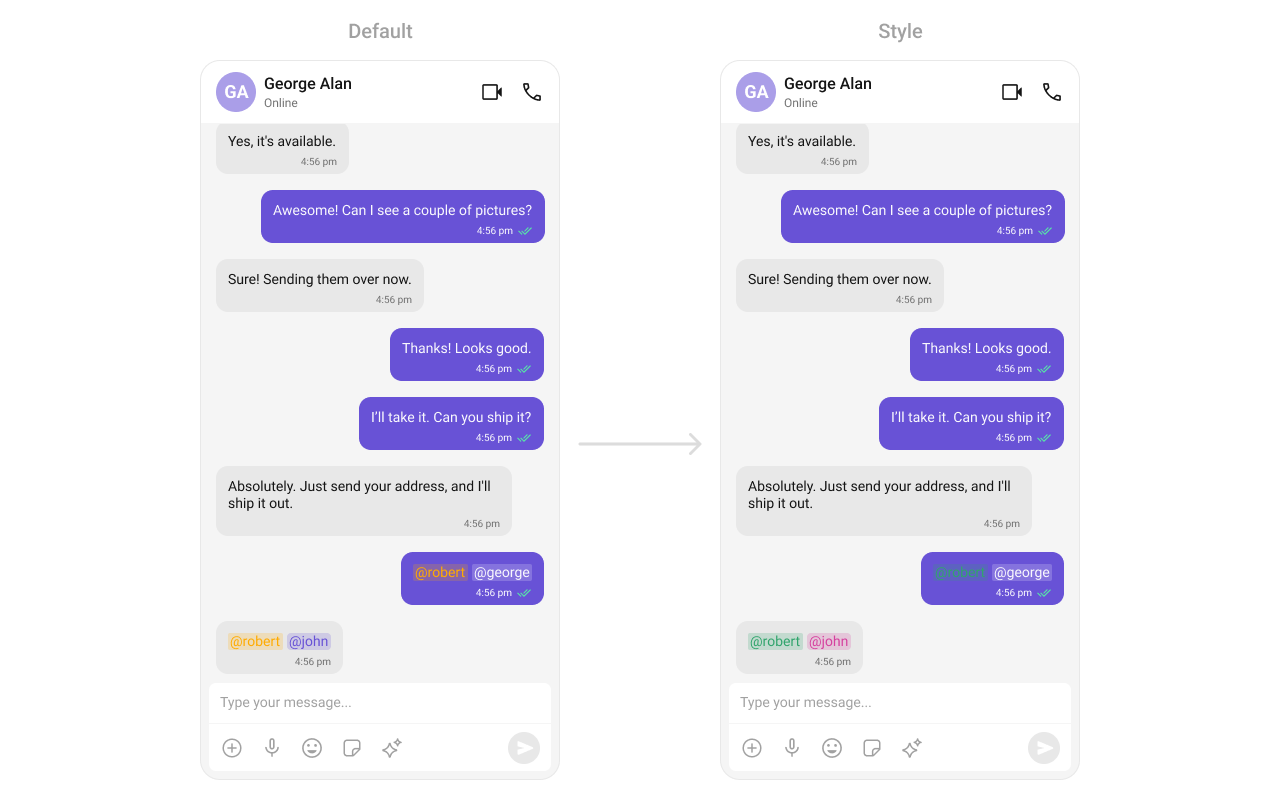
Assigns the list of text formatters. If the provided list is not null, it sets the list. Otherwise, it assigns the default text formatters retrieved from the data source. To configure the existing Mentions look and feel check out MentionsFormatter Guide.
themes.xml
What this does: Defines custom mention styles for incoming and outgoing message bubbles. Incoming mentions appear in pink (#D6409F) and outgoing mentions appear in white (#FFFFFF), both with green self-mentions (#30A46C).
- Java
- Kotlin
What this does: Creates a CometChatMentionsFormatter, applies custom outgoing and incoming mention styles, adds it to a list of text formatters, and passes that list to the message list component. Mentions in message bubbles render with the custom colors.
setHeaderView
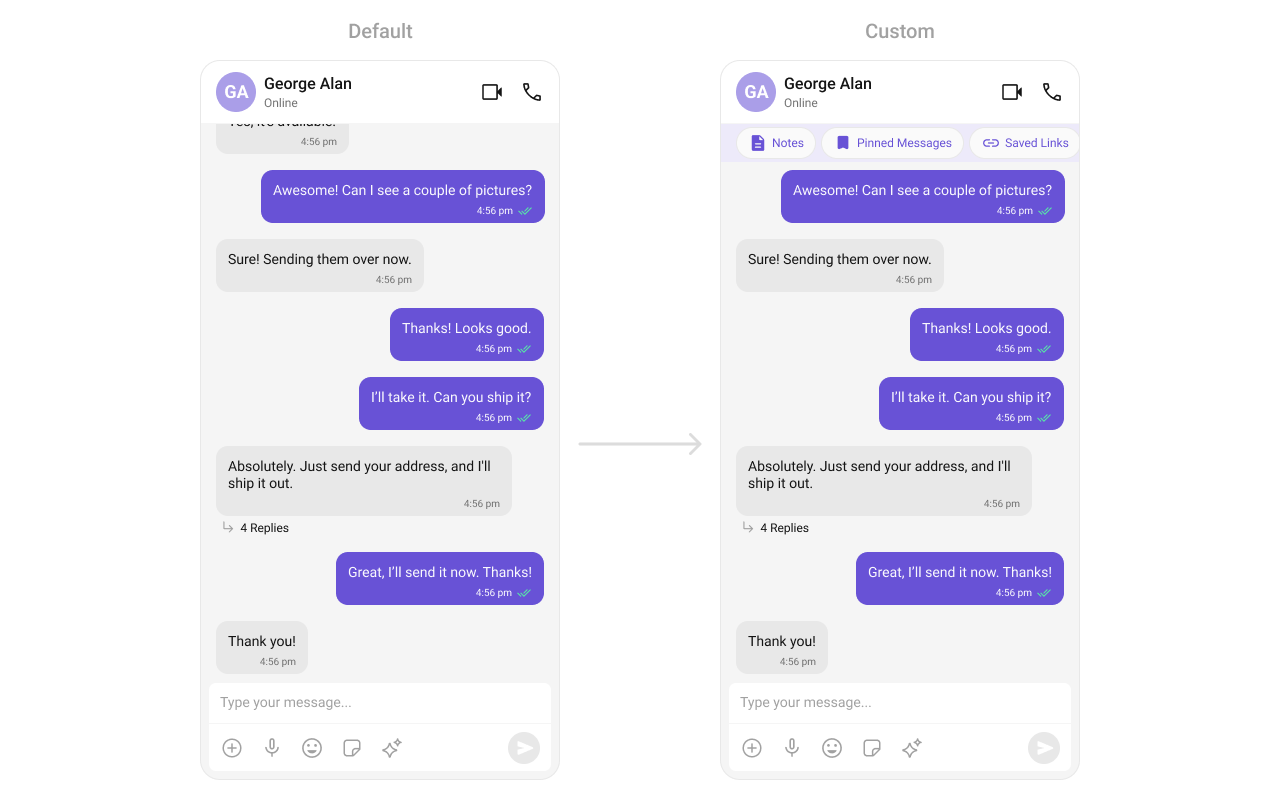
Sets a custom header view for the message list. The header displays at the top of the message list.
- Java
- Kotlin
What this does: Sets a custom View as the header of the message list. Pass any view (e.g., a toolbar with action buttons) to display above the messages.
custom_header_layout.xml
What this does: Defines a custom header layout with three pill-shaped buttons: “Notes”, “Pinned Messages”, and “Saved Links”. Each button uses a MaterialCardView with an icon and label styled with the primary color.
- Java
- Kotlin
What this does: Inflates the custom_header_layout.xml and sets it as the header view of the message list. The three pill buttons display above the messages.
setFooterView
Sets a custom footer view for the message list. The footer displays at the bottom of the message list.
- Java
- Kotlin
What this does: Sets a custom View as the footer of the message list. Pass any view (e.g., quick reply buttons, typing indicators, or a disclaimer) to display below the messages.
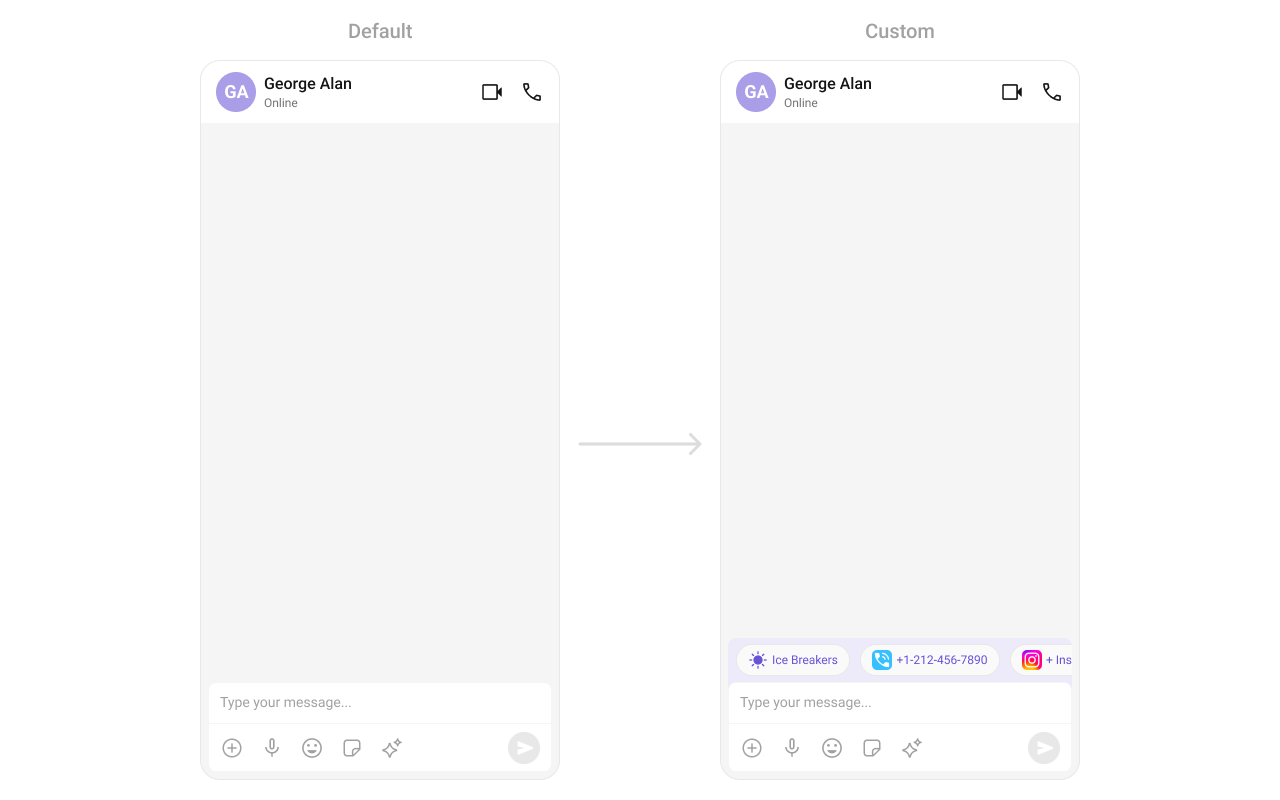
custom_footer_layout.xml
What this does: Defines a custom footer layout with three pill-shaped buttons: “Notes”, “Pinned Messages”, and “Saved Links”. Each button uses a MaterialCardView with an icon and label styled with the primary color.
- Java
- Kotlin
What this does: Inflates the custom_footer_layout.xml and sets it as the footer view of the message list. The three pill buttons display below the messages.
- Verify: After setting any advanced view, confirm the custom view renders in the correct position within the message list, and the data binding populates correctly.
Customization matrix
| What you want to change | Where | Property/API | Example |
|---|---|---|---|
| Outgoing message bubble background | themes.xml | CometChatMessageListStyle with cometchatMessageListOutgoingMessageBubbleStyle | <item name="cometchatMessageBubbleBackgroundColor">#F76808</item> |
| Message list background color | themes.xml | CometChatMessageListStyle with cometchatMessageListBackgroundColor | <item name="cometchatMessageListBackgroundColor">#FEEDE1</item> |
| Apply a custom style | Activity/Fragment | setStyle(int styleRes) | cometChatMessageList.setStyle(R.style.CustomCometChatMessageListStyle); |
| Set user for messages | Activity/Fragment | setUser(User) | .setUser(user); |
| Set group for messages | Activity/Fragment | setGroup(Group) | .setGroup(Group); |
| Message alignment | Activity/Fragment | setAlignment(UIKitConstants.MessageListAlignment) | .setAlignment(UIKitConstants.MessageListAlignment); |
| Error state visibility | Activity/Fragment | setErrorStateVisibility(int) | .setErrorStateVisibility(View.GONE); |
| Incoming/outgoing message sound | Activity/Fragment | disableSoundForMessages(boolean) | .disableSoundForMessages(false); |
| Custom message sound | Activity/Fragment | setCustomSoundForMessages(int) | .setCustomSoundForMessages(@RawRes resource); |
| Avatar visibility | Activity/Fragment | setAvatarVisibility(int) | .setAvatarVisibility(View.GONE); |
| Scroll to bottom on new message | Activity/Fragment | scrollToBottomOnNewMessage(boolean) | .scrollToBottomOnNewMessage(true); |
| Read/delivered receipts visibility | Activity/Fragment | setReceiptsVisibility(int) | .setReceiptsVisibility(View.GONE); |
| Quick reactions list | Activity/Fragment | setQuickReactions(List) | .setQuickReactions(Arrays.asList("👻","😈","🙀","🤡","❤️"); |
| Sticky date visibility | Activity/Fragment | setStickyDateVisibility(int) | .setStickyDateVisibility(View.GONE); |
| Thread reply option visibility | Activity/Fragment | replyInThreadOptionVisibility(int) | .replyInThreadOptionVisibility(View.GONE); |
| Translate option visibility | Activity/Fragment | translateMessageOptionVisibility(int) | .translateMessageOptionVisibility(View.GONE); |
| Edit option visibility | Activity/Fragment | editMessageOptionVisibility(int) | .editMessageOptionVisibility(View.GONE); |
| Delete option visibility | Activity/Fragment | deleteMessageOptionVisibility(int) | .deleteMessageOptionVisibility(View.GONE); |
| Reaction option visibility | Activity/Fragment | setMessageReactionOptionVisibility(int) | .setMessageReactionOptionVisibility(View.GONE); |
| Private message option visibility | Activity/Fragment | messagePrivatelyOptionVisibility(int) | .messagePrivatelyOptionVisibility(View.GONE); |
| Copy option visibility | Activity/Fragment | copyMessageOptionVisibility(int) | .copyMessageOptionVisibility(View.GONE); |
| Message info option visibility | Activity/Fragment | messageInfoOptionVisibility(int) | .messageInfoOptionVisibility(View.GONE); |
| Group action message visibility | Activity/Fragment | groupActionMessageVisibility(int) | .groupActionMessageVisibility(View.GONE); |
| Conversation starters | Activity/Fragment | enableConversationStarters(boolean) | .enableConversationStarters(true); |
| Smart replies | Activity/Fragment | enableSmartReplies(boolean) | .enableSmartReplies(true); |
| Smart replies keywords | Activity/Fragment | setAISmartRepliesKeywords(List) | .setAISmartRepliesKeywords(Arrays.asList("hello", "hi")); |
| Smart replies delay | Activity/Fragment | smartRepliesDelayDuration(int) | .smartRepliesDelayDuration(5000); |
| Date/time formatting | Activity/Fragment | setDateTimeFormatter(DateTimeFormatterCallback) | See setDateTimeFormatter code above |
| Sticky date format | Activity/Fragment | setDateFormat(SimpleDateFormat) | messageList.setDateFormat(new SimpleDateFormat("MMM dd, yyyy", Locale.getDefault())); |
| Message bubble time format | Activity/Fragment | setTimeFormat(SimpleDateFormat) | messageList.setTimeFormat(new SimpleDateFormat("hh:mm a", Locale.getDefault())); |
| Loading view | Activity/Fragment | setLoadingView(int) | cometchatMessageList.setLoadingView(R.layout.your_loading_view); |
| Empty view | Activity/Fragment | setEmptyView(int) | cometchatMessageList.setEmptyView(R.layout.your_empty_view); |
| Error view | Activity/Fragment | setErrorView(int) | cometchatMessageList.setErrorView(R.layout.your_empty_view); |
| Header view | Activity/Fragment | setHeaderView(View) | cometChatMessageList.setHeaderView(view); |
| Footer view | Activity/Fragment | setFooterView(View) | cometChatMessageList.setFooterView(view); |
| Text formatters (mentions) | Activity/Fragment | setTextFormatters(List<CometChatTextFormatter>) | See setTextFormatters code above |
| Refresh style | Activity/Fragment | refreshStyle() | .refreshStyle(); |
| Generate conversation summary | Activity/Fragment | generateConversationSummary() | .generateConversationSummary(); |
| Filter messages | Activity/Fragment | setMessagesRequestBuilder(MessagesRequestBuilder) | See Filters code above |
Common pitfalls & fixes
| Pitfall | Fix |
|---|---|
| Component does not render | Ensure CometChatUIKit.init() is called and awaited before using any UI Kit component. If init() has not completed, the component will not load data. |
| Message list shows only loading indicator | You must call .setUser(user) or .setGroup(group) on the CometChatMessageList instance. Without a User or Group object, the component cannot fetch messages. |
| Messages not appearing for the correct conversation | Verify that the User or Group object passed to setUser() or setGroup() has the correct UID or GUID. The component fetches messages for the specified entity only. |
| Custom style not visible | Verify the style parent is CometChatMessageListStyle and that you call setStyle(R.style.YourStyle) on the component instance. |
| Filters not applied | Ensure you call setMessagesRequestBuilder(builder) on the CometChatMessageList instance after creating and configuring the builder. Note that UID, GUID, types, and categories are always altered inside the message list. |
setOnThreadRepliesClick not firing | Verify that threaded messages exist in the conversation. The callback only fires when a user taps a message bubble that has thread replies. |
| Reactions not responding to custom click handlers | Ensure you set the reaction callbacks (setOnReactionClick, setOnReactionLongClick, setOnAddMoreReactionsClick) before the component loads messages. |
| Smart replies not appearing | Ensure enableSmartReplies(true) is called. If you set smartRepliesKeywords, verify that incoming messages contain at least one of the specified keywords. |
Sound still plays after disableSoundForMessages(true) | Ensure you call disableSoundForMessages(true) before the component starts loading. If called after data is already loaded, it may not take effect for existing notifications. |
FAQ
Q: How do I display messages for a group instead of a user? A: Call.setGroup(group) with a Group object instead of .setUser(user). The component fetches and displays messages for the specified group conversation.
Q: How do I filter messages by a search keyword?
A: Create a MessagesRequest.MessagesRequestBuilder, call .setSearchKeyword("your keyword"), and pass it to setMessagesRequestBuilder. Note that UID, GUID, types, and categories are always overridden internally by the message list.
Q: How do I customize the date format for sticky date separators?
A: Call messageList.setDateFormat(new SimpleDateFormat("MMM dd, yyyy", Locale.getDefault())) to set a custom date format for the sticky date headers.
Q: Does the MessageList component emit any events?
A: No. The MessageList component does not emit any events of its own. If you need to listen for message-level events, use the CometChat SDK’s message listeners directly.
Q: How do I add a custom header or footer to the message list?
A: Call cometChatMessageList.setHeaderView(view) to add a custom view above the messages, or cometChatMessageList.setFooterView(view) to add one below the messages. Pass any inflated View object.