

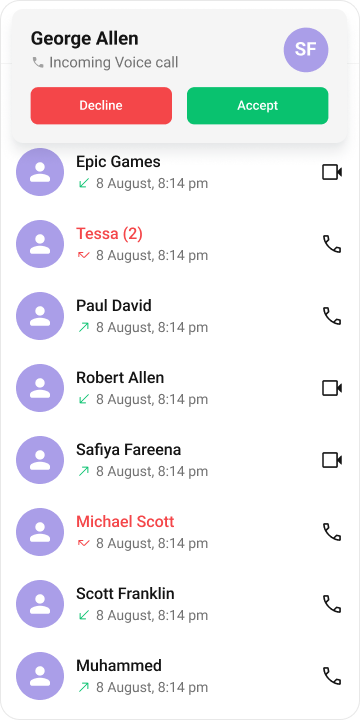
CometChatIncomingCall is a Component that serves as a visual representation when the user receives an incoming call, such as a voice call or video call, providing options to answer or decline the call.
When to use this
- You need a full-screen UI that appears when the logged-in user receives an incoming voice or video call.
- You want to provide accept and reject buttons so the user can answer or decline the call.
- You need to display the caller’s name and avatar on the incoming call screen.
- You want to play a custom ringtone or disable the default call sound.
- You need to customize the incoming call screen appearance with styles or custom views.
Prerequisites
- CometChat SDK initialized with
CometChatUIKit.init()and a user logged in. - The
cometchat-chat-uikit-androiddependency added to your project. - A valid
layout_activity.xmlor Activity/Fragment where you will place the component. - A
Userobject withuid,name, andavatarset, representing the caller.
Quick start
- Open your
layout_activity.xmlfile. - Add the
CometChatIncomingCallXML element:
- XML
What this does: Adds the CometChatIncomingCall component to your layout. It fills the available width and height and renders the incoming call screen.
- In your Activity or Fragment, get a reference to the component and set the
Userobject:
- Java
- Kotlin
What this does: Retrieves theCometChatIncomingCallview from the layout binding, creates aUserobject with the caller’s details, and passes it to the component usingsetUser(). The component then displays the caller’s name and avatar.
- Build and run your app.
- Verify that the incoming call screen appears with the caller’s avatar, name, and accept/reject buttons.
- If you need to add the component programmatically instead of XML, see the Activity integration or Fragment integration subsections in Implementation.
Core concepts
CometChatIncomingCall: The main component class that renders the incoming call screen. It can be added via XML layout, Activity, or Fragment.- Actions: Callbacks such as
setOnAcceptClick,setOnRejectClick, andsetOnErrorthat let you respond to user interactions on the call screen. - Filters: The
CometChatIncomingCallcomponent does not expose any filters. - Events: The
CometChatIncomingCallcomponent does not expose any events. - Style: XML theme styles (parent
CometChatIncomingCallStyle) applied viasetStyle()to customize colors, fonts, and sub-component styles. - Advanced views: Methods like
setItemView,setLeadingView,setTitleView,setSubtitleView, andsetTrailingViewthat let you replace default UI elements with custom layouts.
Implementation
Activity integration
What you’re changing: How you addCometChatIncomingCall to an Activity programmatically.
- Where: Your Activity class (e.g.,
YourActivity.javaorYourActivity.kt). - Applies to:
CometChatIncomingCall. - Default behavior: The component is not added until you set it as the content view.
- Override: Create a
CometChatIncomingCallinstance, set theUserobject, and callsetContentView. - Code:
- Java
- Kotlin
YourActivity.java
What this does: Creates a newCometChatIncomingCallinstance, configures aUserobject with the caller’s details, passes it to the component, and sets the component as the entire content view of the Activity. The incoming call screen renders immediately after the Activity is created.
- Verify: The incoming call screen fills the screen with the caller’s avatar, name, and accept/reject buttons when the Activity launches.
Fragment integration
What you’re changing: How you addCometChatIncomingCall to a Fragment.
- Where: Your Fragment class (e.g.,
YourFragment.javaorYourFragment.kt). - Applies to:
CometChatIncomingCall. - Default behavior: The component is not added until you return it from
onCreateView. - Override: Create a
CometChatIncomingCallinstance, set theUserobject, and return it fromonCreateView. - Code:
- Java
- Kotlin
YourFragment.java
What this does: Creates a newCometChatIncomingCallinstance inside the Fragment, configures aUserobject with the caller’s details, passes it to the component, and returns it as the Fragment’s root view. The incoming call screen renders when the Fragment is displayed.
- Verify: The incoming call screen appears inside the Fragment’s container with the caller’s avatar, name, and accept/reject buttons.
Actions
What you’re changing: How the component responds to user interactions such as accepting a call, rejecting a call, or handling errors.- Where: Activity or Fragment where you hold a reference to
CometChatIncomingCall(e.g.,cometchatIncomingCall). - Applies to:
CometChatIncomingCall. - Default behavior: Predefined actions execute automatically (e.g., tapping the accept button answers the call, tapping the reject button declines the call).
- Override: Call the corresponding setter method to replace the default behavior with your own logic.
setOnAcceptClick
Function invoked when the user clicks the accept button, initiating a predefined action. Override this to customize the accept behavior.
- Java
- Kotlin
What this does: Replaces the default accept-button behavior. When the user taps the accept button, your custom OnClick lambda executes instead of the built-in call-accept logic.
setOnRejectClick
Function invoked when the user clicks the reject button, initiating a predefined action. Override this to customize the reject behavior.
- Java
- Kotlin
What this does: Replaces the default reject-button behavior. When the user taps the reject button, your custom OnClick lambda executes instead of the built-in call-decline logic.
setOnError
Registers an error handler to customize error handling for the component.
- Java
- Kotlin
What this does: Registers an error listener. If the component encounters an error (e.g., call failure), your callback receives theContextandCometChatExceptionso you can handle it with custom logic.
- Verify: After setting an action callback, trigger the corresponding user interaction (tap accept, tap reject) and confirm your custom logic executes instead of the default behavior.
Filters
What you’re changing: Which data is displayed in the component.- Where: Activity or Fragment where you hold a reference to
CometChatIncomingCall. - Applies to:
CometChatIncomingCall. - Default behavior: The component displays the incoming call screen for the configured user.
- Override: The
CometChatIncomingCallcomponent does not have any exposed filters.
Events
What you’re changing: How your app reacts to global events emitted by the component.- Where: Any Activity, Fragment, or class where you want to listen for events.
- Applies to:
CometChatIncomingCall. - Default behavior: No external listeners are registered.
- Override: The
CometChatIncomingCallcomponent does not have any exposed events.
Style
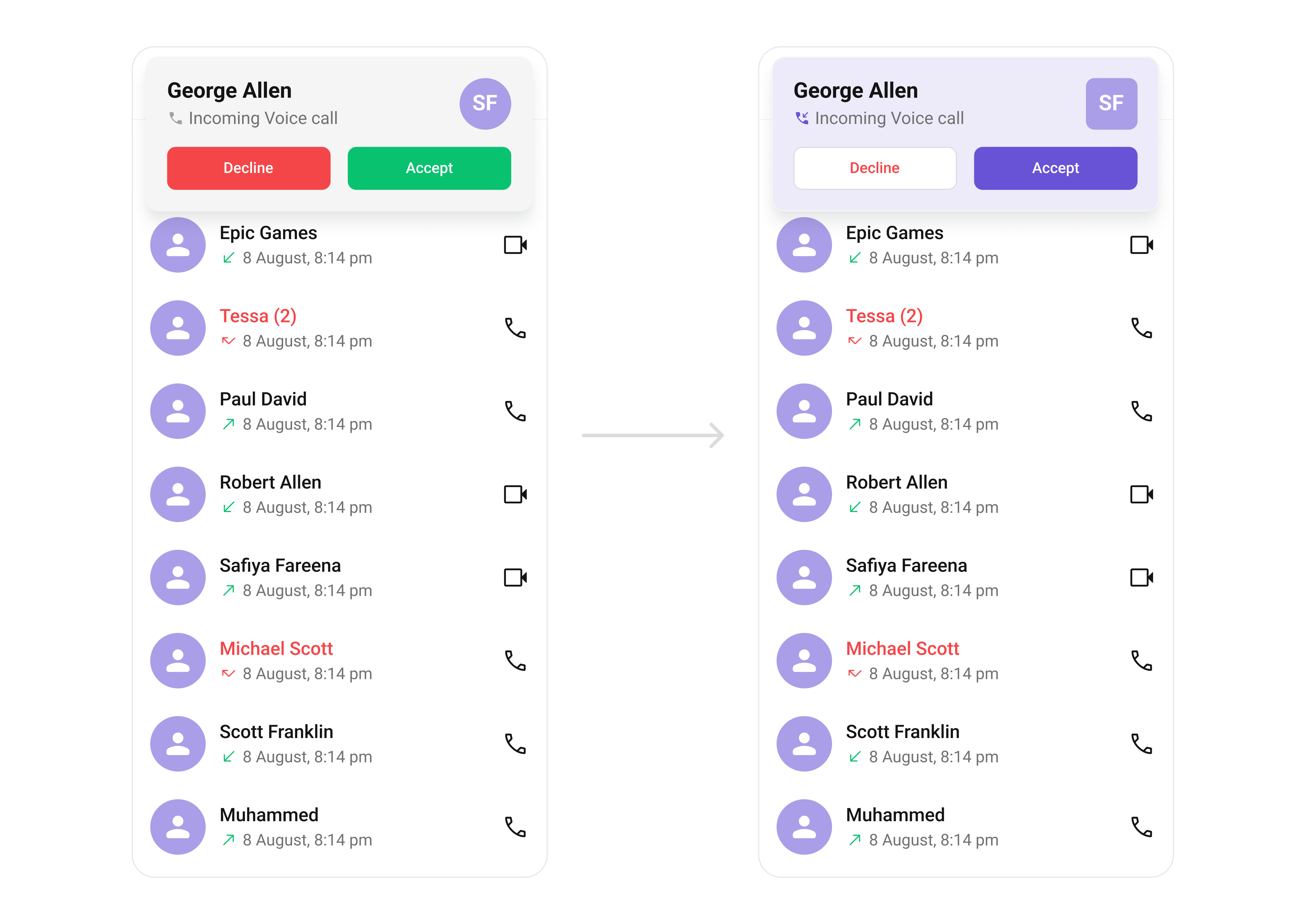
What you’re changing: The visual appearance of theCometChatIncomingCall component using XML theme styles.
- Where:
themes.xmlfor style definitions, and your Activity/Fragment for applying the style. - Applies to:
CometChatIncomingCall. - Default behavior: The component uses the default
CometChatIncomingCallStyle. - Override: Define a custom style with parent
CometChatIncomingCallStyleinthemes.xml, then callsetStyle()on the component.
- Code:
themes.xml
What this does: Defines two custom styles:CustomAvatarStylesets the avatar corner radius to 8dp and background color to#FBAA75;CustomIncomingCallStylesets the background to#AA9EE8, configures accept/reject button colors and text appearances, and applies the custom avatar style.
- Java
- Kotlin
What this does: Applies theTo know more such attributes, visit the attributes file.CustomIncomingCallStyletheme to theCometChatIncomingCallcomponent, changing the background color, button colors, text appearances, and avatar style.
- Verify: The incoming call screen displays with a purple background (
#AA9EE8), custom button colors, and avatars with rounded corners (8dp radius) and an orange background (#FBAA75).
Functionality
What you’re changing: Functional customizations such as setting the call object, configuring custom sounds, or disabling call sounds.- Where: Activity or Fragment where you hold a reference to
CometChatIncomingCall. - Applies to:
CometChatIncomingCall. - Default behavior: The component uses default call sound and requires a
Userobject to display caller information. - Override: Call the corresponding method on the component instance.
| Property | Description | Code |
|---|---|---|
setCall | Sets the Call object for which the incoming call screen is displayed. Required for call actions. | .setCall(call) |
setCustomSoundForCalls | Defines the path for custom sound for calls on the incoming call screen. | .setCustomSoundForCalls(@RawRes int) |
disableSoundForCalls | Defines whether to disable sound for the call on the incoming call screen. | .disableSoundForCalls(true) |
What this does: These methods configure the call behavior.setCallassociates aCallobject with the screen so accept/reject actions work correctly.setCustomSoundForCallsplays a custom ringtone from yourres/rawdirectory.disableSoundForCallssilences the incoming call ringtone.
- Verify: After calling
setCall(call), confirm the accept and reject buttons trigger the correct call actions. After callingdisableSoundForCalls(true), confirm no ringtone plays on incoming calls.
Advanced views
What you’re changing: The default UI elements of the incoming call screen with custom layouts.- Where: Activity or Fragment where you hold a reference to
CometChatIncomingCall. - Applies to:
CometChatIncomingCall. - Default behavior: The component renders its built-in views for the caller’s avatar, name, subtitle, and trailing area.
- Override: Call the corresponding setter method and provide a custom view.
setItemView
Sets a custom view for rendering the entire incoming call card.
Use Cases:
- Customize the call card UI for incoming calls.
- Display additional user details (e.g., caller ID, location).
- Integrate custom animations for call alerts.
- Java
- Kotlin
YourActivity.java
What this does: Replaces the entire default incoming call card with your custom View. The custom view is responsible for rendering all caller information and call controls.
setLeadingView
Customizes the leading section of the component. This area displays the caller’s avatar or profile picture by default.
Use Cases:
- Display a profile picture with call status effects.
- Show a custom ringing animation around the avatar.
- Replace the avatar with a caller ID card.
- Java
- Kotlin
YourActivity.java
What this does: Replaces the default leading (left) area of the incoming call screen with your custom View.
Example:
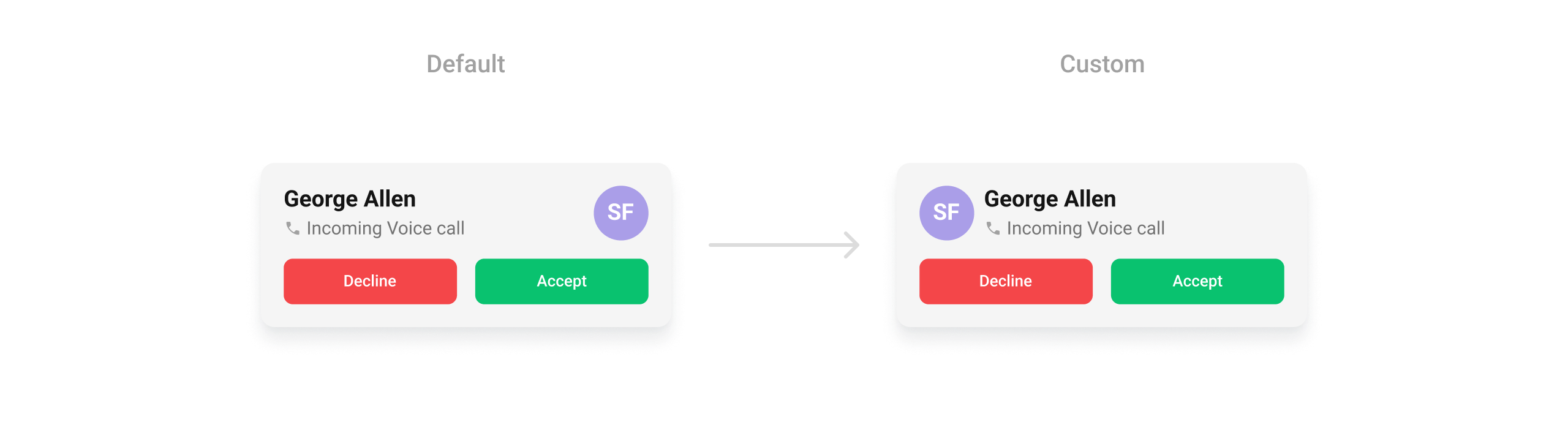
leading_view.xml
What this does: Defines a custom leading view layout with aCometChatAvatarinside aRelativeLayoutsized at 45dp by 45dp.
- Java
- Kotlin
YourActivity.java
What this does: Inflates theleading_view.xmllayout, retrieves the caller’s avatar from theCallobject, sets the avatar image and name, configures the layout size to 45dp, clears the trailing view, and sets the custom leading view on the component.
setTitleView
Sets a custom title view, used for the caller’s name or call type.
Use Cases:
- Display the caller’s full name with a verified badge.
- Indicate the call type (Voice Call, Video Call).
- Show real-time status (“Ringing…”, “Call from Work Contact”, etc.).
- Java
- Kotlin
YourActivity.java
What this does: Replaces the default title area of the incoming call screen with your custom View.
Example:
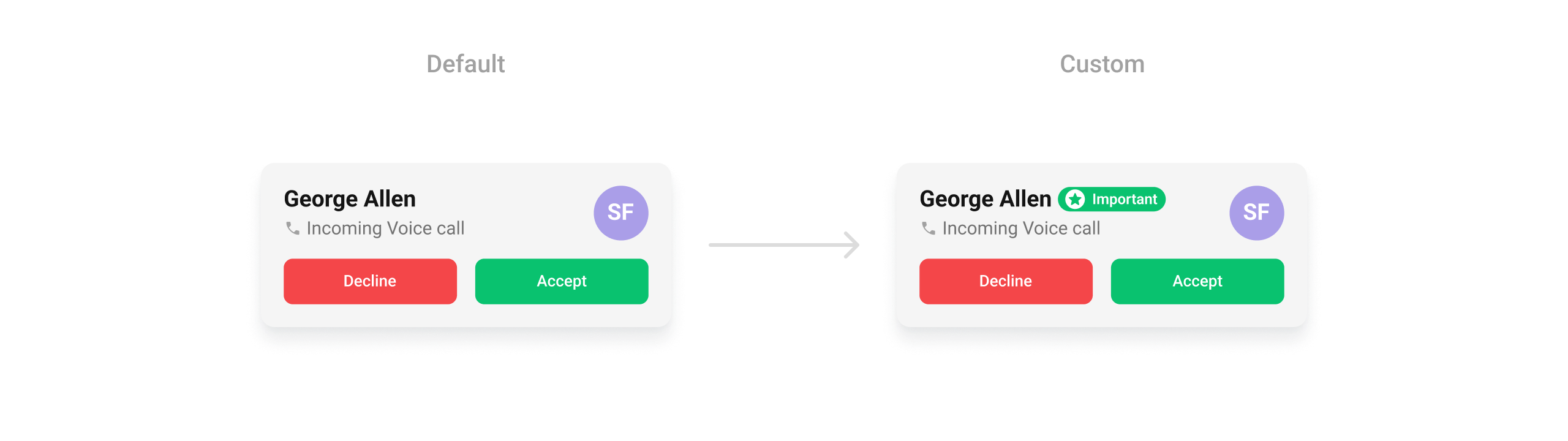
custom_title_view.xml
What this does: Defines a custom title view layout with aTextViewfor the caller’s name and aViewelement for a role badge indicator, arranged horizontally.
- Java
- Kotlin
YourActivity.java
What this does: Inflates the custom_title_view.xml layout, sets the title text to “George Allen”, configures wrap-content layout parameters, and applies the custom title view to the incoming call component.
setSubtitleView
Customizes the subtitle view, used for additional call details below the title.
Use Cases:
- Display call duration if available.
- Show network strength indicators.
- Include a custom message like “Connecting…”.
- Java
- Kotlin
YourActivity.java
What this does: Replaces the default subtitle area of the incoming call screen with your custom View. Use this to show additional information below the caller’s name.
setTrailingView
Customizes the trailing section for actions or additional call-related UI elements.
Use Cases:
- Add custom accept/reject buttons.
- Show a mute button before answering.
- Display a text response option (e.g., “Can’t talk now”)
- Java
- Kotlin
YourActivity.java
What this does: Replaces the default trailing (right) area of the incoming call screen with your custom View.
Example:
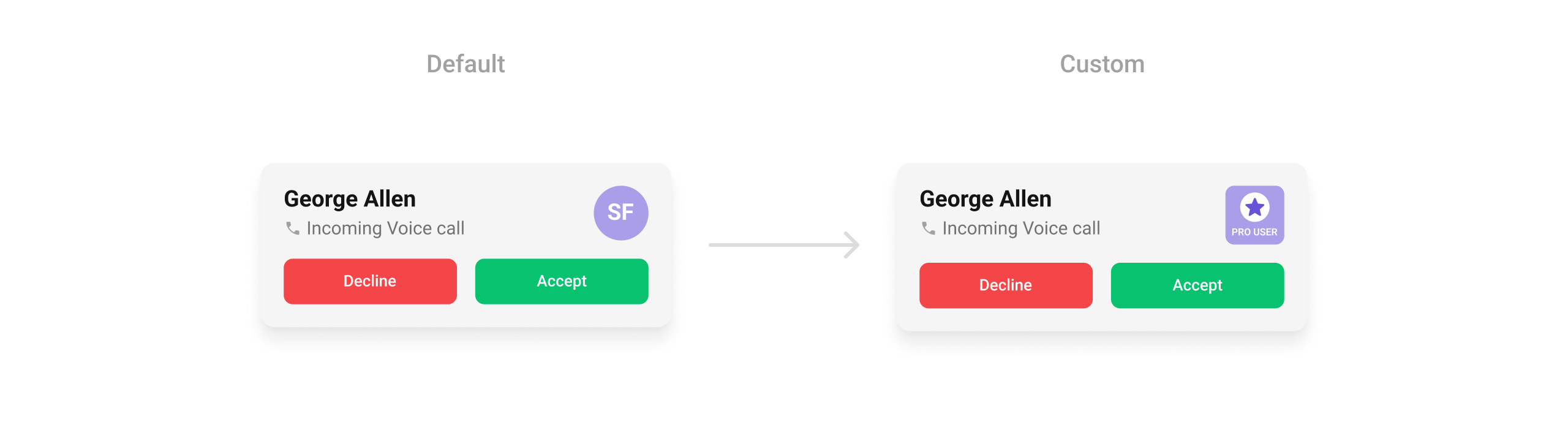
trailing_view.xml
What this does: Defines a custom trailing view layout with aCometChatAvatarinside aRelativeLayoutsized at 45dp by 45dp.
- Java
- Kotlin
YourActivity.java
What this does: Inflates thetrailing_view.xmllayout, retrieves the caller from theCallobject, checks if the caller has a “pro_user” tag and sets a pro badge avatar if so, sets the caller’s avatar image and name, configures the layout size to 45dp, and applies the custom trailing view to the component.
- Verify: After setting any advanced view, confirm the custom view renders in the correct position on the incoming call screen and displays the expected caller information.
Customization matrix
| What you want to change | Where | Property/API | Example |
|---|---|---|---|
| Background color | themes.xml | CometChatIncomingCallStyle with cometchatIncomingCallBackgroundColor | <item name="cometchatIncomingCallBackgroundColor">#AA9EE8</item> |
| Icon tint | themes.xml | CometChatIncomingCallStyle with cometchatIncomingCallIconTint | <item name="cometchatIncomingCallIconTint">?attr/cometchatPrimaryColor</item> |
| Reject button background | themes.xml | CometChatIncomingCallStyle with cometchatIncomingCallRejectButtonBackgroundColor | <item name="cometchatIncomingCallRejectButtonBackgroundColor">?attr/cometchatColorWhite</item> |
| Accept button background | themes.xml | CometChatIncomingCallStyle with cometchatIncomingCallAcceptButtonBackgroundColor | <item name="cometchatIncomingCallAcceptButtonBackgroundColor">?attr/cometchatPrimaryColor</item> |
| Reject button text color | themes.xml | CometChatIncomingCallStyle with cometchatIncomingCallRejectButtonTextColor | <item name="cometchatIncomingCallRejectButtonTextColor">?attr/cometchatErrorColor</item> |
| Accept button text color | themes.xml | CometChatIncomingCallStyle with cometchatIncomingCallAcceptButtonTextColor | <item name="cometchatIncomingCallAcceptButtonTextColor">?attr/cometchatColorWhite</item> |
| Reject button text appearance | themes.xml | CometChatIncomingCallStyle with cometchatIncomingCallRejectButtonTextAppearance | <item name="cometchatIncomingCallRejectButtonTextAppearance">?attr/cometchatTextAppearanceButtonMedium</item> |
| Accept button text appearance | themes.xml | CometChatIncomingCallStyle with cometchatIncomingCallAcceptButtonTextAppearance | <item name="cometchatIncomingCallAcceptButtonTextAppearance">?attr/cometchatTextAppearanceButtonMedium</item> |
| Avatar style | themes.xml | CometChatIncomingCallStyle with cometchatIncomingCallAvatarStyle | <item name="cometchatIncomingCallAvatarStyle">@style/CustomAvatarStyle</item> |
| Apply a custom style | Activity/Fragment | setStyle(int styleRes) | cometchatIncomingCall.setStyle(R.style.CustomIncomingCallStyle); |
| Call object | Activity/Fragment | setCall(Call) | .setCall(call) |
| Custom call sound | Activity/Fragment | setCustomSoundForCalls(@RawRes int) | .setCustomSoundForCalls(@RawRes int) |
| Disable call sound | Activity/Fragment | disableSoundForCalls(boolean) | .disableSoundForCalls(true) |
| Accept button action | Activity/Fragment | setOnAcceptClick(OnClick) | See setOnAcceptClick code above |
| Reject button action | Activity/Fragment | setOnRejectClick(OnClick) | See setOnRejectClick code above |
| Error handler | Activity/Fragment | setOnError(OnError) | See setOnError code above |
| Entire call card view | Activity/Fragment | setItemView(View) | cometchatIncomingCall.setItemView(view); |
| Leading view (avatar area) | Activity/Fragment | setLeadingView(View) | See setLeadingView code above |
| Title view (caller name) | Activity/Fragment | setTitleView(View) | See setTitleView code above |
| Subtitle view | Activity/Fragment | setSubtitleView(View) | cometchatIncomingCall.setSubtitleView(view); |
| Trailing view | Activity/Fragment | setTrailingView(View) | See setTrailingView code above |
Common pitfalls & fixes
| Pitfall | Fix |
|---|---|
| Component does not render | Ensure CometChatUIKit.init() is called and awaited before using any UI Kit component. If init() has not completed, the component will not load data. |
| Incoming call screen is blank | Verify that you call setUser(user) with a valid User object that has uid, name, and avatar set. If any of these fields are empty, the screen may not display caller information. |
| Accept or reject button does nothing | Ensure you call setCall(call) with a valid Call object. If no Call object is set, the accept and reject buttons cannot trigger call actions. |
| Custom style not visible | Verify the style parent is CometChatIncomingCallStyle and that you call setStyle(R.style.YourStyle) on the component instance. |
| Sound still plays after disabling | Ensure you call disableSoundForCalls(true) before the component starts loading. If called after the incoming call is already ringing, it may not take effect. |
| Custom sound not playing | Verify the sound file exists in your res/raw directory and that you pass the correct @RawRes int resource ID to setCustomSoundForCalls. |
setOnAcceptClick not firing | Verify you are calling setOnAcceptClick on the correct CometChatIncomingCall instance. If you have multiple instances, the callback may be set on the wrong one. |
| Custom leading view not showing | If you set a custom leading view but it does not appear, verify that the view is inflated correctly and has valid layout parameters. A view with zero width or height will not be visible. |
| Kotlin method names differ from Java | In Kotlin, setOnAcceptClick maps to setOnAcceptCallClick and setOnRejectClick maps to setOnDeclineCallClick. Use the Kotlin-specific method names in Kotlin code. |
FAQ
Q: How do I display the incoming call screen when a call is received? A: AddCometChatIncomingCall to your layout via XML or programmatically in an Activity/Fragment. Set the User object with setUser(user) and the Call object with setCall(call) to display the caller’s information and enable accept/reject actions.
Q: Can I use CometChatIncomingCall in both an Activity and a Fragment?
A: Yes. In an Activity, create the instance with new CometChatIncomingCall(this) and call setContentView. In a Fragment, create it with new CometChatIncomingCall(requireContext()) and return it from onCreateView.
Q: How do I customize the accept and reject button colors?
A: Define a custom style with parent CometChatIncomingCallStyle in themes.xml. Set cometchatIncomingCallAcceptButtonBackgroundColor and cometchatIncomingCallRejectButtonBackgroundColor to your desired colors, then apply the style with setStyle().
Q: Why are the Kotlin method names different from Java for accept and reject actions?
A: In Kotlin, the accept action uses setOnAcceptCallClick and the reject action uses setOnDeclineCallClick. These are the Kotlin-specific method names exposed by the component.
Q: Does CometChatIncomingCall emit any global events?
A: No. The CometChatIncomingCall component does not have any exposed events. Use the action callbacks (setOnAcceptClick, setOnRejectClick, setOnError) to handle user interactions.