

CometChatUsers displays an accessible list of all available users, with built-in search, avatars, names, and online/offline status indicators.
When to use this
- You need a screen that lists all available users in your app.
- You want to show each user’s name, avatar, and online/offline status.
- You need tap and long-press actions on user items (open profile, block, mute).
- You want to filter users by status, role, tags, friends-only, or custom request builders.
- You need real-time updates when users are blocked or unblocked.
- You want to customize the user list appearance with styles, custom views, or selection modes.
Prerequisites
- CometChat SDK initialized with
CometChatUIKit.init()and a user logged in. - The
cometchat-chat-uikit-androiddependency added to your project. - A valid
layout.xmlor Activity/Fragment where you will place the component.
Quick start
- Open your layout XML file.
- Add the
CometChatUsersXML element:
layout.xml
What this does: Adds the CometChatUsers component to your layout. It fills the available width and height and renders the user list for the logged-in user.
- Build and run your app.
- Verify that the user list appears with avatars, names, and online/offline status indicators.
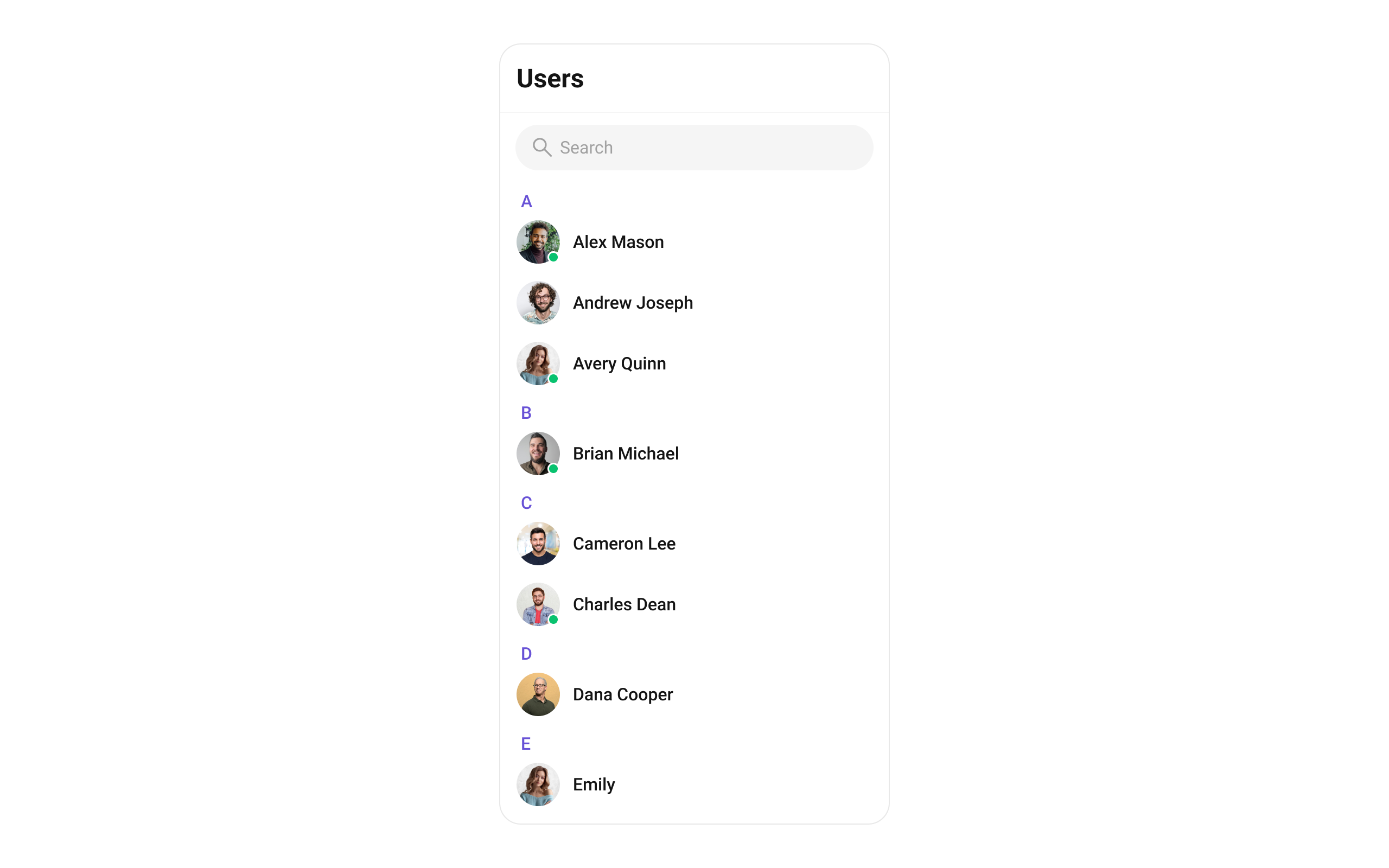
- If you need to add the component programmatically, see the Implementation section for actions, filters, events, and advanced views.
Core concepts
CometChatUsers: The main component class that renders the user list. It can be added via XML layout.- Actions: Callbacks such as
setOnItemClick,setOnItemLongClick,setOnBackPressListener,setOnSelect,setOnError,setOnLoad, andsetOnEmptythat let you respond to user interactions. - Filters: Use
UsersRequest.UsersRequestBuilderto filter users by limit, search keyword, friends-only, roles, tags, status, or UIDs. UsesetSearchRequestBuilderto customize the search list separately. - Events: Global events emitted via
CometChatUserEvents(e.g.,ccUserBlocked,ccUserUnblocked) that you can listen to from anywhere in your app. - Style: XML theme styles (parent
CometChatUsersStyle) applied viasetStyle()to customize colors, fonts, and sub-component styles. - Advanced views: Methods like
setLeadingView,setTitleView,setTrailingView,setItemView,setSubtitleView, andsetOverflowMenuthat let you replace default UI elements with custom layouts.
Implementation
Actions
What you’re changing: How the component responds to user interactions such as taps, long-presses, back button, selection, errors, load completion, and empty states.- Where: Activity or Fragment where you hold a reference to
CometChatUsers(e.g.,cometchatUsers). - Applies to:
CometChatUsers. - Default behavior: Predefined actions execute automatically (e.g., tapping a user opens the chat, pressing back navigates to the previous screen).
- Override: Call the corresponding setter method to replace the default behavior with your own logic.
setOnItemClick
Function invoked when a user item is clicked, used to open a user profile or chat screen.
- Java
- Kotlin
YourActivity.java
What this does: Replaces the default item-click behavior. When a user taps a user item, your custom lambda executes instead of the built-in navigation.
setOnItemLongClick
Function executed when a user item is long-pressed, allowing additional actions like delete or block.
- Java
- Kotlin
YourActivity.java
What this does: Replaces the default long-press behavior. When a user long-presses a user item, your custom lambda executes.
setOnBackPressListener
Triggered when the user presses the back button in the app bar. By default, it navigates to the previous activity.
- Java
- Kotlin
YourActivity.java
What this does: Overrides the default back-press navigation. When the user taps the back button, your custom logic runs instead.
setOnSelect
Called when an item from the fetched list is selected, useful for multi-selection features.
- Java
- Kotlin
YourActivity.java
What this does: Registers a callback that fires when the user selects one or more users. The callback receives the list of selected User objects.
setOnError
Listens for any errors that occur in the Users component. This does not change the component’s behavior.
- Java
- Kotlin
YourActivity.java
What this does: Registers an error listener. If the component encounters an error (e.g., network failure), your callback receives the CometChatException.
setOnLoad
Invoked when the list is successfully fetched and loaded, helping track component readiness.
- Java
- Kotlin
YourActivity.java
What this does: Registers a callback that fires after the user list is fetched and rendered. The callback receives the list of loaded User objects.
setOnEmpty
Called when the list is empty, enabling custom handling such as showing a placeholder message.
- Java
- Kotlin
YourActivity.java
What this does: Registers a callback that fires when the user list has no items. Use this to show a custom empty-state message or trigger other logic.
- Verify: After setting an action callback, trigger the corresponding user interaction (tap, long-press, back, select) and confirm your custom logic executes instead of the default behavior.
Filters
What you’re changing: Which users appear in the list.- Where: Activity or Fragment where you hold a reference to
CometChatUsers. - Applies to:
CometChatUsers. - Default behavior: All users are fetched and displayed.
- Override: Create a
UsersRequest.UsersRequestBuilder, configure it, and pass it tosetUsersRequestBuilder.
UsersRequestBuilder
The UsersRequestBuilder enables you to filter and customize the user list based on available parameters. The following parameters are available:
| Methods | Type | Description |
|---|---|---|
setLimit | int | Sets the number of users that can be fetched in a single request, suitable for pagination |
setSearchKeyword | String | Used for fetching users matching the passed string |
hideBlockedUsers | bool | Used for fetching all those users who are not blocked by the logged in user |
friendsOnly | bool | Used for fetching only those users in which logged in user is a member |
setRoles | List<String> | Used for fetching users containing the passed tags |
setTags | List<String> | Used for fetching users containing the passed tags |
withTags | bool | Used for fetching users containing tags |
setUserStatus | String | Used for fetching users by their status online or offline |
setUIDs | List<String> | Used for fetching users containing the passed users |
- Code:
- Java
- Kotlin
What this does: Creates aUsersRequestBuilderthat fetches all users (not friends-only) with a limit of 10 per fetch. The builder is then applied to theCometChatUserscomponent.
- Verify: The user list shows all users (not filtered to friends) and fetches at most 10 items per request.
SearchRequestBuilder
The SearchRequestBuilder uses UsersRequestBuilder to filter and customize the search list based on available parameters. This keeps uniformity between the displayed user list and searched user list.
- Code:
- Java
- Kotlin
What this does: Creates a UsersRequestBuilder configured with a search keyword and applies it as the search request builder. This controls how the search results are filtered when the user types in the search bar.
- Verify: When searching in the user list, the search results are filtered according to the configured
SearchRequestBuilderparameters.
Events
What you’re changing: How your app reacts to global events emitted by the Users component.- Where: Any Activity, Fragment, or class where you want to listen for user events.
- Applies to:
CometChatUserEvents. - Default behavior: No external listeners are registered. Events are emitted but not handled outside the component.
- Override: Add a listener using
CometChatUserEvents.addUserListenerand remove it when no longer needed usingCometChatUserEvents.removeListener.
| Events | Description |
|---|---|
ccUserBlocked | This will get triggered when the logged in user blocks another user |
ccUserUnblocked | This will get triggered when the logged in user unblocks another user |
- Code:
- Java
- Kotlin
What this does: Registers a global event listener tagged with your identifier. When a user is blocked, theccUserBlockedcallback fires with the blockedUserobject. When a user is unblocked, theccUserUnblockedcallback fires. CallremoveListenerwith the same tag to unsubscribe.
- Verify: Block a user in the UI and confirm your
ccUserBlockedcallback fires with the correctUserobject. Unblock a user and confirmccUserUnblockedfires.
Style
What you’re changing: The visual appearance of the Users component using XML theme styles.- Where:
themes.xmlfor style definitions, and your Activity/Fragment for applying the style. - Applies to:
CometChatUsers. - Default behavior: The component uses the default
CometChatUsersStyle. - Override: Define a custom style with parent
CometChatUsersStyleinthemes.xml, then callsetStyle()on the component.
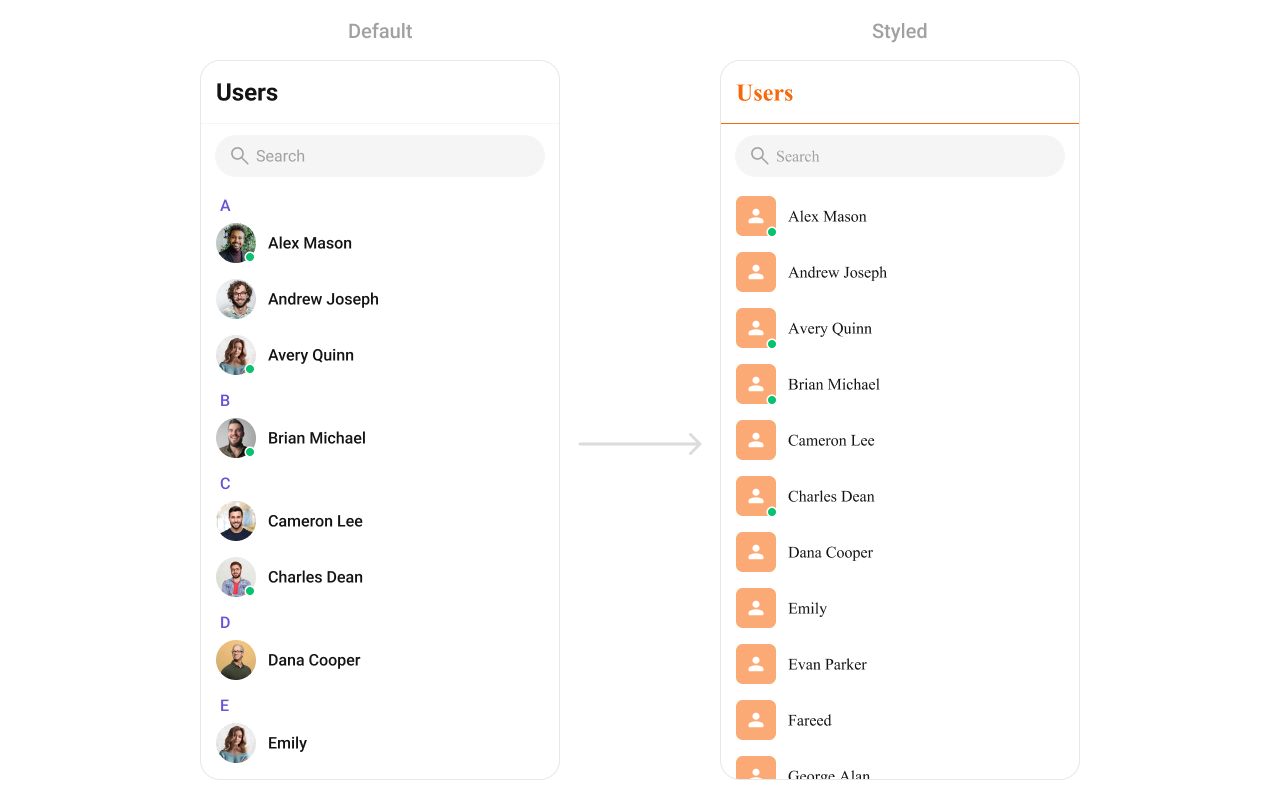
- Code:
themes.xml
What this does: Defines two custom styles:CustomAvatarStylesets the avatar corner radius to 8dp and background color to#FBAA75;CustomUsersStyleapplies the avatar sub-style and sets the separator and title text colors to#F76808.
- Java
- Kotlin
What this does: Applies theTo know more such attributes, visit the attributes file.CustomUsersStyletheme to theCometChatUserscomponent, changing the avatar, separator, and title text appearance.
- Verify: The user list avatars display with rounded corners (8dp radius) and an orange background (
#FBAA75), separators show in orange (#F76808), and title text appears in orange (#F76808).
Functionality
What you’re changing: Small functional customizations such as toggling visibility of UI elements and configuring selection modes.- Where: Activity or Fragment where you hold a reference to
CometChatUsers. - Applies to:
CometChatUsers. - Default behavior: All UI elements are visible with default settings.
- Override: Call the corresponding method on the component instance.
| Methods | Description | Code |
|---|---|---|
setBackIconVisibility | Toggles visibility for the back button in the app bar | .setBackIconVisibility(View.VISIBLE); |
setToolbarVisibility | Toggles visibility for the toolbar in the app bar | .setToolbarVisibility(View.GONE); |
setStickyHeaderVisibility | Toggles visibility for the sticky header in the list | .setStickyHeaderVisibility(View.GONE); |
setErrorStateVisibility | Hides the error state on fetching users | .setErrorStateVisibility(View.GONE); |
setEmptyStateVisibility | Hides the empty state on fetching users | .setEmptyStateVisibility(View.GONE); |
setLoadingStateVisibility | Hides the loading state while fetching users | .setLoadingStateVisibility(View.GONE); |
setSeparatorVisibility | Controls visibility of separators in the list view | .setSeparatorVisibility(View.GONE); |
setUsersStatusVisibility | Controls visibility of the online status indicator | .setUsersStatusVisibility(View.GONE); |
setSelectionMode | Determines the selection mode (single or multiple) | .setSelectionMode(UIKitConstants.SelectionMode.MULTIPLE); |
setSearchkeyword | Used for fetching users matching the passed keywords | .setSearchkeyword("anything"); |
setSearchBoxVisibility | Hides the search box shown in the toolbar | .setSearchBoxVisibility(View.GONE); |
- Verify: After calling a visibility method, confirm the corresponding UI element is shown or hidden. After calling
setSelectionMode, confirm the selection behavior matches the mode.
Advanced views
What you’re changing: The default UI elements of user list items and the component’s chrome (loading, empty, error states, overflow menu, options).- Where: Activity or Fragment where you hold a reference to
CometChatUsers. - Applies to:
CometChatUsers. - Default behavior: The component renders its built-in views for each part of the user item and component chrome.
- Override: Call the corresponding setter method and provide a custom view or callback.
setOptions
Sets a predefined list of actions that users can perform when they long press a user in the list. This replaces the default options entirely.
- Java
- Kotlin
What this does: Replaces the default long-press options with an empty list, effectively removing all long-press menu items.
addOptions
Extends the existing set of long-press actions without removing the default ones.
- Java
- Kotlin
What this does: Appends an empty list to the existing long-press options, leaving the defaults unchanged. Replace the empty list with your custom MenuItem objects to add new actions.
setLoadingView
Sets a custom loading view displayed when data is being fetched.
- Java
- Kotlin
What this does: Replaces the default loading spinner with your custom layout resource. The custom view displays while users are being fetched.
setEmptyView
Configures a custom view displayed when there are no users in the list.
- Java
- Kotlin
What this does: Replaces the default empty state with your custom layout resource. The custom view displays when the user list has no items.
setErrorView
Defines a custom error state view that appears when an issue occurs while loading users.
- Java
- Kotlin
What this does: Replaces the default error state with your custom layout resource. The custom view displays when the component encounters an error during data fetching.
setLeadingView
Sets a custom leading view element that appears at the beginning of each user item (e.g., profile pictures, avatars, or user badges).
- Java
- Kotlin
What this does: Registers aUsersViewHolderListenerthat provides a custom view for the leading (left) area of each user item.createViewinflates your layout, andbindViewpopulates it with user data.
setTitleView
Customizes the title view of each user item, which displays the user’s name. It allows for styling modifications, additional metadata, or inline action buttons.
- Java
- Kotlin
What this does: Registers aUsersViewHolderListenerthat provides a custom view for the title area of each user item.createViewinflates your layout, andbindViewpopulates it with user data.

custom_user_title_view.xml:
custom_user_title_view.xml
What this does: Defines a custom title view layout with aInflate the layout insideTextViewfor the user name and aViewfor a role badge indicator. The role badge displays a drawable based on the user’s role.
createView() and use bindView() to initialize and assign values based on the User object:
- Java
- Kotlin
What this does: Inflates the custom title view layout and populates it with the user’s name. If the user’s role is “teacher”, “student”, or “close_friend”, the corresponding role badge drawable is shown. If the role does not match any of these, the badge is hidden.
setTrailingView
Customizes the trailing (right-end) section of each user item, used for actions like buttons, icons, or extra information.
- Java
- Kotlin
What this does: Registers aUsersViewHolderListenerthat provides a custom view for the trailing (right) area of each user item.createViewinflates your layout, andbindViewpopulates it with user data.

custom_user_tail_view.xml:
custom_user_tail_view.xml
What this does: Defines a custom trailing view layout with a View element for displaying a tag badge based on the user’s role.
Inflate the layout inside createView() and use bindView() to initialize and assign values based on the User object:
- Java
- Kotlin
What this does: Inflates the custom trailing view layout and checks the user’s role. If the role is “pro”, the tag badge is shown with the teacher drawable. If the role does not match, the badge is hidden.
setItemView
Assigns a completely custom list item design to the Users component, replacing the default layout entirely.
- Java
- Kotlin
What this does: Registers aUsersViewHolderListenerthat replaces the entire default user list item layout.createViewinflates your custom layout, andbindViewpopulates it with user data.
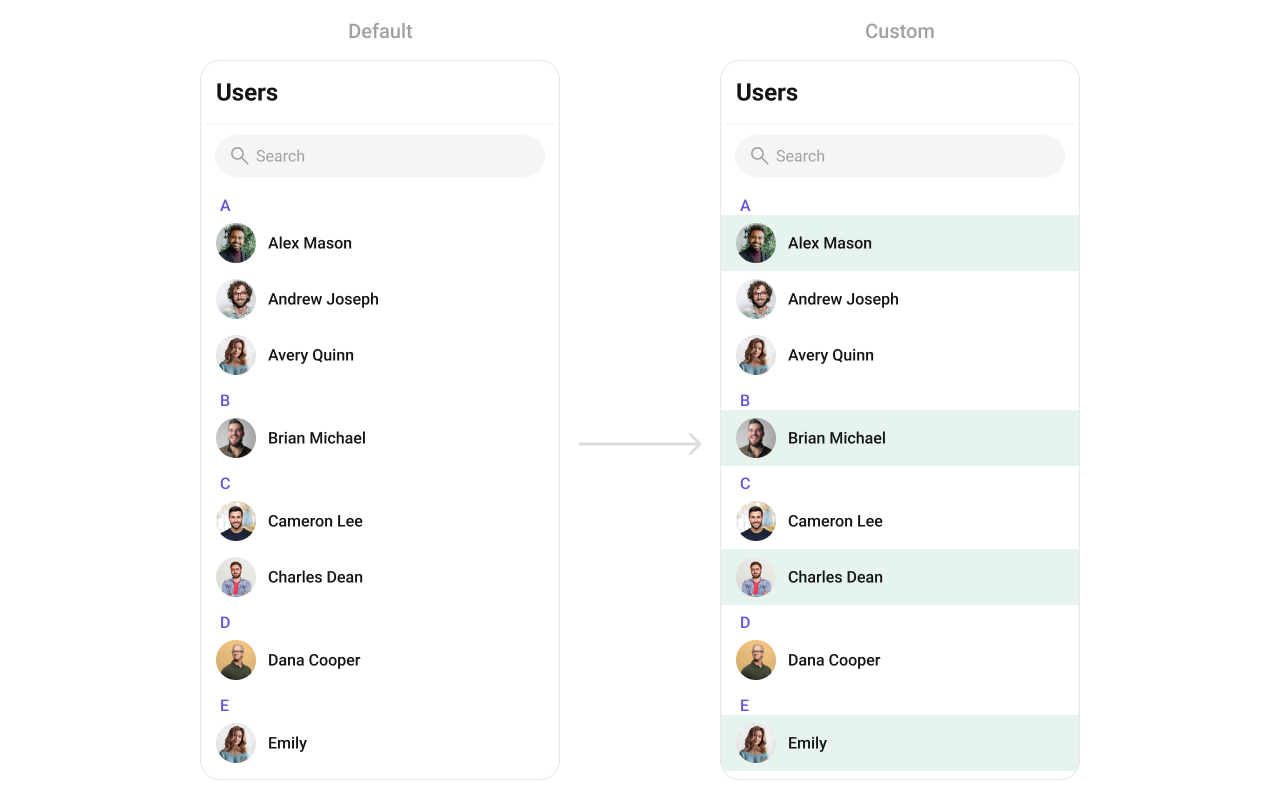
custom_list_item_view.xml:
custom_list_item_view.xml
What this does: Defines a custom list item layout with aInflate the layout insideCometChatAvatarand aTextViewfor the user name, separated by a thin divider line at the bottom.
createView() and use bindView() to initialize and assign values based on the User object:
- Java
- Kotlin
YourActivity.java
What this does: Inflates a custom list item layout and populates it with the user’s avatar and name. If the user’s status isONLINE, the parent layout background is set to a light green (#E6F4ED). If the user is offline, the background is transparent.
setSubtitleView
Customizes the subtitle view of each user item, shown below the user’s name. It can display additional details such as user status or last active time.
- Java
- Kotlin
What this does: Registers aUsersViewHolderListenerthat provides a custom subtitle view for each user item.createViewinflates your layout, andbindViewpopulates it with user data.
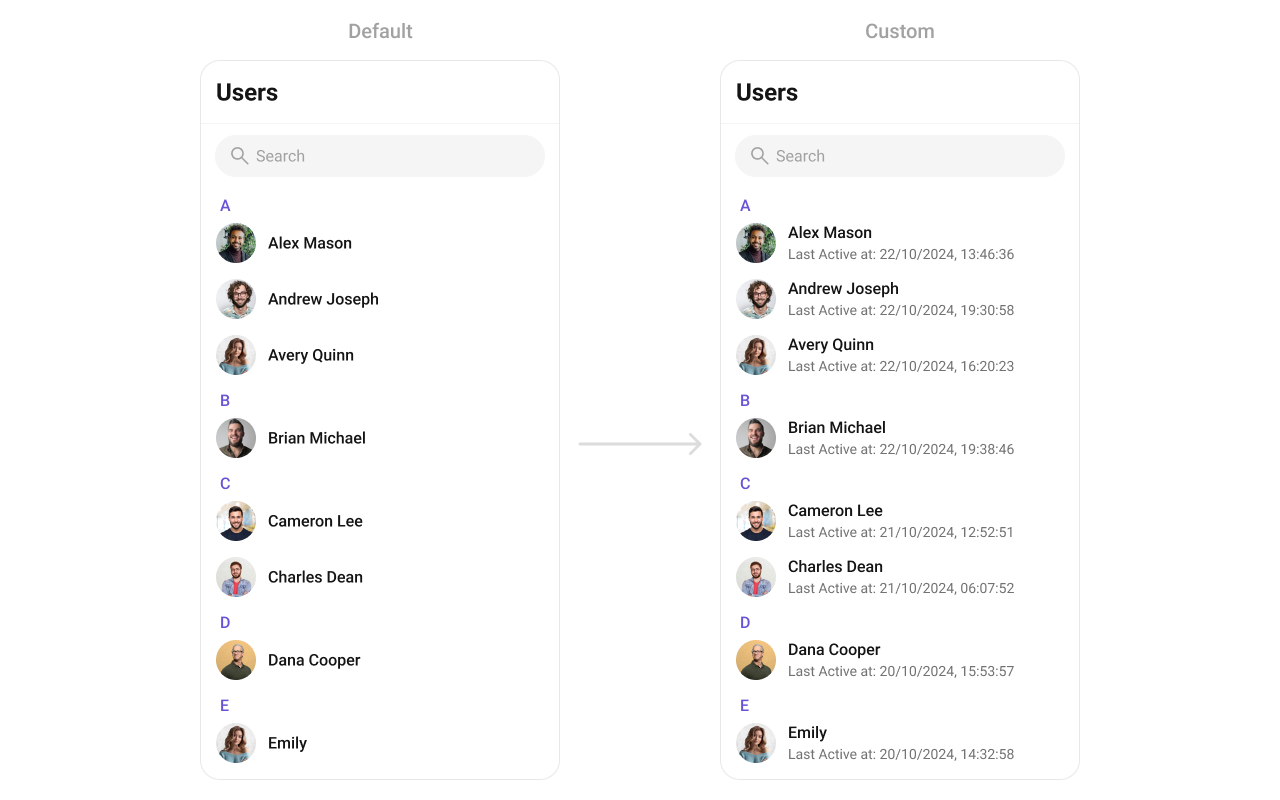
- Java
- Kotlin
What this does: Replaces the default subtitle with a custom TextView that shows “Last Active at:” followed by the user’s last active timestamp formatted as “dd/mm/yyyy, HH:MM:SS” in black text.
setOverflowMenu
Customizes the overflow menu within the Users component. This menu appears as a three-dot (⋮) icon and provides additional options.
- Java
- Kotlin
What this does: Sets a custom View as the overflow menu in the users toolbar. Pass any view (e.g., an icon button, image) to replace the default overflow menu.
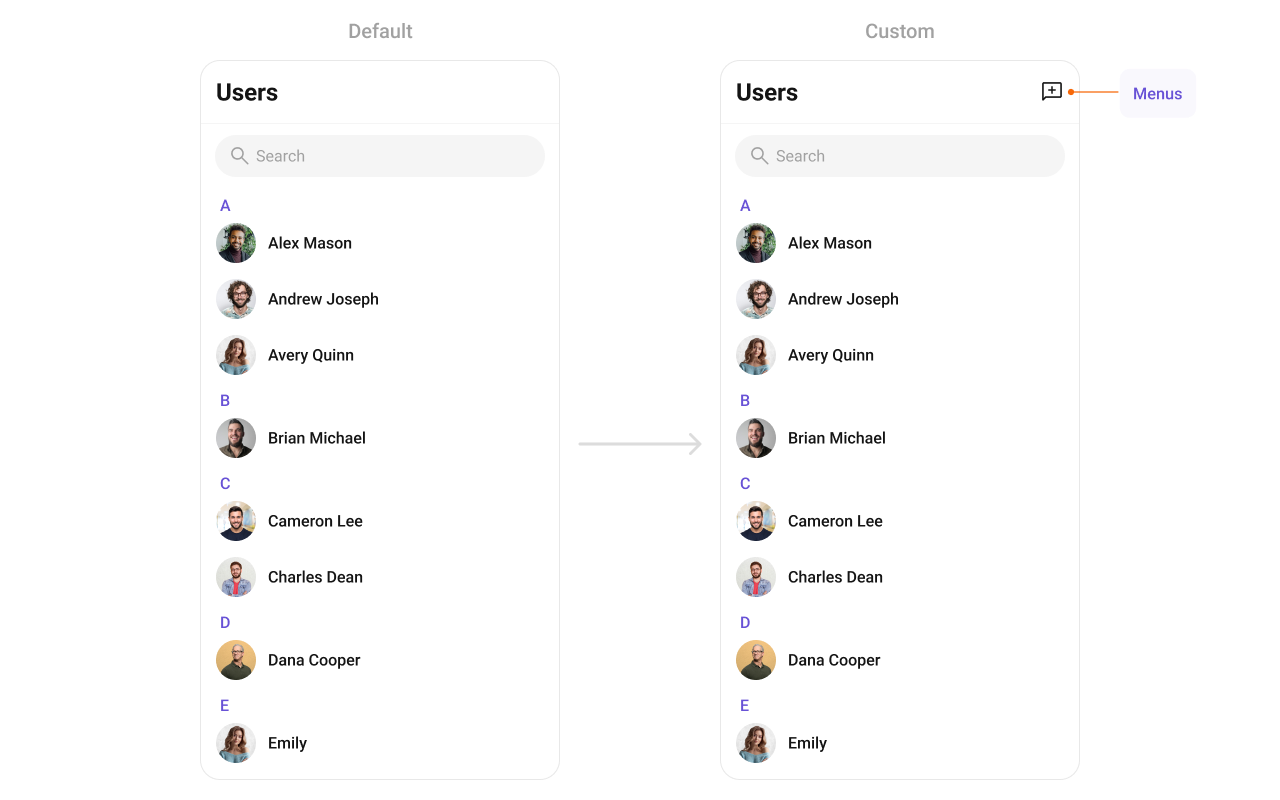
- Java
- Kotlin
What this does: Creates an ImageView with a custom menu icon and sets it as the overflow menu in the users toolbar. The icon appears in the toolbar’s overflow position.
- Verify: After setting any advanced view, confirm the custom view renders in the correct position within the user list item, and the data binding populates correctly for each user.
Customization matrix
| What you want to change | Where | Property/API | Example |
|---|---|---|---|
| Avatar style (corner radius, background) | themes.xml | CometChatUsersStyle with cometchatUsersAvatarStyle | <item name="cometchatAvatarStrokeRadius">8dp</item> |
| Separator color | themes.xml | CometChatUsersStyle with cometchatUsersSeparatorColor | <item name="cometchatUsersSeparatorColor">#F76808</item> |
| Title text color | themes.xml | CometChatUsersStyle with cometchatUsersTitleTextColor | <item name="cometchatUsersTitleTextColor">#F76808</item> |
| Apply a custom style | Activity/Fragment | setStyle(int styleRes) | cometChatUsers.setStyle(R.style.CustomUsersStyle); |
| Back button visibility | Activity/Fragment | setBackIconVisibility(int) | .setBackIconVisibility(View.VISIBLE); |
| Toolbar visibility | Activity/Fragment | setToolbarVisibility(int) | .setToolbarVisibility(View.GONE); |
| Sticky header visibility | Activity/Fragment | setStickyHeaderVisibility(int) | .setStickyHeaderVisibility(View.GONE); |
| Error state visibility | Activity/Fragment | setErrorStateVisibility(int) | .setErrorStateVisibility(View.GONE); |
| Empty state visibility | Activity/Fragment | setEmptyStateVisibility(int) | .setEmptyStateVisibility(View.GONE); |
| Loading state visibility | Activity/Fragment | setLoadingStateVisibility(int) | .setLoadingStateVisibility(View.GONE); |
| Separator visibility | Activity/Fragment | setSeparatorVisibility(int) | .setSeparatorVisibility(View.GONE); |
| User online status visibility | Activity/Fragment | setUsersStatusVisibility(int) | .setUsersStatusVisibility(View.GONE); |
| Selection mode (single/multiple) | Activity/Fragment | setSelectionMode(SelectionMode) | .setSelectionMode(UIKitConstants.SelectionMode.MULTIPLE); |
| Search keyword | Activity/Fragment | setSearchkeyword(String) | .setSearchkeyword("anything"); |
| Search box visibility | Activity/Fragment | setSearchBoxVisibility(int) | .setSearchBoxVisibility(View.GONE); |
| Long-press options (replace) | Activity/Fragment | setOptions(Function2) | See setOptions code above |
| Long-press options (append) | Activity/Fragment | addOptions(Function2) | See addOptions code above |
| Loading view | Activity/Fragment | setLoadingView(int) | cometchatUsers.setLoadingView(R.layout.your_loading_view); |
| Empty view | Activity/Fragment | setEmptyView(int) | cometchatUsers.setEmptyView(R.layout.your_empty_view); |
| Error view | Activity/Fragment | setErrorView(int) | cometchatUsers.setErrorView(R.layout.your_empty_view); |
| Leading view (avatar area) | Activity/Fragment | setLeadingView(UsersViewHolderListener) | See setLeadingView code above |
| Title view | Activity/Fragment | setTitleView(UsersViewHolderListener) | See setTitleView code above |
| Trailing view | Activity/Fragment | setTrailingView(UsersViewHolderListener) | See setTrailingView code above |
| Entire list item | Activity/Fragment | setItemView(UsersViewHolderListener) / setListItemView(UsersViewHolderListener) | See setItemView code above |
| Subtitle view | Activity/Fragment | setSubtitleView(UsersViewHolderListener) | See setSubtitleView code above |
| Overflow menu | Activity/Fragment | setOverflowMenu(View) | users.setOverflowMenu(imageView); |
| Filter users | Activity/Fragment | setUsersRequestBuilder(UsersRequestBuilder) | See Filters code above |
| Search filter | Activity/Fragment | setSearchRequestBuilder(UsersRequestBuilder) | See SearchRequestBuilder code above |
Common pitfalls & fixes
| Pitfall | Fix |
|---|---|
| Component does not render | Ensure CometChatUIKit.init() is called and awaited before using any UI Kit component. If init() has not completed, the component will not load data. |
| User list is empty despite having users | Verify that a user is logged in with CometChatUIKit.login() before displaying the component. The component fetches users for the logged-in user only. |
| Filters not applied | Ensure you call setUsersRequestBuilder(builder) on the CometChatUsers instance after creating and configuring the builder. |
| Custom style not visible | Verify the style parent is CometChatUsersStyle and that you call setStyle(R.style.YourStyle) on the component instance. |
setOnItemClick not firing | If you set setSelectionMode to MULTIPLE, item clicks may be consumed by the selection logic. Set the selection mode to NONE if you need standard click behavior. |
| Event listener not receiving events | Ensure you call CometChatUserEvents.addUserListener with a unique tag. If you use the same tag as another listener, the previous one is replaced. |
| Search not working with custom filter | If you set a UsersRequestBuilder via setUsersRequestBuilder, the search may use different parameters. Use setSearchRequestBuilder to control search behavior separately. |
Custom view returns null in createView | If createView returns null, the default view is used. Return a valid inflated View to replace the default. |
| Sticky header not showing | Ensure setStickyHeaderVisibility is set to View.VISIBLE. If set to View.GONE, the alphabetical sticky headers will not appear. |
| Online status indicator not visible | Ensure setUsersStatusVisibility is set to View.VISIBLE. If set to View.GONE, the online/offline status indicator will not appear next to user avatars. |
FAQ
Q: How do I show only friends in the user list? A: Create aUsersRequest.UsersRequestBuilder, call friendsOnly(true), and pass it to setUsersRequestBuilder.
Q: How do I filter users by role?
A: Create a UsersRequest.UsersRequestBuilder, call setRoles(List<String>) with the desired role names, and pass it to setUsersRequestBuilder.
Q: How do I listen for user blocked/unblocked events outside the component?
A: Use CometChatUserEvents.addUserListener("YOUR_TAG", ...) and override ccUserBlocked and ccUserUnblocked. Call CometChatUserEvents.removeListener("YOUR_TAG") to unsubscribe.
Q: How do I customize the avatar style in the user list?
A: Define a custom style with parent CometChatAvatarStyle in themes.xml, reference it in a CometChatUsersStyle using cometchatUsersAvatarStyle, and apply with setStyle().
Q: How do I add custom long-press options without removing the defaults?
A: Use addOptions instead of setOptions. addOptions appends your custom MenuItem objects to the existing default options.